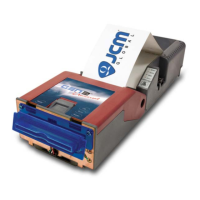
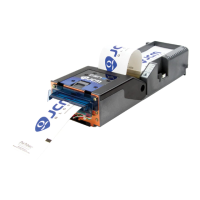
The JCM GEN5™ Printer is a ticket printer primarily used in gaming and other transaction-based environments. It is designed for reliable performance and ease of maintenance, offering various communication protocols and firmware options to suit different applications.
Function Description:
The GEN5™ Printer is designed to print tickets, such as those used in gaming machines, kiosks, or other systems requiring physical transaction records. It supports different communication protocols, including RS-232, Netplex, and USB, which are configured via firmware and DIP switch settings. The printer can be integrated into various systems using its basic driver for testing and troubleshooting. It also features a ticket low sensor, which can be enabled or disabled depending on operational needs. A key function is its ability to print configuration tickets, providing essential firmware and setup information for diagnostics.
Important Technical Specifications:
- Printer Type: GEN5™
- Communication Protocols: RS-232, Netplex, USB (Specific Printer Command (SPC), Human Interface Device (HID) - Gaming Device Standard (GDS), Communications Device Class (CDC) - Windows, Printer Device Commands (PDC) - Coupon Xpress™)
- Firmware Identification:
- Most Manufacturers: Identified by a string starting with '5' (for GEN5), followed by a protocol character ('R' for RS-232, 'N' for Netplex, 'S/H/C/P' for USB types), a 3-digit country code, a 2-digit manufacturer code, and a variable-length version number (e.g., '5RUSABA22.dfu').
- IGT: Identified by a string starting with 'G5' (for GEN5), followed by a protocol character ('N' for Netplex, 'S/H/C/P' for USB types, 'I' for Combo Netplex/SPC), a 3-numeral country code, and a variable-length version number (e.g., 'G5I0012200.dfu').
- DIP Switches: Six (6) DIP switches are located under a rubber boot, adjacent to the USB Update Port, used to set operational parameters that vary by manufacturer.
- Paper Tray Capacity: 300 tickets.
- Power Supply: Requires 24VDC (part number 350-00258-100).
- USB Update Port: Available for firmware updates.
Usage Features:
- Configuration: The printer's protocol and speed are primarily determined by firmware, with fine-tuning possible via DIP switch settings. Users should consult the Software Information Sheet for correct DIP switch settings based on the manufacturer and installed firmware.
- Ticket Low Sensor: This sensor can be disabled by following a specific procedure involving removing the ticket, opening the lid, covering the ticket taken sensor, closing the lid, and holding the FEED button for three seconds. The status of the sensor (enabled/disabled) is indicated by the flashing of the GREEN READY or RED FAULT LED, respectively.
- Configuration Ticket Printing: To print a configuration ticket with current firmware and setup information, ensure paper is loaded and press the FEED button twice within two seconds.
- JCM Printer Basic Driver: A software tool used for testing and troubleshooting. It allows users to select communication protocols (RS-232 or Netplex) and COM port numbers, displaying printer status and enabling various commands. Printers with USB firmware always have RS-232 communications active.
- Firmware Updates: Firmware can be updated using either the JCM DFU Downloader application or the JCM BlueWave™ DX Tool (P/N 214780).
- JCM DFU Downloader: Connects via a USB cable to the printer's USB Update Port. The application detects the connected device, allows selection of firmware files, and performs a "Full Upgrade," optionally erasing user settings.
- BlueWave™ DX Tool: A handheld device that connects to the printer via a USB Male "A" to Male "B" cable. Firmware files are stored on an SD card in a "GEN5 System" folder. The tool allows users to scroll through available firmware versions and initiate downloads.
- LED Indications:
- Bezel LED: Provides status information: Solid ON (ready/idle), Slow Blink (paper low/printer error), Fast Blink (ticket printing/ticket in chute), OFF (power off).
- Status LEDs (GREEN, YELLOW, ORANGE, RED): Indicate operational state and error conditions such as No Power, Ready, No Ticket Detected, Paper Jam, Printer Lid Open, Firmware Problem, and Hardware Fault.
Maintenance Features:
- Cleaning Procedures: Regular cleaning is crucial for optimum performance and to prevent issues like frequent paper jams, partial print output, or light print quality. JCM recommends cleaning at least once a year, with more frequent cleaning in dusty or smoke-filled environments.
- Cleaning Kit: The JCM Printer Cleaning Kit (P/N 350-00292-100) includes alcohol wipes, cleaning swabs, and feed-through cleaning cards.
- Sensor Cleaning: Sensors (Printer Tray, Ticket Low, Lid Open, Ticket Taken) should be wiped clean with an alcohol swab. The Paper Out (Index Mark) sensor should be cleaned with non-flammable compressed air.
- Print Head and Rollers Cleaning: The Print Head surface should be wiped clean with a new cleaning swab. Print Head Rollers and Presenter Assembly's Feed Rollers should be turned by hand and wiped with a new cleaning wipe or a microfiber cloth dampened with Isopropyl Alcohol.
- Cleaning Card Procedure: For quick cleaning of the Print Head and Paper Path, a cleaning card can be used. After removing ticket stock, insert the cleaning card into the Ticket In Slot, press and hold the Feed Button to feed it through, then remove it from the Ticket Out Slot. It is recommended to feed 2-3 tickets afterward to remove alcohol residue. Each cleaning card is for single use only.
- Error Conditions: The manual provides a comprehensive table of error conditions (e.g., Paper Out, Temperature, Voltage, Print Head, Missing Black Index Mark, Paper Jam) along with their descriptions and recommended resolutions. These resolutions range from loading new paper to cycling power, servicing the unit, or inspecting the paper path.
- Maintenance Equipment: A list of recommended maintenance equipment is provided, including the Cleaning Kit, Evaluation Harness, 24VDC Power Supply, various USB cables and adapters, a 4 Port Hub, and the BlueWave™ DX (DT-300) Unit.

 Need help?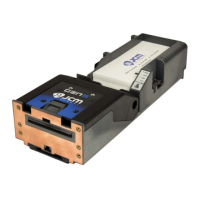

 To Next Page

 General