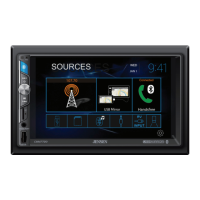
8. Touch the “Pair” icon on the unit’s BT user interface screen.
9. A prompt to pair or bond should appear on your mobile phone. Accept the
request and initiate the process.
NOTE: Some mobile phones require a “pass key” or pairing code to
connect. If your phone requires a pass key or pairing code, you will
need to enter this number. The default pairing code for the VX4025 is
"5309".
10.
A prompt to enter a PIN number or passkey for the unit should appear. The
default passkey for the unit is “5309”.
11. At this point a prompt stating pairing successful should appear. Another
prompt should appear asking connect to the unit, Yes or NO. Touch Yes. The
mobile phone and the unit should connect. The mobile phone should display
a message similar to “Device Connected” and the mobile phone and the unit
are now connected. VX4025 will appear on the mobile phone list of devices.
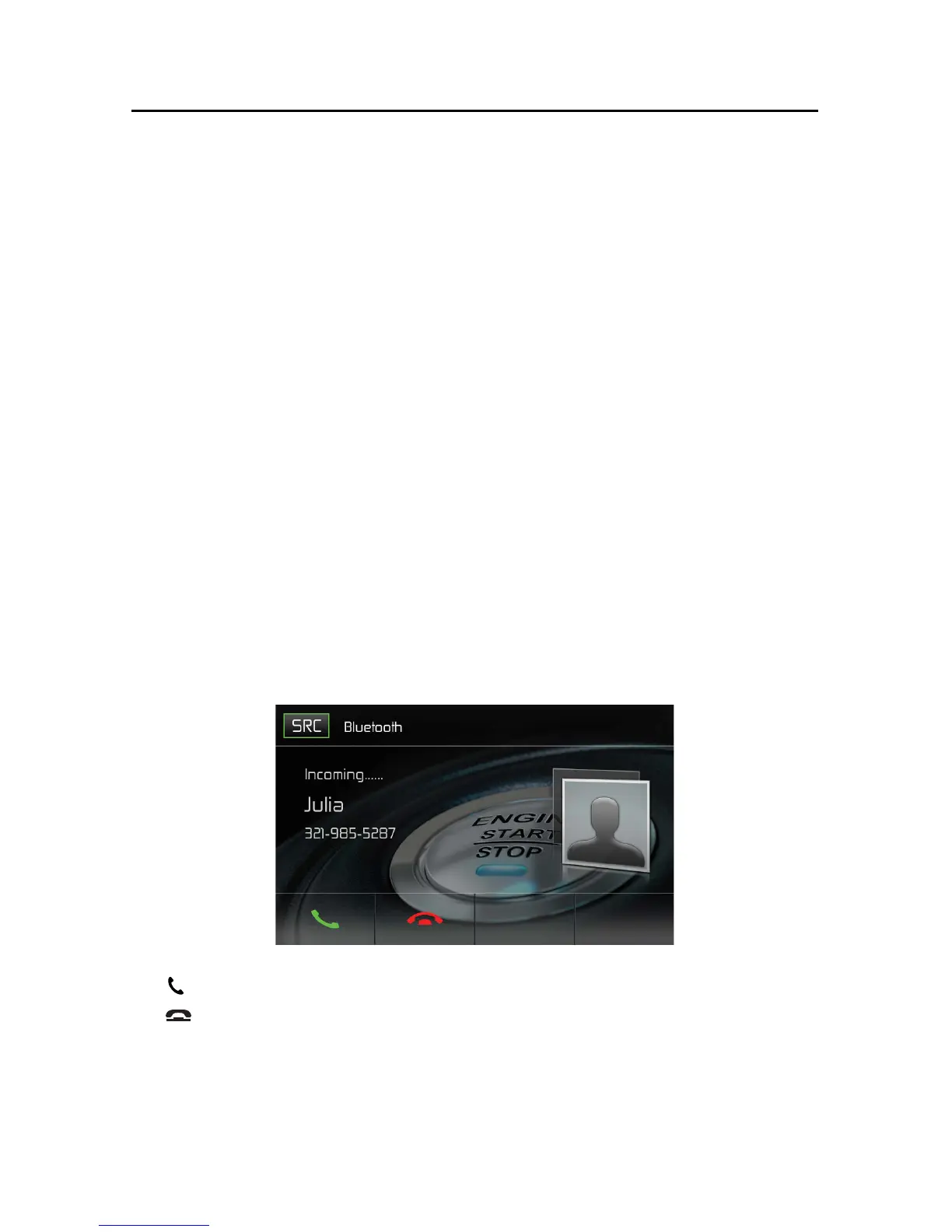
Managing Incoming Calls
When connected to a BT mobile phone, the unit will mute audio output, pause CD
play, and change to the BT screen below when a call is received. The incoming
phone number or assigned name for that number will appear on the screen. An
audible tone will sound from the unit and a graphic display will appear on the
front panel.
BT Incoming Call Screen
1.


 To Next Page