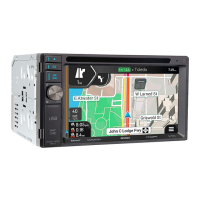
It show the available destinations and the road numbers. See page 17.
By tapping it, you can check the details of the next few service stations (gas
stations, restaurants) when traveling on a freeway. See page 19.
By tapping it, you can open the Navigation menu, where you can reach
other parts of .
It shows the current street name.
By tapping it, you can open the Where Am
I screen. See page 71.
They display hills, mountains, roads, landmarks, and buildings in 3D.
If you are approaching a freeway exit or a complex intersection and the needed information exists, the
map is replaced with a 3D view of the junction. See page 18.
When enter
ing a tunnel, the map is replaced with a generic tunnel image. See page 18.
2.3.1 Streets and roads
VX7020A shows the streets similarly to paper road maps. Their width and colors correspond to their
importance;
you can easily tell a freeway from a small street.
2.3.2 GPS position markers
When your GPS position is available, the VX7020A marks your current position. By default, this marker
is a blue arrow. The dot near the arrow shows the GPS position as perceived by the GPS
receiver.
The exact location of the current position marker depends on the vehicle type used for route calculation
and the navigation mode. Both can be set in Route preferences (page 74).
• If you choose pedestrian and/or off-road navigation, the position marker is at your exact GPS
position. The direction of the icon shows your current heading.
14



 To Next Page