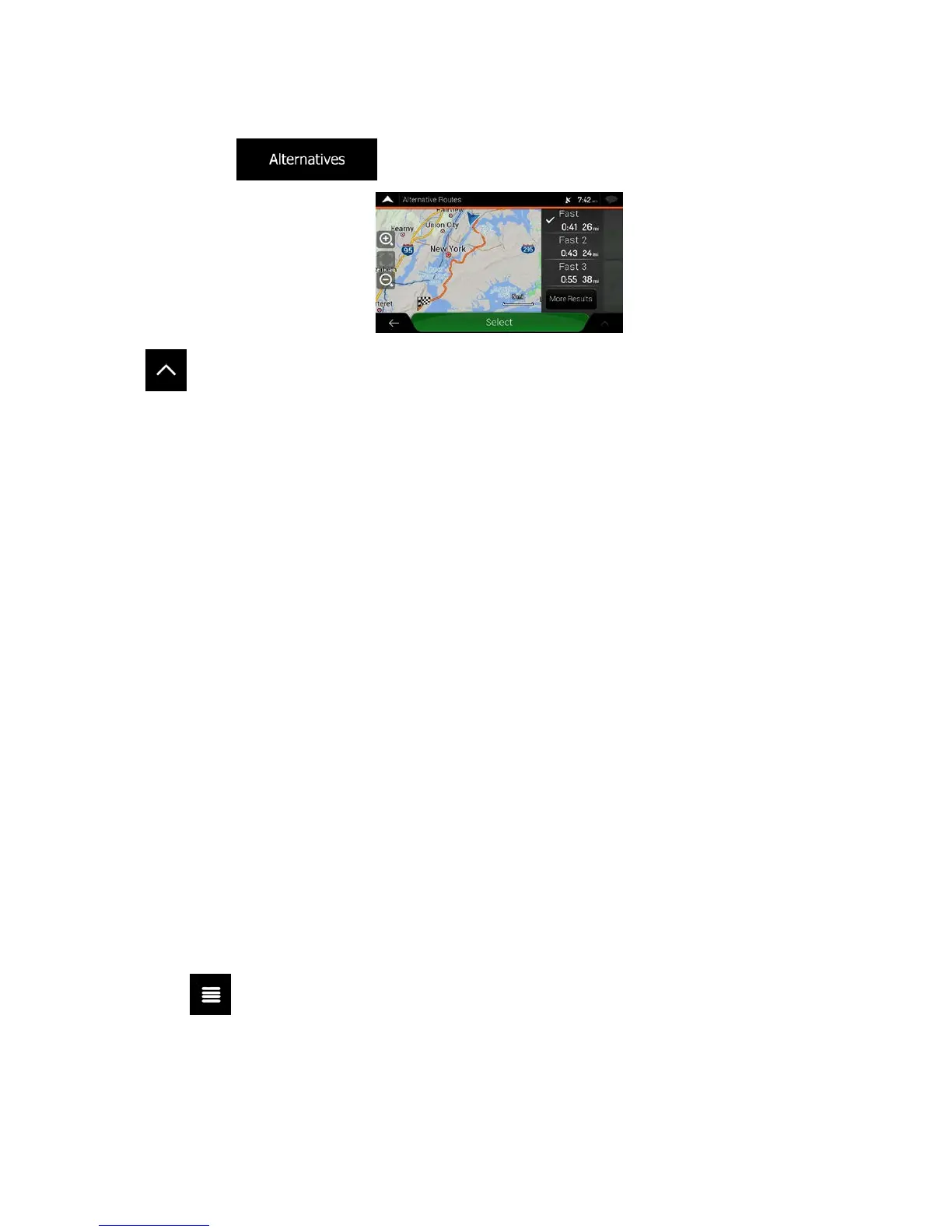
• Tap
to list route alternatives and select the most suitable route for you.
Tap
on the Route Summary screen to carry out additional actions, for example edit your route
preferences or display the itinerary.
3.3 Editing the route
When navigation has already started, there are several ways to modify the planned route. You have the
following options:
• Setting a new starting point, see page 52
• Add
ing an additional destination, see page 54
• Modi
fying the list of destinations, see page 54
• Saving the planned route, see page 55
• Del
eting the planned route, see page 56
• Selecting a route alternative when planning the route, see page 56
• Sel
ecting a route alternative for an existing route, see page 57
• Pausing guidance, see page 58.
3.3.1 Setting a new starting point
For normal navigation, all routes are calculated from the current position. You can pause navigation to
check future routes, simulate them or see their length in time and distance. Then you can set the starting
point of the route to a location other than the current GPS position.
1. Tap
on the Navigation view to access the Navigation menu.
52



 To Next Page