Page 12
Icon 15 Icon 16
Icon 17
Icon 19 Icon 20
Icon 18
Icon 21 Icon 22
Icon 11
Icon 12
Icon 13
Icon 14
3.2.4 RIM DATA INPUT
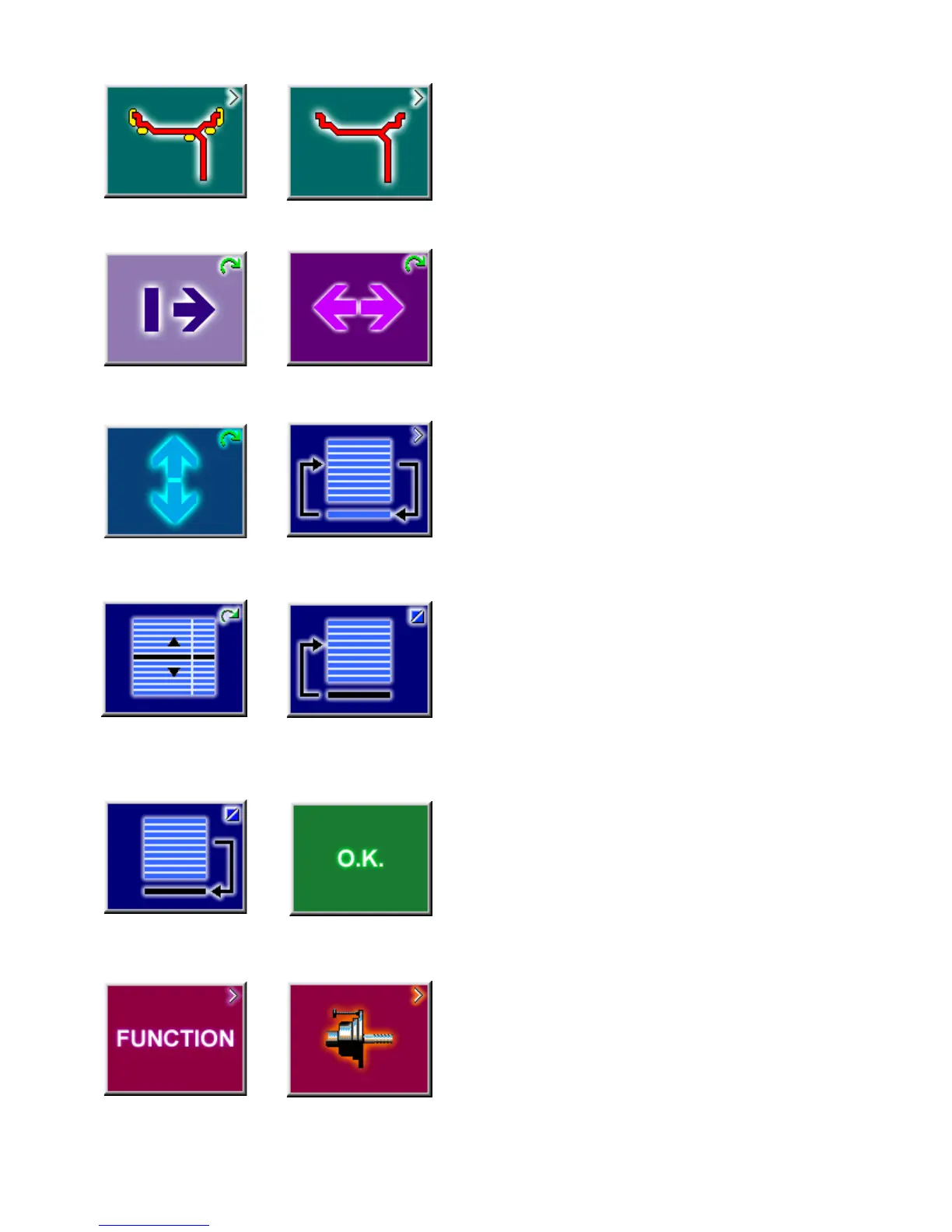
Icon 11 Change to the WEIGHT PLACEMENT (mode)
screen.
Icon 12 Change to the RIM TYPE screen
Icon 13 Hold key down and enter the distance rim/
machine by rotating the wheel
Icon 14 Hold key down and enter the rim width by
rotating the wheel
Icon 15 Hold key down and enter rim diameter by
rotating the wheel
Icon 16 Change to the Stored Parameter menu. Must
be in the “Manual” parameter mode
3.2.5
PROFILES SCREEN, STORED PARAMETERS
Icon 17 Select or store a wheel profile. Hold key down
and select copy or store by rotating the wheel.
Icon 18 Store a parameter. Select memory location to
store current wheel profile for later retrieval (yellow
arrow). Select “OK” to enter the values currently in use
to a stored location.
Icon 19 Copy a stored parameter. Select memory
location for retrieval (yellow arrow). Select “OK” to enter
the values stored for use in the next balance run.
Icon 20 Accept or enter the selected parameters.
3.2.6 FUNCTION MENU
Icon 21 From the Main Menu, Select FUNCTION to
access screens used to prepare the unit for desired
operation.
Icon 22 Change to the screen USER CALIBRATION,
see Maintenance chapter for user calibration
procedures.


 To Next Page