EasyManua.ls Logo

John Bean BFH 1000 - User Manual

John Bean BFH 1000
46 pages
Print Icon
To Next Page IconTo Next Page
Loading...
COMPUTER RIDE DIAGNOSTIC
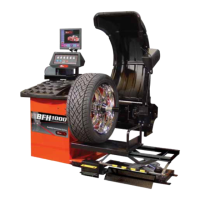
WHEEL BALANCER
OPERATION INSTRUCTIONS
Form ZEEWB519A rev C July, 2006
BFH 1000 and BFH 1000 Super
EEWB519A and EEWB519S
Question and Answer IconNeed help?

Do you have a question about the John Bean BFH 1000 and is the answer not in the manual?

Summary

SAFETY INFORMATION

Save Instructions Notice

Crucial instruction to save and retain the safety instructions for future reference.

IMPORTANT SAFETY INSTRUCTIONS

1.0 INTRODUCTION

BFH Ride Diagnostics Balancer Precautions

Precautions to ensure continuous and satisfactory operation of the BFH 1000 Series Balancer.

1.1 SAFETY NOTICE

1.2 BALANCER APPLICATION

1.3 BFH 1000 SPECIFICATIONS

1.4 FEATURES

1.5 STANDARD ACCESSORIES

1.6 OPTIONAL ACCESSORIES

PRE-INSTALLATION CONSIDERATIONS

1.7 DIMENSIONS OF THE MACHINE

1.8 INSTALLATION AREA REQUIREMENTS

1.9 INSTALLATION PRECAUTIONS

2.0 INSTALL ACCESSORY PINS

2.1 ELECTRIC INSTALLATION

2.2 SETUP

2.2.1 Customizing the Screen

How to customize display settings on the balancer's screen.

2.2.2 CUSTOMIZING OPTIMA FEATURES

3.0 Physical Layout

3.1 The Display Screen

Explanation of the display screen elements, information fields, and menu fields.

3.2 Menu Keys

3.2.1 Description of Menu Keys

Detailed explanation of the function and use of the F1-F6 menu keys and other control buttons.

3.2.2 MAIN MENU FUNCTIONS

3.2.3 BALANCING

Specific section detailing the balancing procedures and options.

3.2.4 RIM DATA INPUT

3.2.5 PROFILES SCREEN, STORED PARAMETERS

How to manage, store, and retrieve wheel profiles and parameters for repeated use.

3.2.6 FUNCTION MENU

Accessing screens used to prepare the unit for desired operation.

3.2.7 TEXT EDITOR

3.2.8 FUNCTION (SETUP)

Navigating and using the setup menu to configure various machine functions and settings.

4.0 Help information

5.0 POWER CLAMP

5.1 POWER CLAMP PEDAL

Explanation of the power clamp pedal, its shaft lock, and operation for clamping wheels.

6.0 OPERATION OF THE BALANCER

6.1 CHECK LIST - INSPECTION

Steps for inspecting the wheel and tire assembly before starting the balancing process.

6.2 BALANCE SCREEN DESCRIPTION

Begin Balance procedures

6.2.1 WHEEL MOUNTING

Procedures for mounting wheels onto the balancer shaft for accurate balancing.

6.2.2 STANDARD WHEELS (BACK CONE MOUNT)

Specific steps for mounting standard wheels using back cone mount.

6.2.3 CENTERING LIGHT-TRUCK WHEELS

Method for centering light-truck wheels, possibly requiring specific adaptors.

6.3 SCAN MODE SELECTION

6.4 SPINNING THE WHEEL

6.5 SELECTING THE WEIGHT PLACEMENT

Guide to choosing the correct weight placement mode (e.g., 2-Plane, Static).

6.6 CORRECTION OF THE IMBALANCE

6.7 VERIFICATION OF THE RESULTS

How to re-spin the wheel to confirm the imbalance has been corrected to zero.

6.8 VIBRATION PROBLEMS

7.0 SPOKE BALANCING MODE

Using the Spoke Mode to hide weights behind spokes for aesthetic reasons.

8.0 BFH 1000 Procedures

8.1 Selecting Mode

Choosing between Profiling and full BFH 1000 modes for the balance run.

8.2 Begin Diagnostic Run

Steps to start a diagnostic run, including profiling and imbalance calculation.

8.3 BFH 1000 Geometric Matching

8.4 Bare Rim Diagnosis

9.0 OptiLine, Balancing a Set of Wheels

9.1 OptiLine Customer Calibration

9.0 USER CALIBRATION

10.0 EXPLANATION OF PROGRAM CODES

11.0 MAINTENANCE

12.0 TROUBLE SHOOTING

Guidance on diagnosing and resolving common problems encountered with the balancer.

John Bean BFH 1000 Specifications

General IconGeneral
BrandJohn Bean
ModelBFH 1000
CategoryAutomobile Accessories
LanguageEnglish