Other settings
Changing the network name (SSID) and password
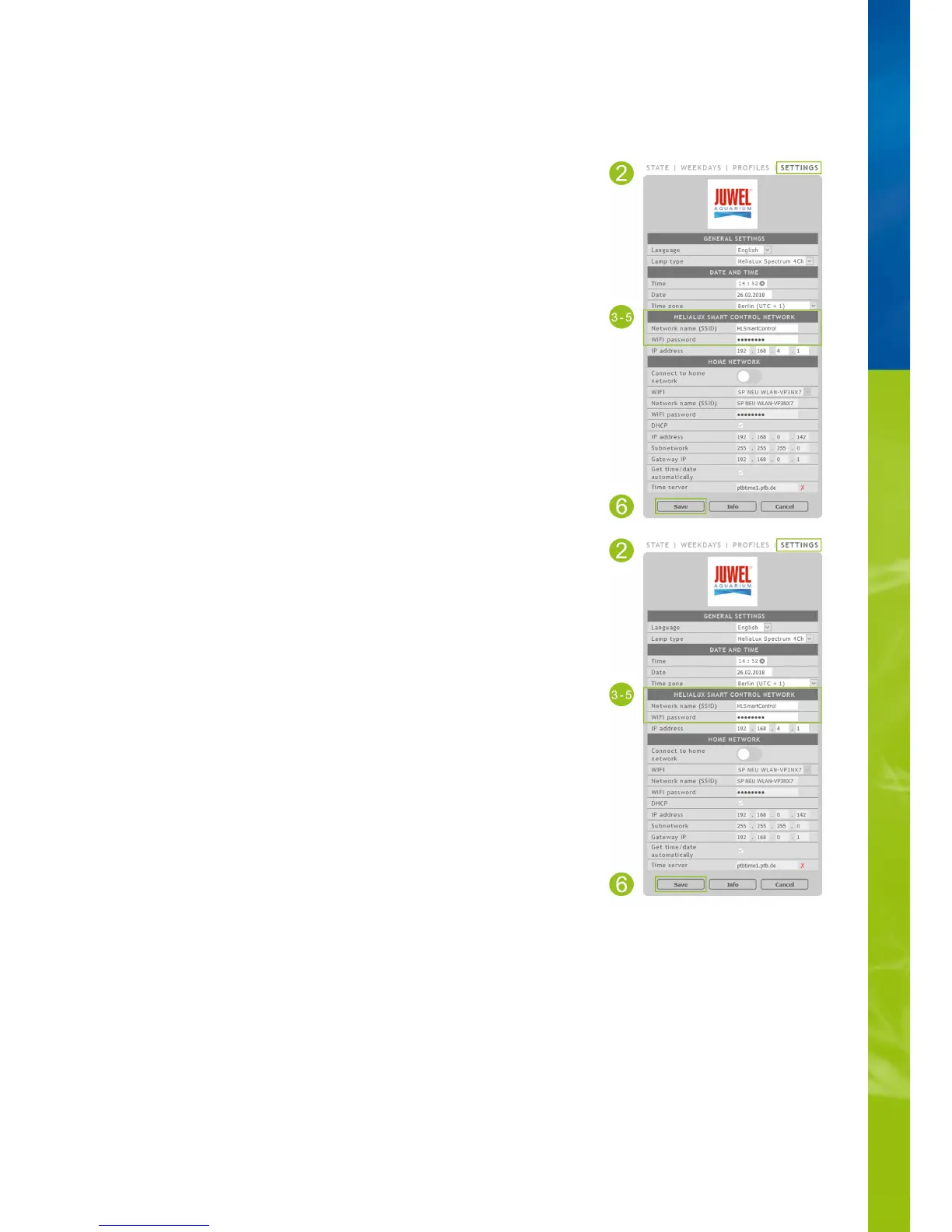
Please proceed as follows to configure the network name and password:
1. Connect to the HeliaLux SmartControl's user interface.
2. Select the main '
Settings
' menu item.
3. Navigate to the '
HeliaLux SmartControl network
' item.
Important
Please ensure that the '
Connect to home network
' sliding controller has been disabled.
4. Assign a new unique network name to your HeliaLux SmartControl in the '
Network
name (SSID)'
input field.
Notice
Network names (SSID) may not contain any spaces, special characters or
umlauts.
5. Create a new secure Wi-Fi password for your HeliaLux SmartControl in the '
Wi-Fi
password
' input field.
Info
Secure passwords contain at least 8 characters and use uppercase and lowercase letters,
digits and special characters.
6. Click the '
Save
' button to confirm your choice. Your device will reboot.
7. Establish the connection to your SmartControl's newly created Wi-Fi network (please
refer to 'Establishing a connection to the user interface using Access Point Mode').
Via AP mode, please refer to '
Establishing a connection to the user interface via
Access Point Mode
'.
•
Via the home network, please refer to '
HeliaLux SmartControl in home networks
'.•


 To Next Page