60 EN
P
L
A
Y
/
P
C
O
F
F
C
A
M
E
R
A
5
S
D
S
C
D
S
C
P
L
A
Y
OFFIrTran-P
PROTECT
TITLE DELETE
FORMAT
FILE DELETE
SAME 16
INDEX
SLIDE SHOW
MULTI VIEW
END
4
Multi-Image Screen
There are 3 Multi-Image screens that can be created: 4-
split screens composed of the same image, 16-split screens
composed of the same image and 4-split screens com-
posed of different, user-selected images.
1
SELECT OPERATION MODE
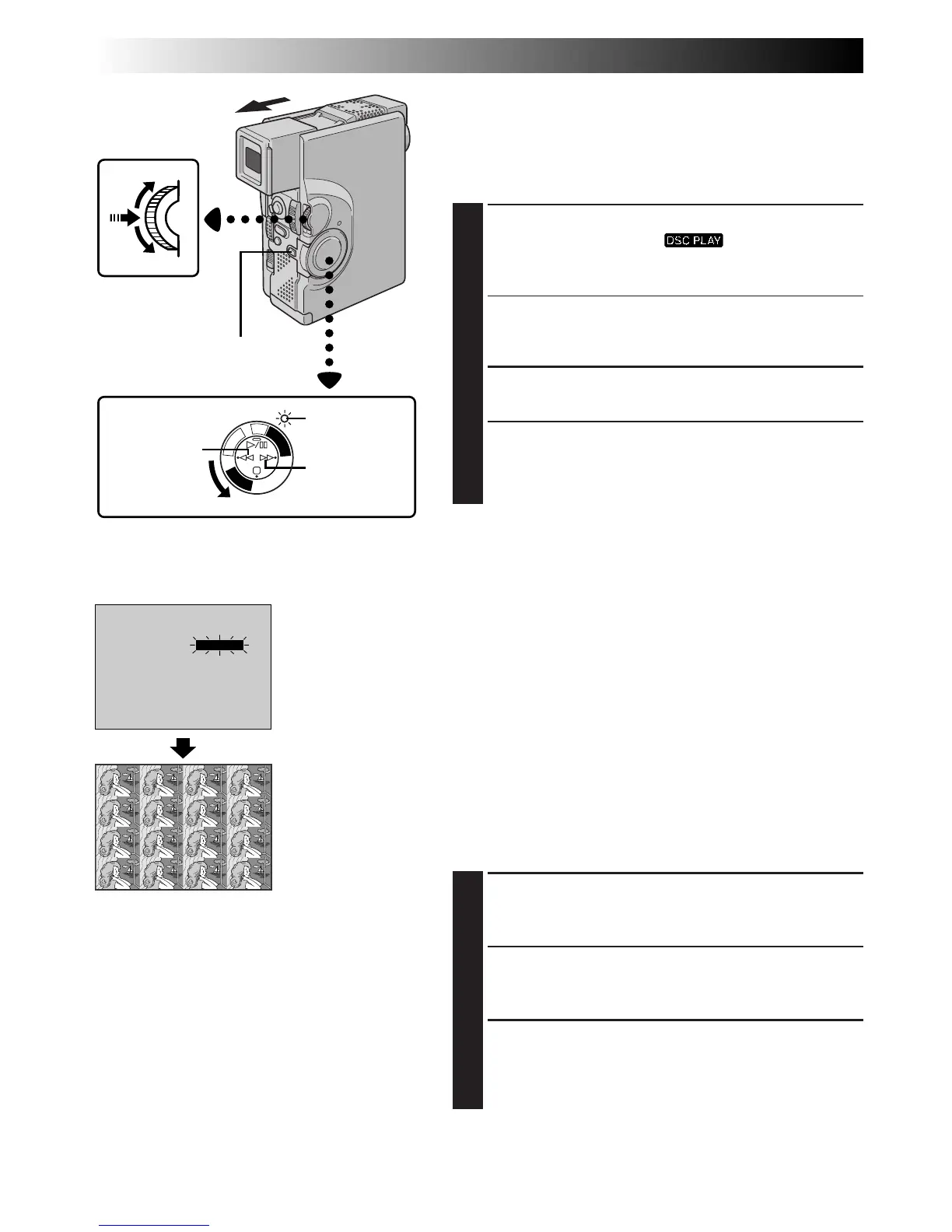
Set the Power Switch to “ ” while pressing
down the Lock Button. Open the LCD monitor fully or
pull out the viewfinder fully.
•A stored image is displayed.
•To create a Multi-Image screen using the same
image, select an image before performing step 2.
2
ACCESS PLAYBACK MENU
Press MENU/SET. The Playback Menu appears.
3
SELECT FUNCTION
Rotate MENU/SET to move the highlight bar to
“MULTI VIEW” and press it. The selected parameter
blinks.
NOTES:
●
By printing a Multi-Image screen to a printer that
supports sticker sheets, you can create stickers of any
image you like. For details, read your printer’s instruc-
tion manual.
●
To create a Multi-Image screen using the same image
with a title/frame, first select the title/frame, referring to
“Superimposing A Title/Frame” (
Z
pg. 69), and then go
to step 2 above.
●
If a title/frame is superimposed over the playback picture
before step 2 is performed above, it will be impossible to
set “MULTI VIEW” to “SELECTED 4”.
TO CREATE A MULTI-IMAGE SCREEN
USING THE SAME IMAGE
Before doing the following, perform steps 1 through 3
above.
4
SELECT MODE
Rotate MENU/SET until the “SAME 4” or “SAME 16”
appears.
5
CREATE MULTI-IMAGE SCREEN
Press MENU/SET. A Multi-Image screen displaying 4
or 16 frames of the same image appears.
6
END MULTI-IMAGE SCREEN
Set “MULTI VIEW” to “OFF” in the Playback Menu.
OR
Press
3
or
2
to display another image.
Display
Power Switch
MENU/SET Dial
Lock Button
Power lamp
Playback Menu
Multi-Image screen
Rewind (
2
)
Button
Fast-Forward
(
3
) Button
PLAYBACK
Advanced Features For D.S.C. (cont.)
NOTE:
If you wish to change the still images which
make up the Multi-Image screen, go back to
normal playback and change the “MULTI
VIEW” setting in the Playback Menu.


 To Next Page