Adjusting the Touch Panel
Adjusts the response position of the buttons on the touch screen.
*The following is a screen of the model with Wi-Fi functions.
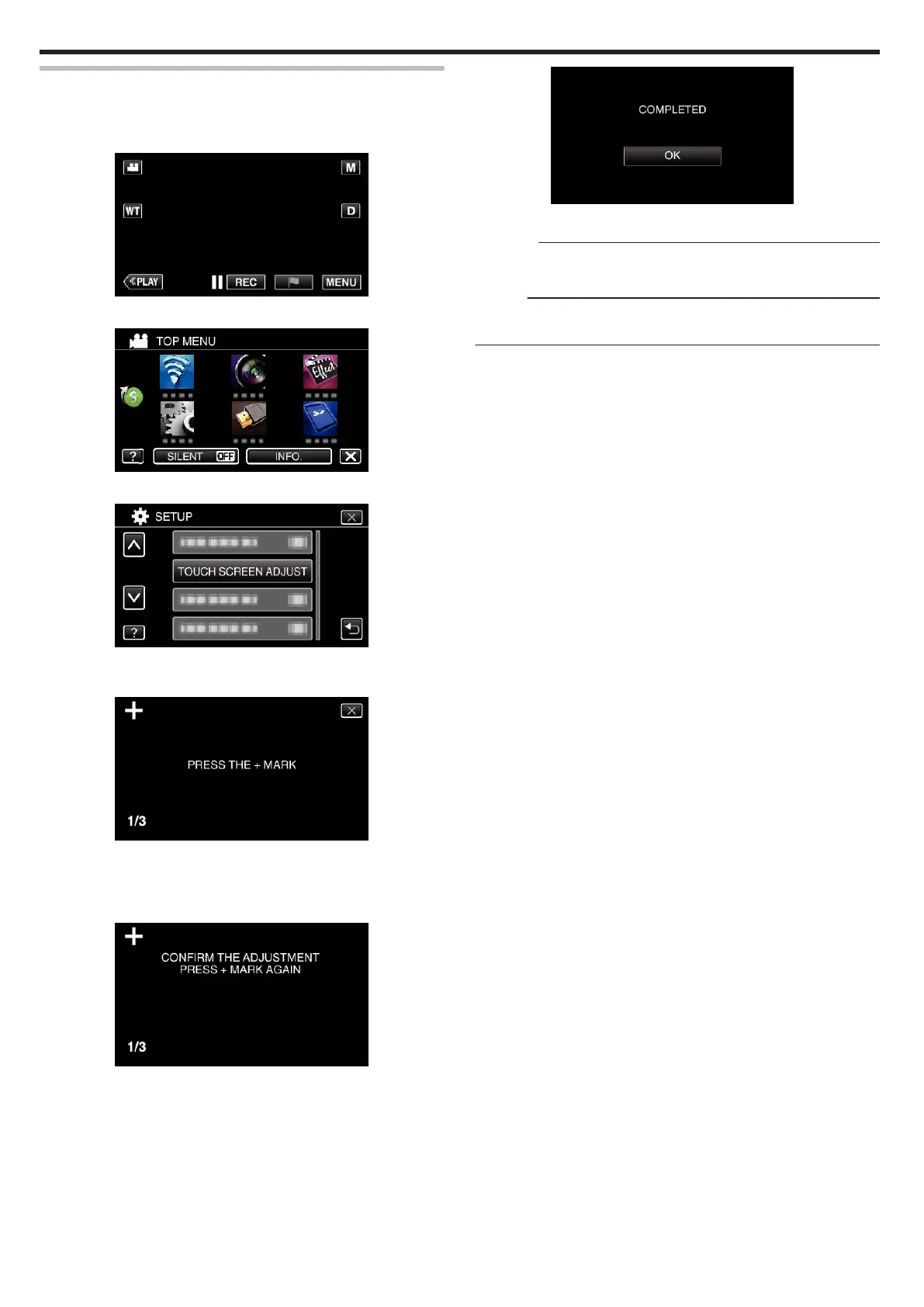
1
Tap “MENU”.
.
2
Tap “SETUP”.
.
3
Tap “TOUCH SCREEN ADJUST”.
.
0
The touch screen adjustment screen appears.
4
Tap “+”. (3 times in total)
.
0
Keep tapping “+” as its position changes with every tap.
0
If areas other than the “+” mark are tapped, errors will occur. Make
sure to tap the “+” mark.
5
Tap “+” again to confirm the adjusted positions. (3 times in total)
.
0
Keep tapping “+” as its position changes with every tap.
6
Tap “OK”.
.
0
Setting ends and returns to the menu screen.
Caution :
0
Do not tap areas other than the “+” mark during touch screen adjustment
(steps 4 - 5). Doing so may cause the touch screen to malfunction.
Memo :
0
Adjust by lightly tapping with the stylus pen.
0
Do not press with an object with a sharp tip or do not press hard.
Getting Started
18


 To Next Page