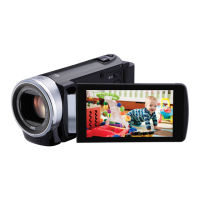
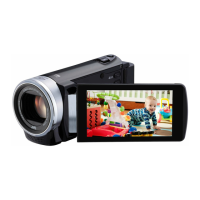
Names of Buttons and Functions on the LCD Monitor
The following screens are displayed during the video and still image modes,
and operate as the touch screens.
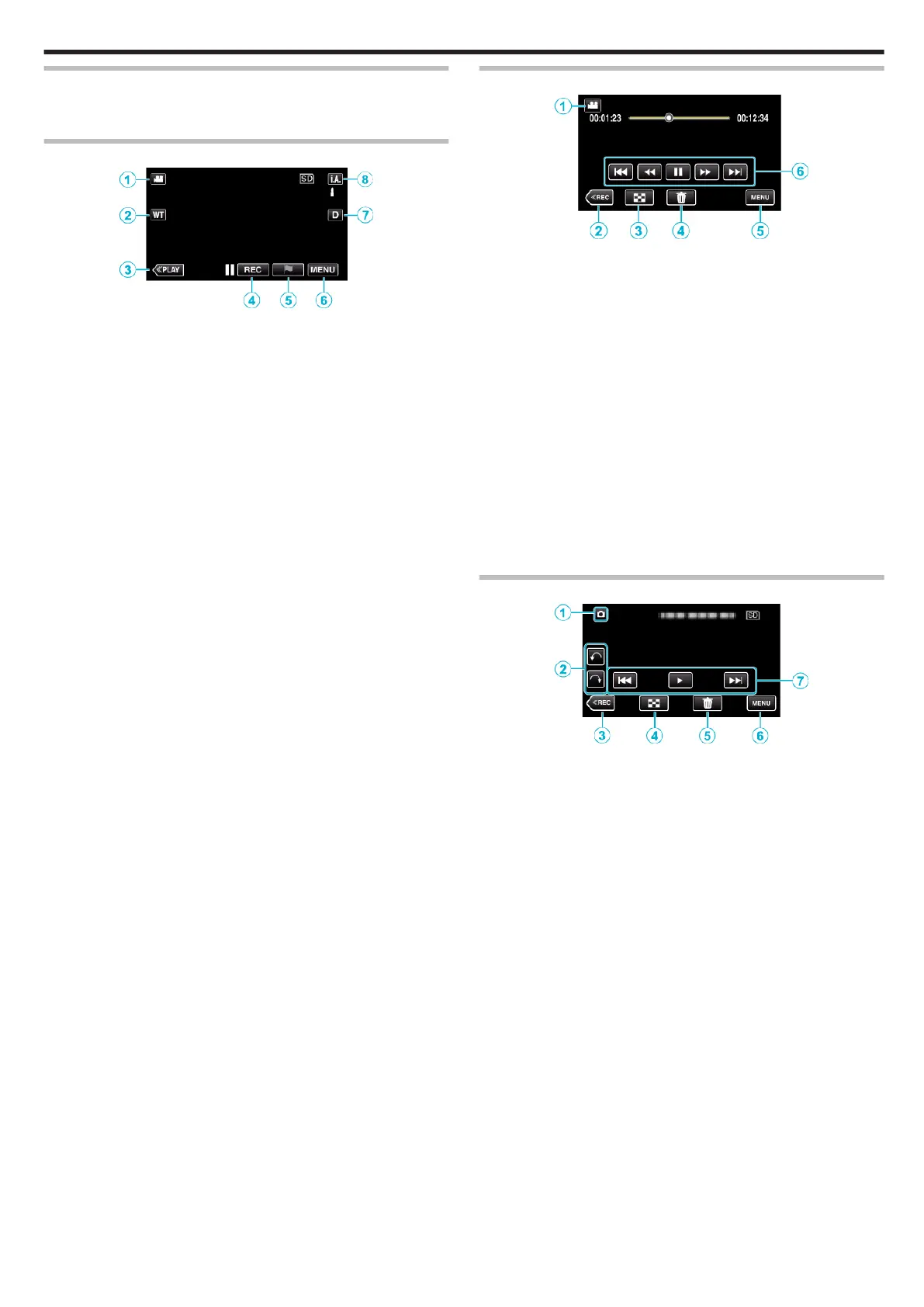
Recording Screen (Video/Still Image)
.
1
A/B (Video/Still Image) Mode Button
0
Switches between video and still image modes.
2
Zoom Button
“Zooming” (A p. 32)
3
Playback Mode Button
0
Switches to the playback mode.
4
Recording Start/Stop Button
0
6: Video Recording Start Button
0
7: Video Recording Stop Button
0
Q: Still Image Recording Button
5
Mark Button (for video only)
0
By tapping the icon while recording is in progress, you can mark a
particular scene to make it easier to find it.
“Marking the Video While Recording” (A p. 55)
6
Menu Button
“Operating the Menu” (A p. 228)
7
Display Button
Switches the display between full (
m
) and simple (
n
) with every tap of
the button.
0
Simple display: Some displays disappear after approximately 3
seconds.
0
Full display: Displays everything. The display button changes from n
to m.
0
When the power is turned off, simple display (n) will be set.
8
Recording Mode Button
Switches the recording mode between P Intelligent Auto and H
Manual.
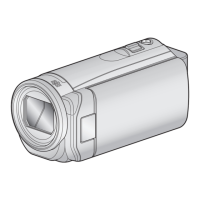
Playback Screen (Video)
.
0
Operations buttons on the touch screen disappear if the unit is not
operated for about 5 seconds. Tap on the screen to display the operation
buttons again.
1
A/B (Video/Still Image) Mode Button
0
Switches between video and still image modes.
2
Recording Mode Button
0
Switches to the recording mode.
3
Index Screen (Thumbnail Display) Button
“Operation Buttons for Video Playback” (A p. 67)
4
Delete Button
“Deleting the Currently Displayed File” (A p. 84)
5
Menu Button
“Operating the Menu” (A p. 228)
6
Operation Buttons
“Operation Buttons for Video Playback” (A p. 67)
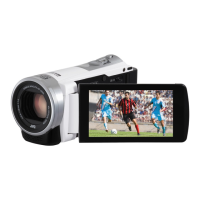
Playback Screen (Still Image)
.
0
Operations buttons on the touch screen disappear if the unit is not
operated for about 5 seconds. Tap on the screen to display the operation
buttons again.
1
A/B (Video/Still Image) Mode Button
0
Switches between video and still image modes.
2
Rotate Button
Rotates a still image 90°. (Clockwise/Counterclockwise)
3
Recording Mode Button
0
Switches to the recording mode.
4
Index Screen (Thumbnail Display) Button
“Operation Buttons for Still Image Playback” (A p. 78)
5
Delete Button
“Deleting the Currently Displayed File” (A p. 84)
6
Menu Button
“Operating the Menu” (A p. 228)
7
Operation Buttons
“Operation Buttons for Still Image Playback” (A p. 78)
Getting Started
19


 To Next Page