Capturing a Still Image in the Video During
Playback
You can capture still images of the scenes you like in the recorded videos.
0
*The following is a screen of the model with the built-in memory.
1
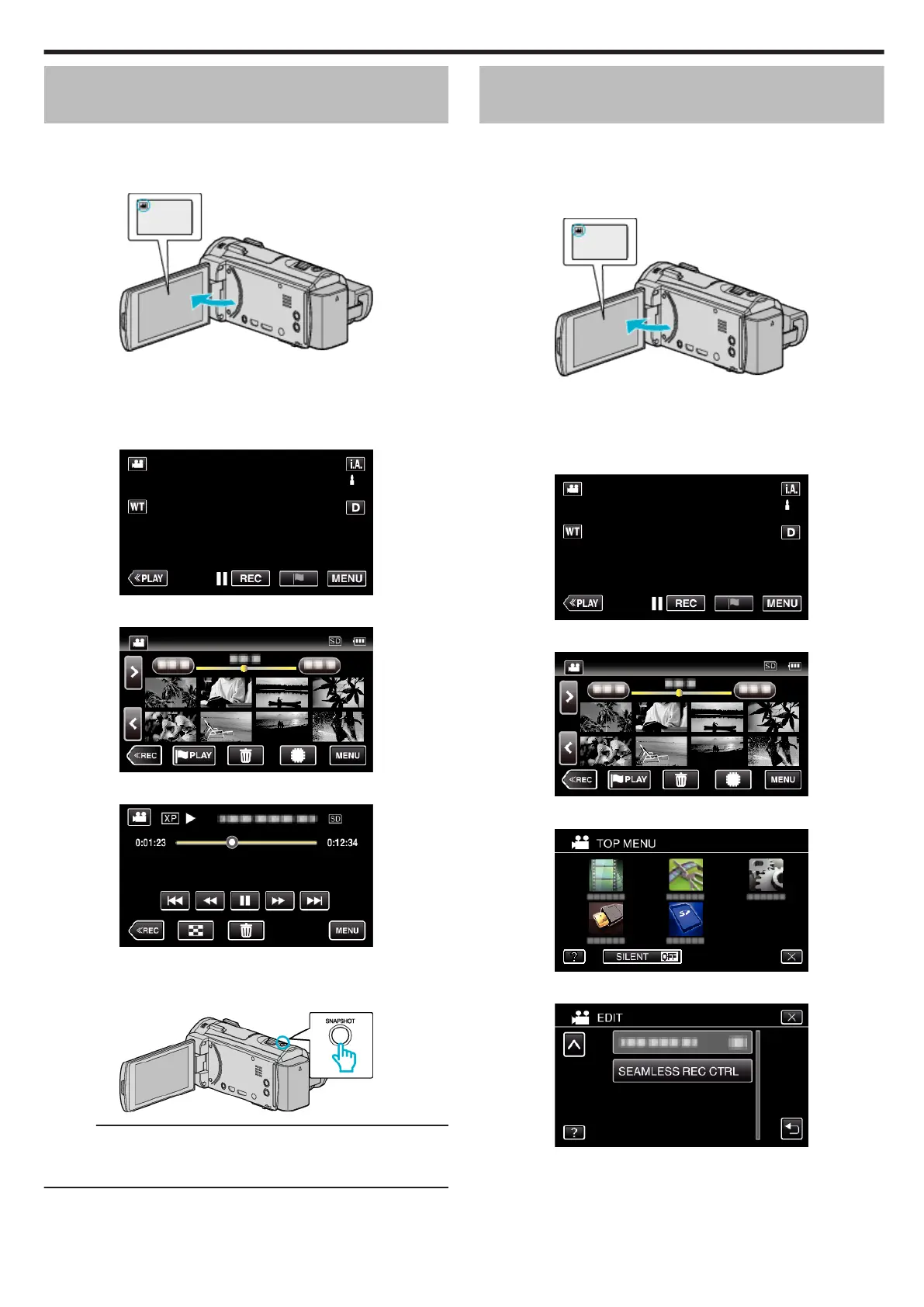
Open the LCD monitor.
.
0
Check if the recording mode is A.
0
If the mode is
B
still image, tap
B
on the recording screen to display
the mode switching screen.
Tap
A
to switch the mode to video.
2
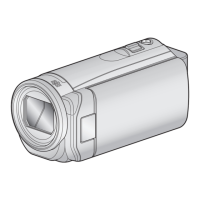
Tap “<<PLAY” to select the playback mode.
.
3
Tap on the desired video.
.
4
Tap pause e at the desired scene during playback.
.
0
After pausing the video, you can fine-tune the point to capture by
tapping forward slow-motion k and reverse slow-motion l.
5
Press the SNAPSHOT button.
.
Memo :
0
Still images are captured with a size of 1920×1080.
0
Captured still images are stored in the media where the video is being
played back from.
Combining Videos Recorded by Seamless
Recording (GZ-EX575/GZ-EX555/GZ-E565)
Videos that are recorded on two separate media and with “SEAMLESS
RECORDING” in the video recording menu enabled can be combined into
a single video.
“SEAMLESS RECORDING(GZ-EX575/GZ-EX555/GZ-E565)” (A p. 231)
1
Open the LCD monitor.
.
0
Check if the recording mode is A.
0
If the mode is
B
still image, tap
B
on the recording screen to display
the mode switching screen.
Tap
A
to switch the mode to video.
2
Tap “<<PLAY” to select the playback mode.
.
3
Tap “MENU”.
.
4
Tap “EDIT”.
.
5
Tap “SEAMLESS REC CTRL”.
.
Editing
87


 To Next Page