5
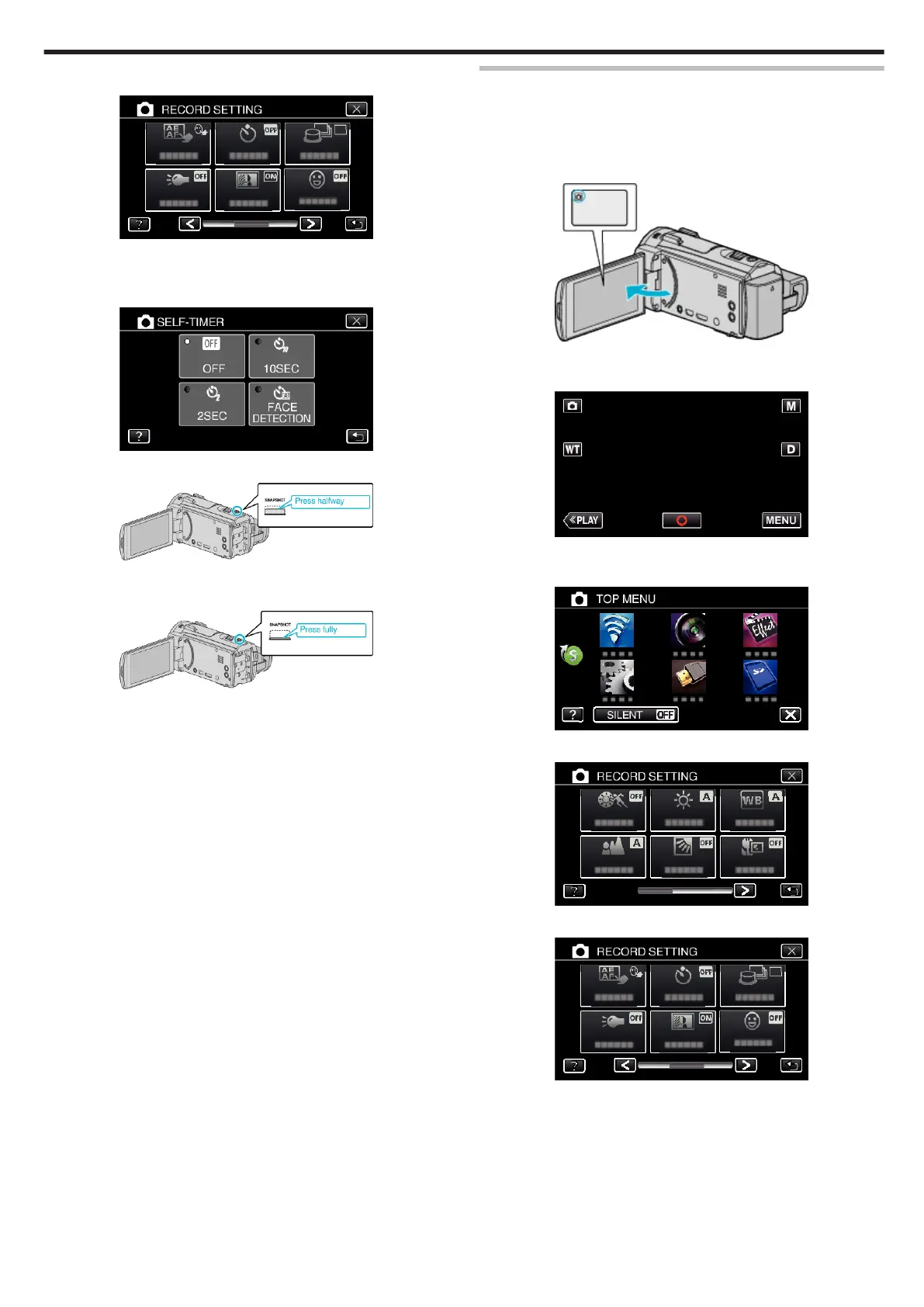
Tap “SELF-TIMER”.
.
0
Tap L to exit the menu.
0
Tap J to return to the previous screen.
6
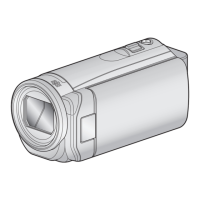
Tap “2SEC” or “10SEC”.
.
7
Set the focus on the subject.
.
0
When focused, the focus icon lights up in green.
8
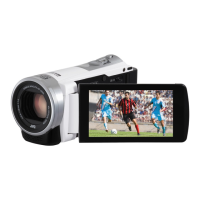
Take a still image.
.
0
A timer appears and countdown to shooting starts.
0
To stop the self-timer, press the SNAPSHOT button again.
Using the Face Detection Self-timer
Pressing the SNAPSHOT button starts face detection, and shooting is
performed three seconds after another person enters the frame.
This function is useful when you want to include the photographer in the
group photo.
1
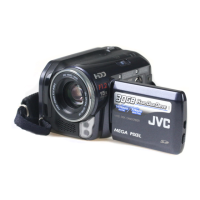
Open the LCD monitor and select the still image mode.
.
0
The still image mode icon appears.
2
Tap “MENU”.
.
0
The top menu appears.
3
Tap “RECORD SETTING”.
.
4
Tap 1 on the lower right of the screen.
.
5
Tap “SELF-TIMER”.
.
0
Tap L to exit the menu.
0
Tap J to return to the previous screen.
6
Tap “FACE DETECTION”.
Recording
61


 To Next Page