12 English
English
8
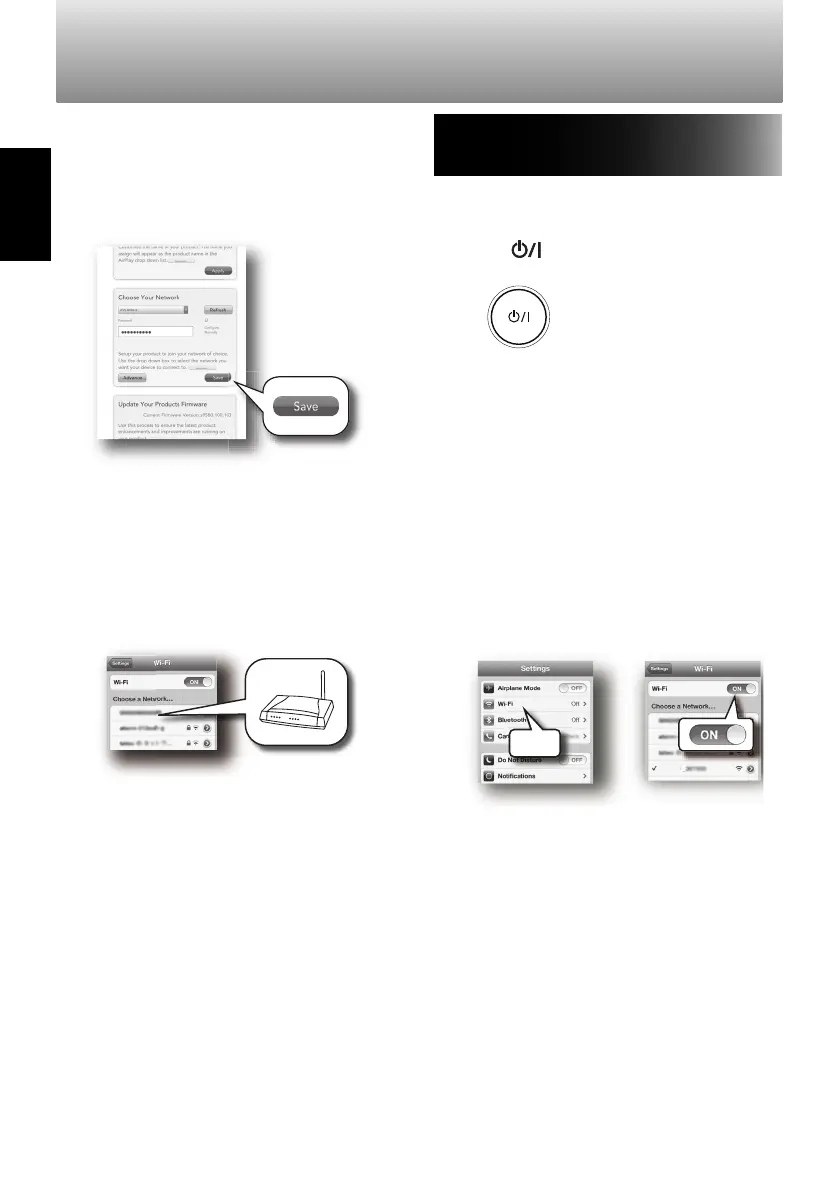
Enter the network password if necessary.
• It may be necessary to select "Advance",
depending on your router.
9
Tap or click "Save" at the bottom of the
page to save the settings.
• When the NETWORK indicator changes
from flashing in red to being lit in white,
a connection has been established.
10
Open the Wi-Fi settings screen, and select
your router from the displayed networks.
• Make sure that "Wi-Fi" is enabled.
• It may already be enabled.
11
Change the device settings as necessary.
• See page 15 for more information
about device settings.
Connecting directly to the System
(Direct wireless connection)
1
Enter network standby mode or nomal
standby mode.
2
Press [ ] (standby/on) for 3 to 10
seconds.
System
When the NETWORK indicator lights in red,
release the button.
• After releasing the button, wait until the
NETWORK indicator lights in white.
• If the wireless function is OFF, it will
automatically turn ON.
3
Turn on the Wi-Fi on your device.
– iPod/iPhone/iPad
– Android devices
– PCs
• For iPod/iPhone/iPad select "Wi-Fi" from
the "Settings" menu, and turn it ON.
SP-AP1
P-AP1
Wi-Fi
• For Android devices, select "Wireless &
networks" from the "Settings" menu, and
then select "Wi-Fi settings".
• For computers, open the wireless LAN
network settings window.
• See the instruction manual for your
device for more details.
Setting up a network (continued)
SP-AP1[E]04.indd12SP-AP1[E]04.indd12 2013/10/1614:192013/10/1614:19
Downloaded from www.vandenborre.be


 To Next Page