EasyManua.ls Logo

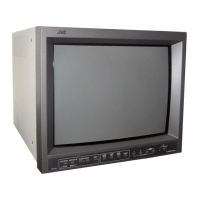
JVC TM-A170G - User Manual

JVC TM-A170G
18 pages
Print Icon
To Next Page IconTo Next Page
Loading...
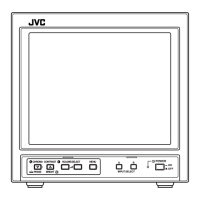
INSTRUCTIONS
TM-A170G
COLOUR VIDEO MONITOR
POWER
CHROMA MENU
INPUT SELECT
PHASE
TM-A170
BRIGHT
CONTRAST VOLUME/SELECT
AB
LCT1422-002A-H
LCT1422-001A-H 07.10.25, 9:57 AM1

Other manuals for JVC TM-A170G

Questions and Answers

  • L
    lorimcculloughSep 3, 2025
    What causes a shaking picture on a JVC TM-A170G?
    • B
      Benjamin WilsonSep 3, 2025
      If the picture on your JVC Monitor is shaking, it might be too close to a device generating a strong magnetic field. Move the device away from the monitor until the picture stabilizes.
  • M
    Mark TorresSep 1, 2025
    How to fix color issues on my JVC TM-A170G Monitor?
    • P
      pinedashelleySep 2, 2025
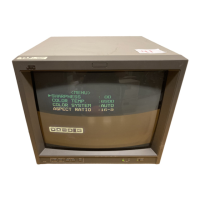
      If your JVC Monitor displays no colors, wrong colors, or a dark picture, set the COLOR SYSTEM in the screen to AUTO. In addition, check if the picture control settings (CONTRAST, BRIGHT, CHROMA or PHASE) have been changed, and if so, set each picture control to the standard setting.
  • J
    Jennifer MurilloAug 31, 2025
    What to do if my JVC Monitor has no picture but the power is on?
    • M
      Matthew EdwardsAug 31, 2025
      If your JVC Monitor has power but no picture, ensure the video signal is being output from the connected component correctly. Also, verify that you've selected the correct input signal using the Input select button. Finally, check that the video cable is securely connected.
  • J
    Joshua RuizAug 29, 2025
    Why JVC TM-A170G has no colors or wrong color?
    • E
      ericbrownAug 29, 2025
      If your JVC Monitor displays no colors, wrong colors, or a dark picture, there are a couple of things to check: * Ensure that the color system is selected properly. Set COLOR SYSTEM in the screen to AUTO. * Verify that the picture control settings (CONTRAST, BRIGHT, CHROMA, or PHASE) are at their standard settings.
  • C
    christopherhallAug 27, 2025
    How to fix dark stripes on JVC TM-A170G?
    • B
      Brandon LongAug 27, 2025
      If dark stripes appear at the top and bottom of the screen of your JVC Monitor and the picture looks vertically squeezed, the aspect ratio might be set to 16:9. Change the ASPECT RATIO in the screen to [4 : 3 (4 – 3)]. When controlling externally, ASPECT RATIO should be set to [4 : 3 (4 – 3)].
  • R
    Richard DavidAug 26, 2025
    Why is my JVC TM-A170G Monitor picture unnatural, irregularly colored, or distorted?
    • C
      Carol SolisAug 26, 2025
      If the picture on your JVC Monitor appears unnatural, irregularly colored, or distorted, it could be due to interference from a strong magnetic field. Move the monitor away from any speakers, magnets, or other devices generating such fields. Then, turn the monitor off, wait at least 30 minutes, and turn it back on.
  • A
    Ashley HurleyAug 25, 2025
    Why is my JVC TM-A170G picture shaking?
    • B
      Brandon TerryAug 25, 2025
      If the picture on your JVC Monitor is shaking, it might be too close to a device emitting a strong magnetic field. Try moving the monitor away from other devices until the picture stabilizes.
  • A
    April LarsenAug 22, 2025
    What to do if JVC TM-A170G Monitor has no power supply?
    • T
      Tracy CurryAug 22, 2025
      If your JVC Monitor isn't receiving power, check these two things: * Make sure the power plug is fully and securely inserted. * Verify that the main power switch is turned ON.

Summary

SAFETY PRECAUTIONS

Screen Burn Prevention

Details how to prevent screen burn-in on CRT displays by avoiding static or bright images for extended periods.

Supplementary Operational Notes

Provides tips for stable CRT operation, including warm-up time and effects of magnetic fields.

CONTROLS AND FEATURES

Front Panel Controls

Describes the buttons, indicators, and input/output terminals located on the front panel of the monitor.

Rear Panel Connections

Details the various input and output terminals, including video, audio, and remote connectors on the rear panel.

HOW TO HANDLE BASIC OPERATIONS

Basic Operation Steps

Guides users through powering on the monitor, selecting video inputs, and adjusting speaker volume.

Picture Adjustment Guide

Explains how to adjust picture quality parameters such as chroma, phase, contrast, and brightness.

HOW TO USE THE MENU FUNCTIONS

MENU Screen Settings

Details how to navigate the main menu to adjust settings like sharpness, color temperature, and aspect ratio.

SET-UP MENU Screen Settings

Explains how to use the setup menu for advanced configurations like H/V position, white balance, and control lock.

HOW TO INITIALIZE THE SETTING

Resetting to Factory Defaults

Provides step-by-step instructions for resetting all monitor settings to their original factory default values.

BASIC CONNECTION EXAMPLE

VIDEO A Input Connection

Illustrates typical connection setups for video sources using the VIDEO A input terminals.

VIDEO B Input Connection

Shows example connections for video sources using the VIDEO B composite input terminals.

VIDEO B Y;C Input Connection

Demonstrates how to connect video sources using the VIDEO B Y/C (S-video) input terminals.

HOW TO USE EXTERNAL CONTROL

External Control Terminal

Explains the monitor's external control terminal, detailing connections for aspect ratio and input selection.

TROUBLESHOOTING

SPECIFICATIONS

JVC TM-A170G Specifications

General IconGeneral
BrandJVC
ModelTM-A170G
CategoryMonitor
LanguageEnglish

Related product manuals