35
M5101-EN Rev. B |
Move test point:
Select the desired test point by tapping on in the selection list.
Move the test point down or up by tapping the / icons.
Copy test point:
Tap on the icon to copy the selected test point.
* The test point is copied and appended at the end of the selection list.
Create new test point:
Tap on the create icon for a new test point.
* The window for the test point setting is opened.
Input the temperature, the dwell time, and gradient then confirm the relevant input.
* The input values are adopted and you will be returned to the previous window.
Delete test point:
On tapping the delete icon, the selected test task is immediately deleted.
Change test point:
Tap on the modify icon to edit the selected test point.
* The window for the test point setting is opened.
Change the temperature dwell time and gradient and confirm the new values.
* The new values are adopted and you will be returned to the previous window.
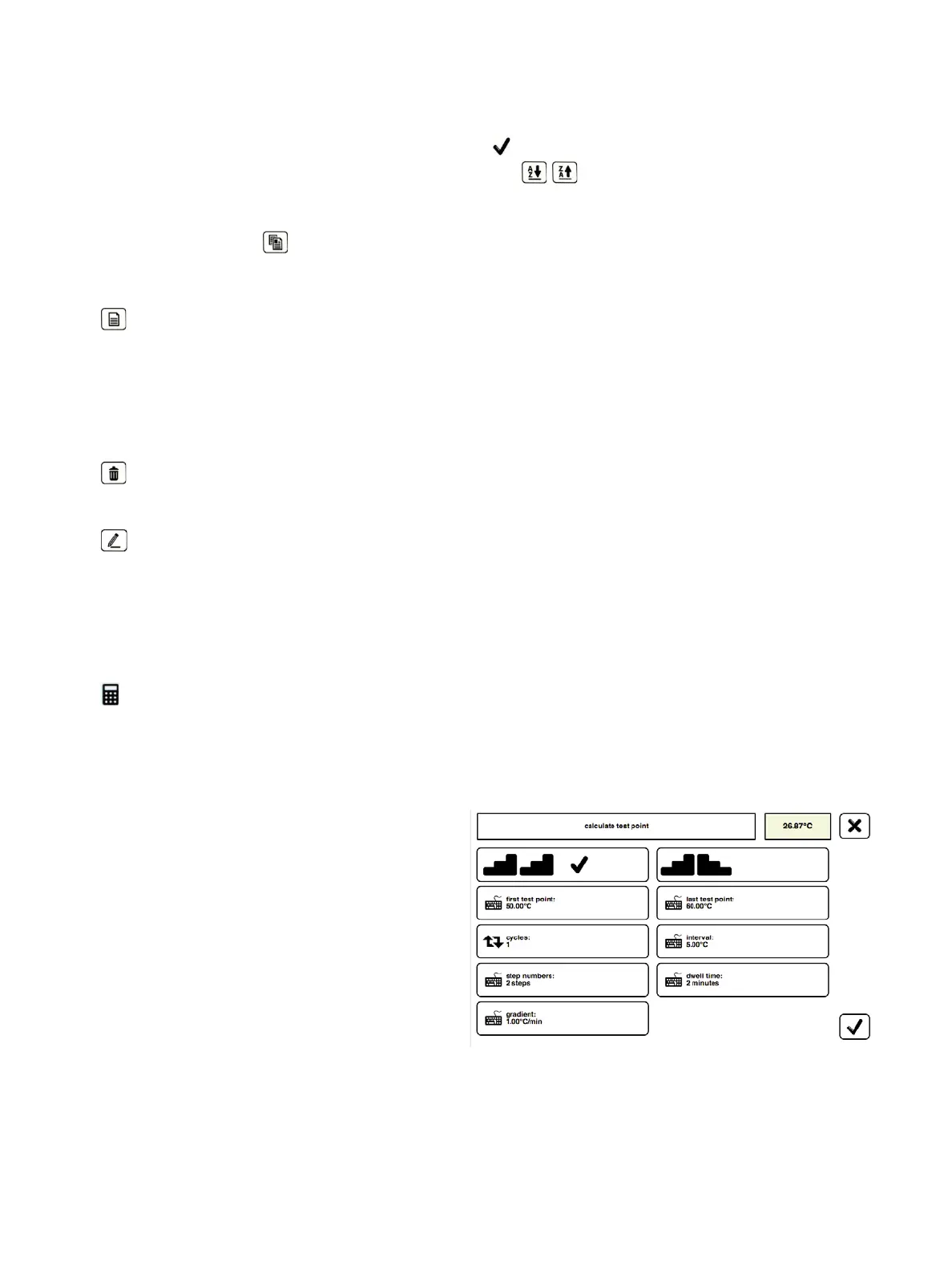
Calculate test points
Here, you can easily have the steps between two temperatures calculated. If a change is made to a
parameter, the other parameters dependent on it are calculated afresh automatically.
Tap the parameter field to open the window Calculate test points.
Define Test Points:
To do so, tap on the parameter fields
(i.e., first test point or last test point),
input the new values and confirm the
input.
* The new values are adopted,
the interval is calculated afresh
and you will be returned to the
previous window.
Set Interval:
For fixed intervals, tap on the
parameter field Interval, input the desired step width and confirm the input.
* The new interval is adopted and the number of steps is calculated. If necessary, the last
test point is also adjusted to match, and you will be returned to the previous window.
Chapter 7. Standalone Manual Mode


 To Next Page