© Copyright 2019 KE2 Therm Solutions, Inc., Washington, Missouri 63090
Q.2.60 March 2019
Page 14
KE2 Compressor Sequencer OEM pn 21768
Quick Start Guide
Communicaon Setup
When powered up for the rst time, the KE2 Compressor Sequencer
OEM’s Remote Display will show CS (Compressor Sequencer), then
SA (KE2 Smart Access). The controller is asking if remote access
through KE2 Smart Access will be used. It will then blink diS (dis-
abled).
Press and hold
to disable KE2 Smart Access, or press the or
arrow to reach EnA (enable). Press and hold to enable KE2
Smart Access.
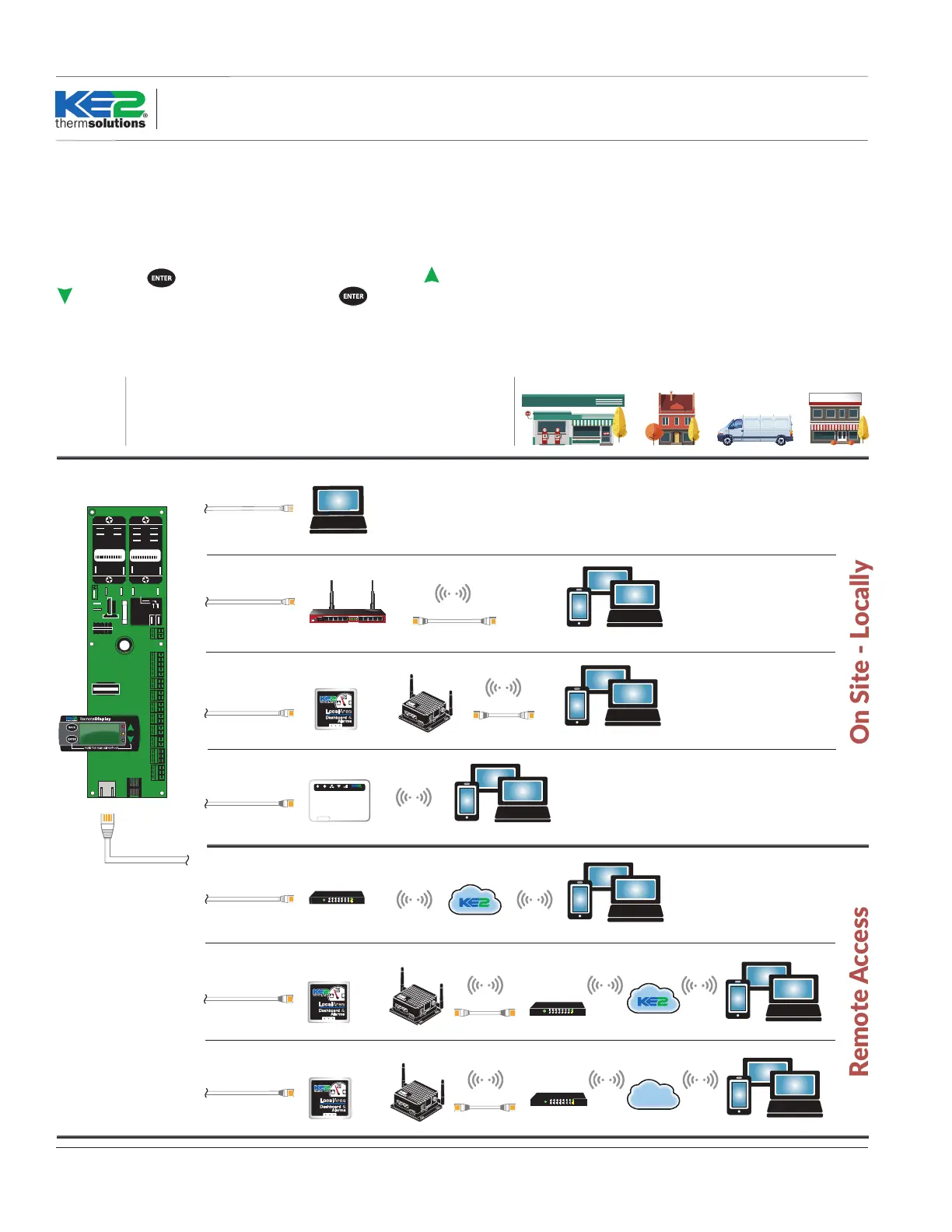
On Site - Locally
Remote Access
Joe’s C-Store & Gas
Joe’s C-Store & Gas
On the go
XYZ Refrigeration
XYZ Refrigeration
At home
At workOn site
Access
your
controllers:
Ways to
connect:
Opon 1: Directly Connected
Opon 2: Using the KE2 Smart Gate
Opon 3: Using a KE2-LDA or KE2-EM35
Opon 4: Using the KE2 WiFi Service Tool
Opon 5: KE2 Smart Access Portal
Opon 6: KE2 Smart Access Portal w. Local Dashboard
Opon 7: Customer VPN w. Local Dashboard
❶
Add KE2 Switch 8-port
(pn 20166)
or KE2 Switch 16-port (pn 21011)
when connecng more than one
controller.
❷
Typically DHCP should be enabled
on the controllers when connecng
directly to the customer network,
unless directed by the customer’s IT
department to set a stac IP
address.
Opon 1: Directly Connected
- Single Controller
Ethernet Cable
Computer
NOTE:
Computer requires Stac IP.
See bullen Q.5.11 or Video 124
at youtube.com/ke2therm
Opon 4: Using the KE2 WiFi Service Tool
(pn 20906)
thermsolutions
PWR WIFILANWAN 3G/4G
Superheat
0.0 F
Suct Pressure
96.2 F
Suct Temp
87.7 F
Computer, Tablet, or Smart Phone
Ethernet Cable
KE2 WiFi Service Tool
KE2 Smart Gate
RB201 1UAS-2HND-IN
USB
SFP
POE GIGABIT ETHERNET
ETH1 ETH5ETH3 ETH4ETH2 ETH6 ETH10ETH8 ETH9ETH7
6 7 8 9 10
1 2 3 4 5
FAST ETHERNET
Opon 2: Using a KE2 Smart Gate
(pn 20695)
-
Quick Multi-Controller Access
Ethernet Cable
Ethernet Cable
- or -
Superheat
0.0 F
Suct Pressure
96.2 F
Suct Temp
87.7 F
Computer, Tablet, or Smart Phone
Opon 3: Using a KE2-LDA
(pn 21253)
or KE2-EM35
(pn 21634)
Superheat
0.0 F
Suct Pressure
96.2 F
Suct Temp
87.7 F
Computer, Tablet, or Smart Phone
WAN
LAN
Ethernet Cable
- or -
❶ ❶
Ethernet Cable
- or -
Opon 7: Customer VPN with Local Dashboard
Customer Network
1 2 3 654 7
Link/ACT
100/1000Mbps
POWER
Superheat
0.0 F
Suct Pressure
96.2 F
Suct Temp
87.7 F
Computer, Tablet, or Smart Phone
WAN
LAN
- or -
Internet
Customer VPN
❶ ❶
Ethernet Cable
KE2-LDA
KE2-EM35
Ethernet Cable
- or -
1 2 3 654 7
Link/ACT
100/1000Mbps
POWER
Opon 5: KE2 Smart Access Portal
Internet
KE2 Smart Access
Customer Network
Ethernet Cable
Superheat
0.0 F
Suct Pressure
96.2 F
Suct Temp
87.7 F
Computer, Tablet, or Smart Phone
❷
NO NC
COM
Ethernet
Port
EARTH
IP-10.10.52.19
MAC
00:04:A3:14:E5:92
IP-10.10.52.19
MAC
00:04:A3:14:E5:92
Ethernet Cable
Opon 6: KE2 SmartAccess Portal with Local Dashboard
1 2 3 654
7
Link/ACT
100/1000Mbps
POWER
Superheat
0.0 F
Suct Pressure
96.2 F
Suct Temp
87.7 F
Computer, Tablet, or Smart Phone
WAN
LAN
- or -
Ethernet Cable
- or -
Internet
KE2 Smart Access
❶ ❶
KE2-LDA
KE2-EM35
Customer Network
Once connected to the Internet, the controller can be accessed at
http://smartaccess.ke2therm.net
The initial login: Site - installer Password: Controller’s MAC address
The remainder of the setup is done via the browser interface. There
are many ways to connect to the controller, in addition to KE2 Smart
Access. Please refer to the options below, and chose the method that
best suits the site and application.
Opons



 To Next Page