2. System Settings
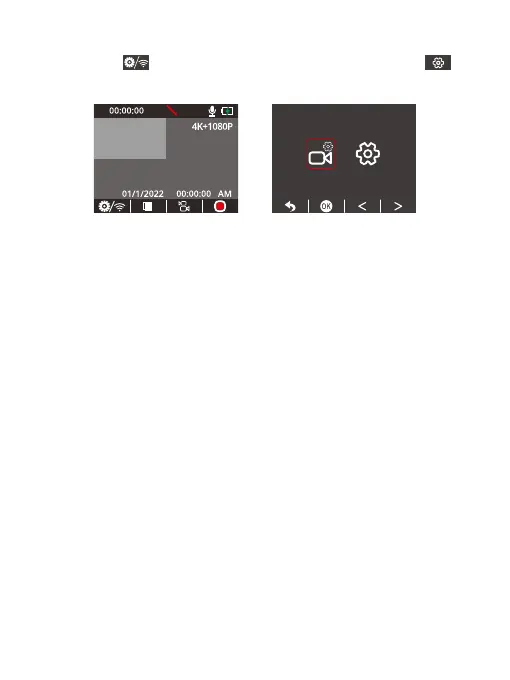
Press the Setup button to enter the camera settings page, choose ,
then press the OK button to enter the system settings page.
(1) Screen Saver
Off, 30 Sec, 1 Minute, 2 Minutes (The default setting is Off)
On the system settings screen, press the Down button to find “Screen Saver”, then
press the OK button to enter the screensaver settings screen.
The camera screen will automatically turn off to save battery life after the set time.
To turn on the display again, simply press any button.
(2) Time Display
Off, On (The default setting is On)
You can turn Time Display on or off.
(3) Wifi
Off, On (The default setting is Off.
You can turn Wifi on or off in the camera's system settings menu. When Wifi is
enabled, the camera will enter Wifi mode and display the Wifi information.
(4) Date/Time
MM/DD/YY (Set the date and time for the dash cam)
(5) Time System
12H, 24H (The default setting is 12H)
You can set the time system for your dash cam.
P



 To Next Page