Chapter 6
Scan to EasyShare
1
Place your photo or photos face down on the scanner glass. Your Kodak All-in-One Printer can
detect multiple photos.
2
On the main Home Center window, click Scan Pictures and Documents to open the Basic Scan
window.
3
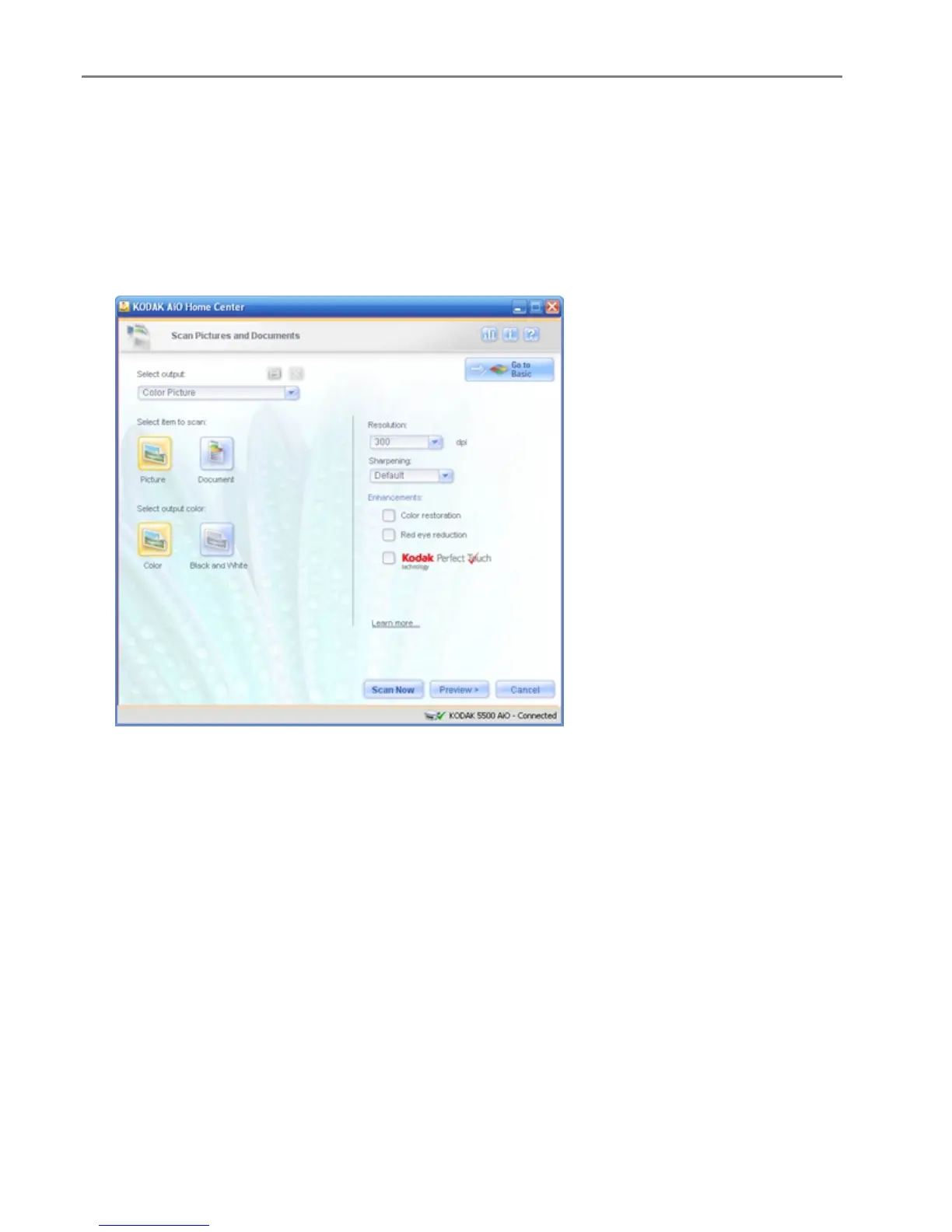
Click Go to Advanced to open the Advanced Scan window.
4
Select Picture.
5
Select Color or Black & White.
6
If desired, set the following options.
Resolution: Choose the Resolution from the drop-down list you want to use for the scan. 300 dpi
is the default and is fine for 4x6 pictures. 600 dpi should be used for smaller pictures. The higher
the resolution, the larger the file size and the slower the scan.
Sharpening: This drop-down list is available when scanning color pictures. It contains a list of
supported sharpen levels for enhancing fuzzy images; None, Default, High, and Maximum.
Color restoration: Select to restore color on old faded photos. This checkbox is available when
scanning pictures.
Red Eye reduction: Select to automatically minimize red eye in flash photos. This checkbox is
available when scanning color pictures.
Kodak Perfect Touch: Automatically corrects for common image flaws and "mistakes," such as
shadows, and backlighting. Kodak Perfect Touch technology also enhances the desirable qualities
of photos, for vibrant color and richer detail. This checkbox is enabled when scanning pictures.
7
If desired, save the options you selected as a scan shortcut.
8
If desired, click Preview to view of the scanned image (see Scan Preview).
84 Kodak EasyShare 5300 AiO


 To Next Page
 Loading...