Us
ing built-in wireless connectivity
22
vi
ty of your Notebook, you
Using your Notebook
Wi
th the built-in wireless connecti
can access other wireless network enabled devices (such as
Access Point network stations, Notebook computers, Personal
Digital Assistants, or digital projectors) wirelessly without the
constraints of network cables.
To connect with a Local Area Network (LAN) at home or in the
office, you need the details of an access point, which serves as an
air station to make transmission possible. Outdoors in places
such as in coffee shops or library, you can inquire the service
personnel about an account.
Co
nnecting to a wireless network
1. M
ake sure you are located within the wireless network
service area.
2. Enable WLAN by pressing the <Fn> + <F1> hotkey
combination. When the WLAN is on, the WLAN indicator
flashes in blue.
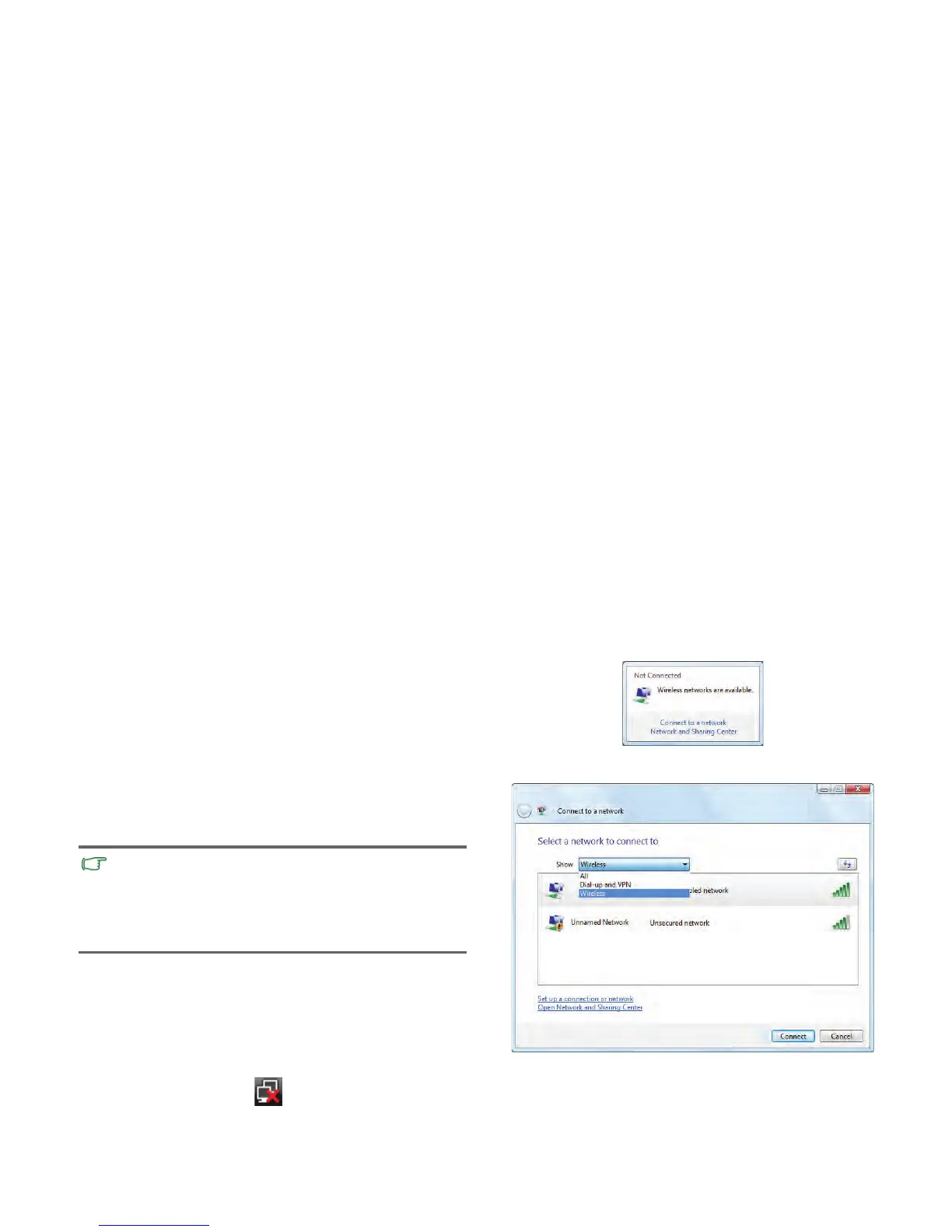
3. Click on the WLAN icon in the notification area
located at the lower right corner of the desktop to display a
pop-up menu.
4. From the pop-up menu, click
Conn
ect to a network
.
5. Clic
k
Wir
eless
in th
e
Show
list. A list of
available wireless
networks will be displayed.
6. Choose a network and then click
Connect
. If
security
authentication is not required by the network you are using,
• Wireless LA
N (WLAN) is available on select models.
• WLAN connectivity has limited range, depending upon the
equipment being used, the chosen frequency band, radio-
wave interference, and the physical landscape (including
building structure). Circumstances will vary depending upon
your particular situation.


 To Next Page