Ch.4 Maintenance Mode
< 61 >
DRYPRO Vstage MODEL 793 Operation Manual Ver.1.01 2005.1
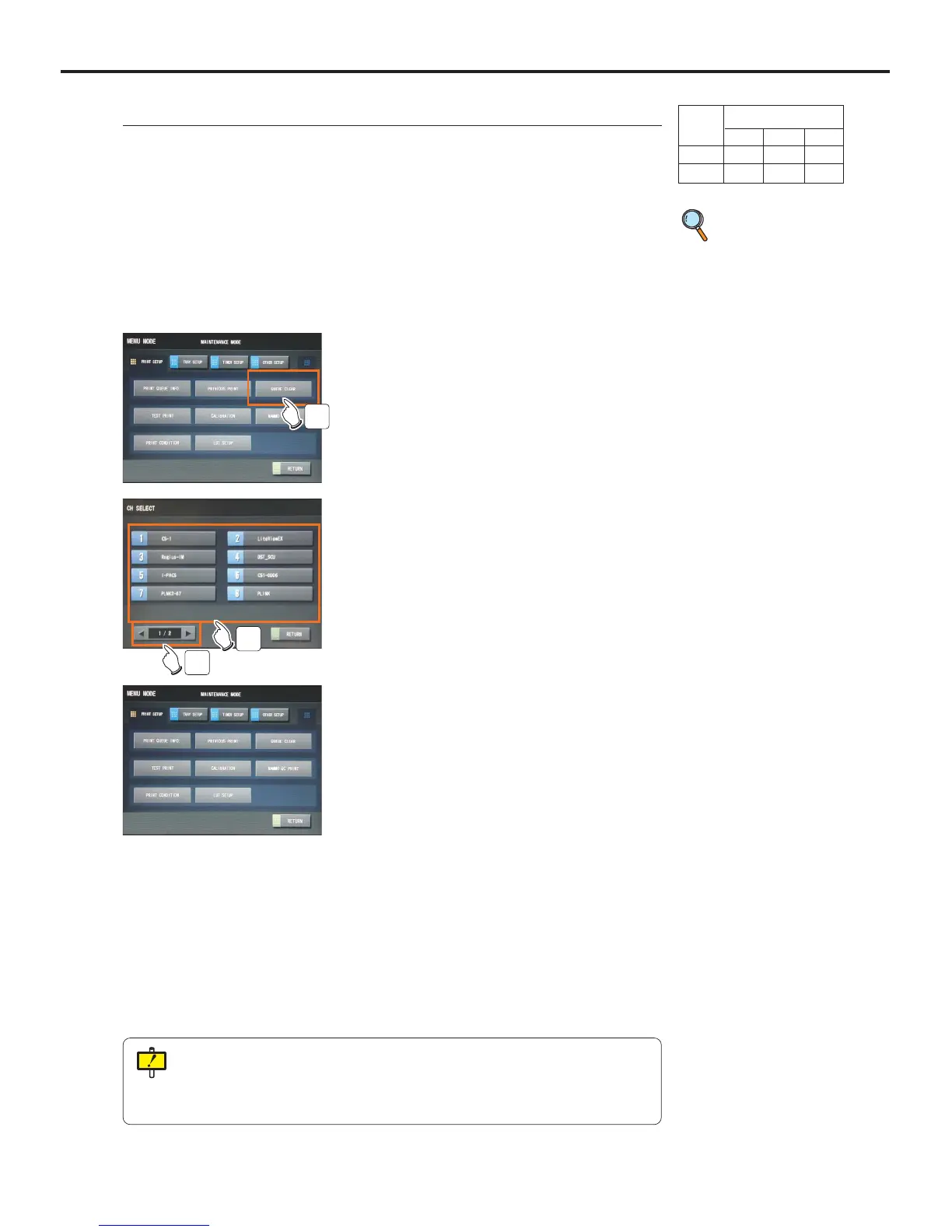
4-4-3 QUEUE CLEAR <PRINT SETUP>
Deletes the print data stored in the print job file on the DRYPRO 793.
Print data can be deleted per diagnostic device from which the data was sent.
How to delete the print data in the print job file is detailed below.
2 Touch the [PRINT SETUP] button on the "Main-
tenance" screen.
3 Touch the [QUEUE CLEAR] button.
- "CH SELECT" screen will be displayed.
- Touching the [RETURN] button shuts down the Mainte-
nance Mode, and returns to the Normal screen.
3
4 Scroll the page with the [SCROLL] buttons, and
display the button for the input device whose job
should be deleted.
5
4
Total print data that can be registered on the DRYPRO 793 will vary depending on
the diagnostic device or type of data. In general, 200 ~ 400 pages in total of data
received from connected diagnostic devices can be registered. Once the job
becomes full, the DRYPRO 793 becomes unable to receive print data sent from the
diagnostic device.
User Level
123
Disp ●
Ope ●
5 Touch the button for the input device whose job
should be deleted.
- Deletes the job, and returns to the "Maintenance Mode
(PRINT SETUP)" screen.
- Touching the [RETURN] button shuts down the Mainte-
nance Mode, and returns to the Normal screen.
1 Switch to the Maintenance Mode.
p.52 Switching to
the Mainte-
nance Mode



 To Next Page