Configuration Menu Overview34
2
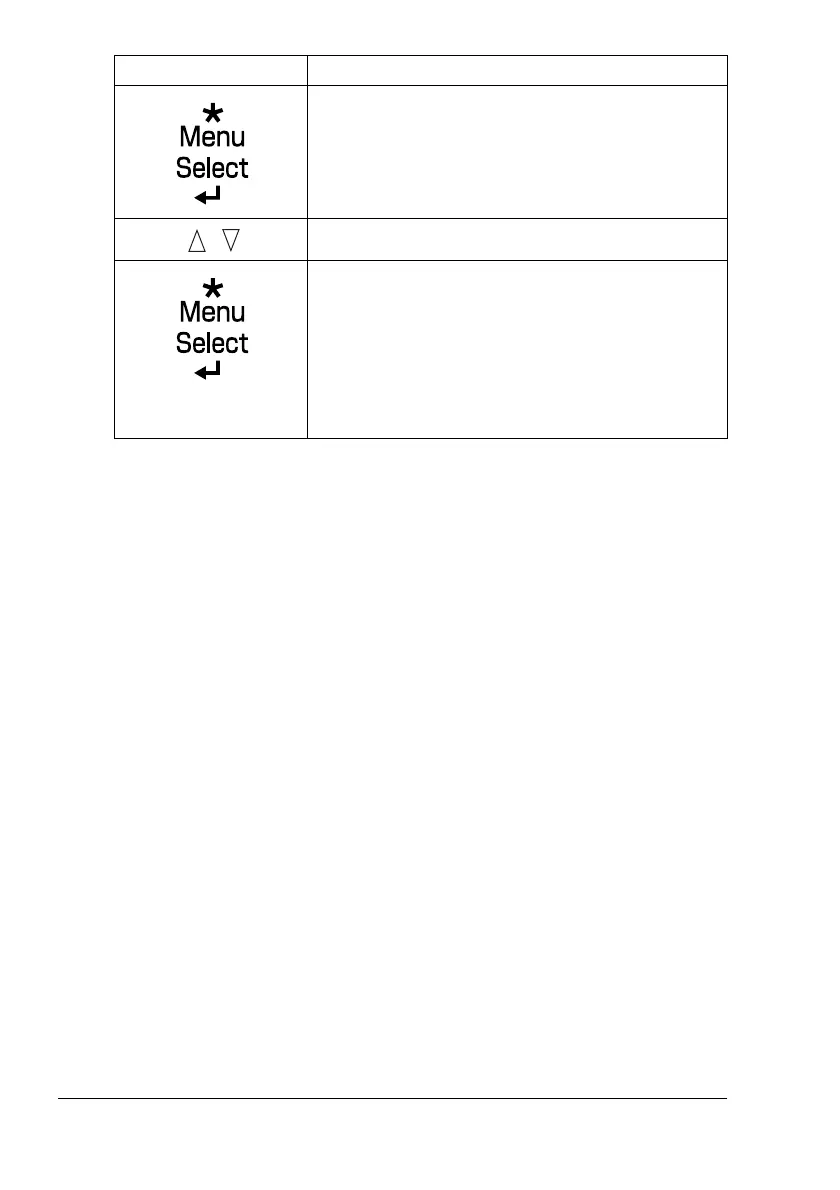
Select
PRINT
or
DELETE
, and then press the Menu/Select key.
!"
If
PRINT
was selected, continue with step 3.
If
DELETE
was selected, continue with step 5.
3
Press the Up and Down keys to specify the number of copies to be
printed. (Settings:
1
to
999
; Default:
1
)
4
Press the Menu/Select key.
Printing begins.
5
Select
YES
or
NO
.
6
Press the Menu/Select key.
If
YES
was selected, the print job is deleted.
If
NO
was selected, the
PRINT/DELETE
selection screen appears
again.
Entering a Password
If the print job selected in the
PROOF/PRINT
MENU
is a secured job, a
screen for entering the password appears. Follow the procedure described
below to type in the four-digit password specified from the printer driver.
1
Press the Up and Down keys to increase or decrease the first digit of the
password.
2
Press the Right key to move the cursor to the next digit.
“
Job name
”
,
Desired job name
PRINT
DELETE
If the selected print job was set as a secured job
from the printer driver, a screen for entering the
password appears. For details on typing the
password, refer to “Entering a Password” on page
34.
Press Key Until Display Reads






 To Next Page