Shenzhen Anycubic Technology Co., Ltd.
18
Fig. 37
3. Parameter settings
The provided firmware has been generally debugged and modified. But inevitably there are
some small deviations still. So some critical parameters that affect the printing quality need
to be adjusted on a case-by-case basis. Before start, connect the printer with the power
(B14), the 4010 radiator cooling fan should be on, otherwise, check the wiring and fix it.
This fan is important for eliminating the possibility of nozzle clogging.
Step 1. Heights
First, install the „Printrun‟ software. Upzip the „Printrun-Win-Slic3r-03Feb2015‟ (or
„Printrun-Mac-03Feb2015‟), and double click the „pronterface.exe‟ to enter the dialogue
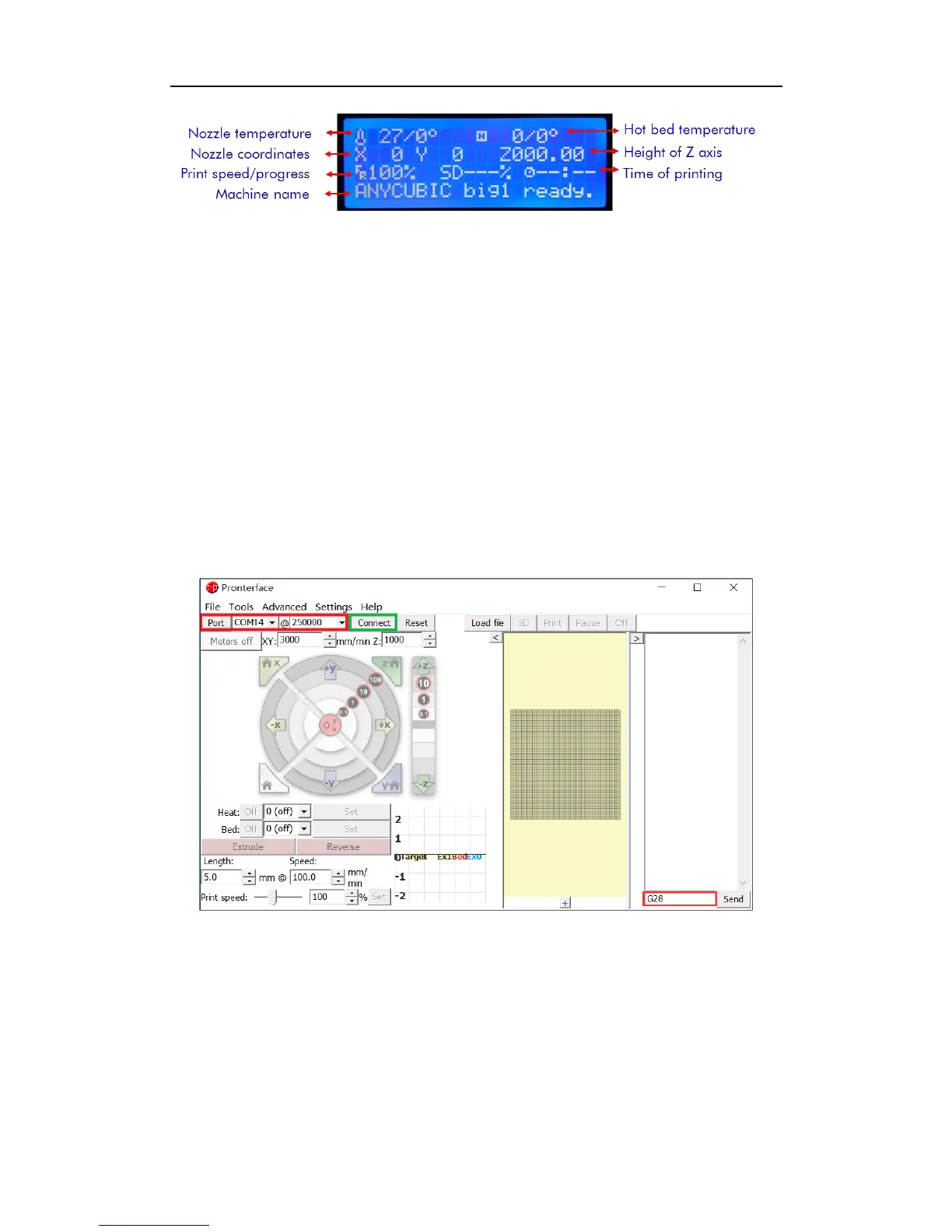
which is shown in Fig. 38 Choose the correct port and baud rate (red square) then click
connect (green square) to control the 3D printer via computer. You could disconnect it using
the same button.
Fig. 38
Second, auto-home. As shown in the bottom right of Fig. 38, enter „G28‟ (the code for
auto-home) then click „send‟ to return the nozzle home (back to top). If the nozzle heading
to the opposite direction, that means the wiring of X, Y and Z motors on Ramps 1.4 board is
opposite.
Third, adjust the height parameters in firmware. After auto-home, place a piece of paper to
the center of the print platform, enter the code of „G1Z100‟ in Printrun dialogue then click
„send‟ to move the nozzle to the Z axis position of height=100mm (the distance between the



 To Next Page