Page | 31
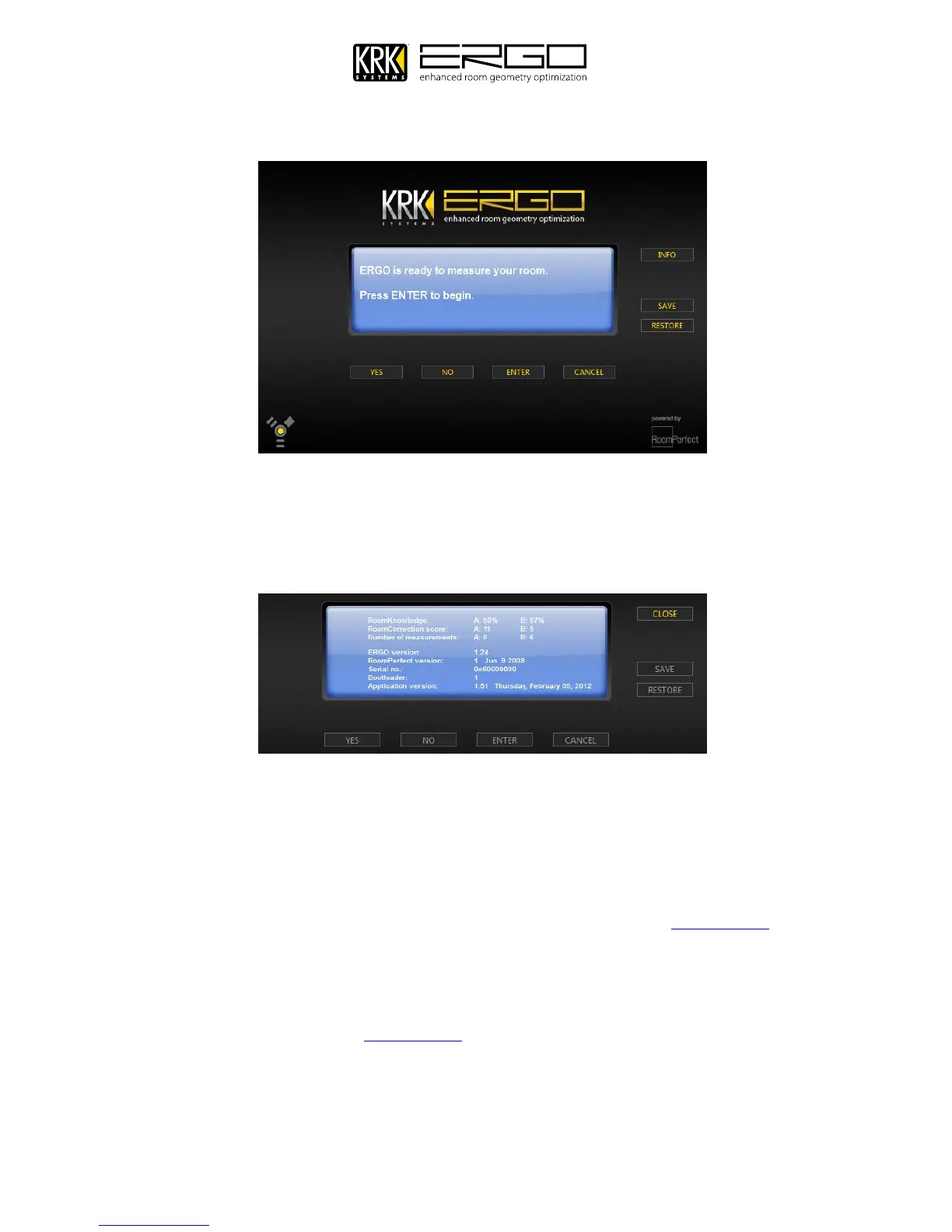
3. ERGO Cal will now search for ERGO and begin communicating, once complete you will see this message:
4. Now ERGO Cal has detected you ERGO unit, please press the info button on the right hand of the current window.
This will open ERGO Cal’s info window, which gives you information regarding your calibration. Note: If you
move your unit to another system the calibration and correction will function as it did for your last calibration
but the info pane will show no data as the system data is stored on the host computer.
In the window you will see the following:
Room Knowledge: This is a % value based on how much ERGO “learned” about you room
Room Correction Index: This is a score (up to 30) which indicates how complex the correction was
Number of Measurements: This is the number of calibration measurements you took.
ERGO Version: This is ERGO’s firmware version (currently 1.23) check www.krksys.com for the
latest firmware for your unit.
RoomPerfect Version: This is the version of the RoomPerfect algorithm in use (the latest is 2008)
Bootloader: This is the bootloader number and should be “1”
Application Version: This is the version of the ERGO Cal application (currently 1.20) check
www.krksys.com for the latest software for your unit.
Note: if you have a new ERGO which has not been calibrated there is no information in the first three fields. You
can now close this window and return to ERGO Cal’s main window by pressing “Close”


 To Next Page