6
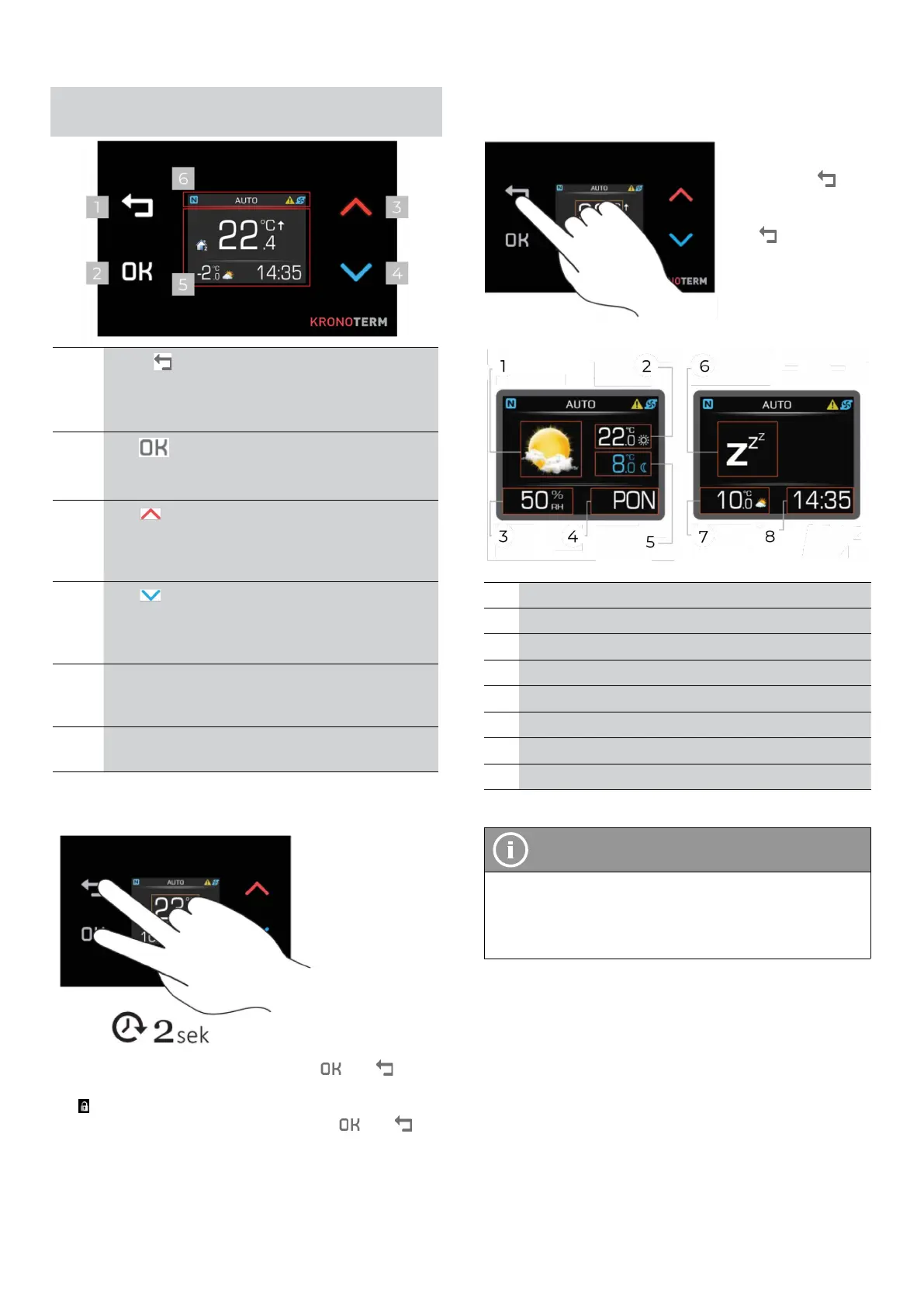
3 GRAPHIC INTERFACE AND
CONTROLLER
1
BACK
button for:
• returning to the previous menu,
• undoing parameter settings in menus,
• exiting menus.
2
The
OK za:
• confirming settings,
• choosing menus.
3 The
UP button for:
• scrolling up through menus,
• changing or increasing the value of
individual parameters.
4
The
DOWN button for:
• scrolling down through menus,
• changing or decreasing the value of
individual parameters.
5 Screen for displaying menus, parameter
values, settings, and the status of the
appliance and/or heating system.
6 Status line to display the status quo of the
heat pump and/or heating system.
3.1 LOCKING BUTTONS
Locking the
buttons on
the controller
prevents the
changing of
settings by
unauthorized
persons.
To lock the buttons, press the buttons
and
simultaneously, and hold them for 2 seconds. The sym-
bol
is shown when buttons are locked.
To unlock the buttons, press the buttons
and
simultaneously, and hold them for 2 seconds.
3.2 QUICK VIEW
Access the
Quick View by
pressing
on the home
screen. Press
a second
time to toggle
between the
system overview
and the weather
forecast.
1 Weather symbol.
2 High (day–time) temperature.
3 Humidity.
4 Weekday.
5 Low (night–time) temperature.
6 Icon of current operational mode.
7 Outside temperature.
8 Hour.
NOTE
The weather forecast feature is only activated if
your appliance is connected to the internet and if
you have set the appliance’s location in the Cloud.
Kronoterm.com online interface.
Operating instructions
ADAPT, VERSI, ETERA and WPLV systems
17-19-45-6702-07


 To Next Page