EasyManua.ls Logo

Kyocera FS-5800C - User Manual

Kyocera FS-5800C
131 pages
Print Icon
To Next Page IconTo Next Page
Loading...
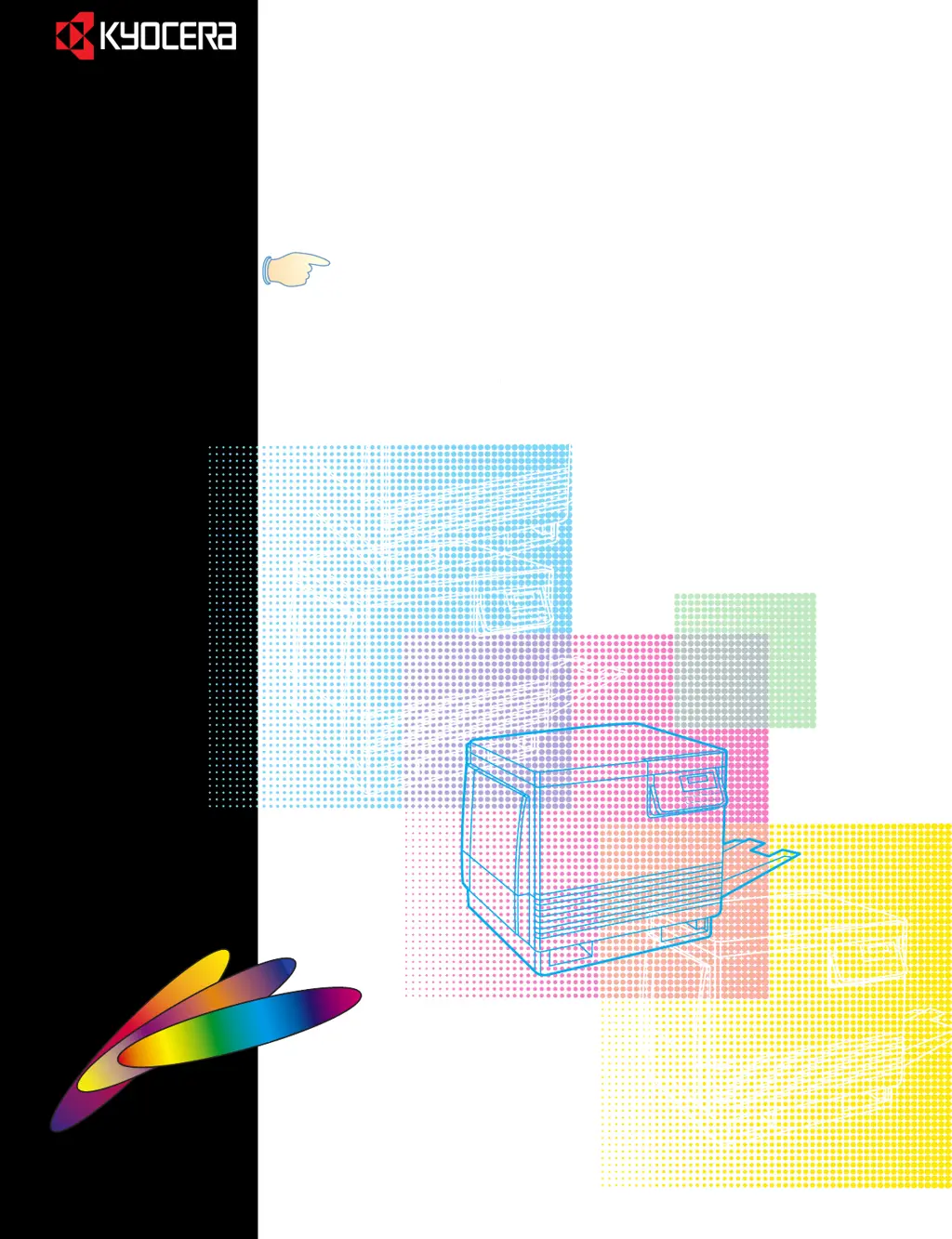
FS-5800C
User’s Manual
COLOUR LASER PRINTER
Contents

Questions and Answers

  • P
    Paul TrevinoAug 17, 2025
    Why does a single color appear faded on my Kyocera Printer?
    • C
      Crystal MorrisAug 17, 2025
      If a single color appears faded on your Kyocera Printer, it could be due to a couple of reasons. First, the color density might be set incorrectly in the printer panel. To check this, print the Color Calibration Page from the Color Calibration menu on the printer panel and compare the settings to the color density samples on the Color Calibration Reference. Adjust the density from the printer panel if needed. Another potential cause is that the toner is almost depleted. If this is the case, replace the color toner developer soon. You may be able to print up to 100 more pages, depending on the complexity of your prints.
  • V
    Valerie RileyAug 20, 2025
    What to do if half tone area has areas of weak colour on Kyocera FS-5800C Printer?
    • C
      Christopher OrtizAug 20, 2025
      If the half tone area has areas of weak color on your Kyocera Printer, it could be because the paper doesn’t match the environmental conditions or has too much moisture. Try using fresh paper or a different type of paper. Alternatively, store media in the original, dust-free package in the same environmental conditions as the printer.
  • P
    Paige PerezAug 22, 2025
    How to fix non-uniform color and vertical streaks on Kyocera FS-5800C?
    • S
      Seth GrossAug 23, 2025
      If a single color is not uniform or there are many vertical streaks (both light and dark) of slightly different density and non-uniform color on your Kyocera Printer, the toner is almost depleted. Replace the color toner developer.
  • D
    Derek JonesAug 26, 2025
    What to do if my Kyocera Printer displays 'Call service person##:#######' error?
    • M
      Margaret AdamsAug 26, 2025
      If your Kyocera Printer displays the error 'Call service person##:#######', this indicates a failure that requires assistance from service personnel. Note the error code (## followed by the colon) and the total printed pages (####### preceded by the colon). Turn the printer off and call for service.
  • J
    Joseph BarronAug 28, 2025
    How to fix 'Add paper ' on my Kyocera Printer?
    • J
      Jeffrey CarrollAug 28, 2025
      The 'Add paper ' message on your Kyocera Printer means that the specified paper source is empty. To solve this, add paper to the paper cassette (Cassette 1), optional paper feeder’s cassettes (Cassette 2 and 3), or multi-purpose tray (MP Tray).
  • J
    Jon HickmanAug 31, 2025
    What to do if my Kyocera Printer says 'Front/Right cover Open'?
    • S
      scotthallAug 31, 2025
      If your Kyocera Printer shows 'Front/Right cover Open', it means that either the front or right side cover is not closed properly. Ensure both covers are tightly closed.
  • D
    Don WalkerSep 2, 2025
    How to resolve 'Cassette 1 not loaded' error on Kyocera FS-5800C Printer?
    • T
      Tiffany NicholsSep 2, 2025
      The error message 'Cassette 1 not loaded' on your Kyocera Printer indicates that the media cassette is either not loaded or not fully closed. Insert the media tray, or ensure it is securely closed. Note: Cassette1 is shown as Cassette when no option paper feeder is installed.
  • J
    Jordan DickersonSep 5, 2025
    What causes 'Cassette 2 not loaded' on my Kyocera Printer and how to fix it?
    • H
      hollycastroSep 5, 2025
      The 'Cassette 2 not loaded' error on your Kyocera Printer means the top media cassette in the paper feeder is not loaded or not fully closed. Insert the top media tray, or close it securely. This message appears only when an optional paper feeder is installed.
  • L
    Lauren AtkinsonSep 8, 2025
    Why does my Kyocera Printer say 'Cassette 3 not loaded' and how can I fix it?
    • J
      Jennifer EwingSep 8, 2025
      The error 'Cassette 3 not loaded' on your Kyocera Printer indicates that the bottom media cassette in the paper feeder is not loaded or not fully closed. Insert the bottom media tray, or close it securely. This message is displayed only when the printer has an optional paper feeder installed.
  • G
    Gabriella CurrySep 12, 2025
    What does 'Format error ' mean on my Kyocera Printer?
    • E
      elizabeth08Sep 12, 2025
      The 'Format error ' message on your Kyocera Printer means that the hard disk or memory card is not formatted. Format the media.

Summary

Safety Information

Laser Safety

Precautions regarding laser emissions for user safety.

Important Safeguards

General Safety Instructions

Essential safety measures for operating the printer to prevent hazards.

Chapter 1: Before You Start

Chapter 2: Setup

Initial Printer Setup

Procedures for physical setup, including output tray and toner installation.

Loading Media

Instructions for loading paper into the printer.

Connectivity & Driver Installation

Steps for connecting the printer and installing necessary software drivers.

Chapter 3: Using the Printer

Printer Driver Configuration: Accessing Settings

Displaying the Printer Driver Window

How to open and navigate printer properties windows for configuration.

Care and Maintenance: Cleaning

Cleaning Procedures

General instructions for cleaning the printer's exterior.

Care and Maintenance: Components

User Replaceable Components

Information on printer parts that can be replaced by the user.

Care and Maintenance: Jam Clearing

Clearing a Jam

Step-by-step guide to removing paper jams from the printer.

Care and Maintenance: Jam Location A

Jam at A

Specific instructions for clearing paper jams at location A.

Care and Maintenance: Jam Location B

Jam at B

Specific instructions for clearing paper jams at location B.

Care and Maintenance: Jam Location C

Care and Maintenance: Jam Location D

Care and Maintenance: Jam Location E

Troubleshooting: Print & Media Issues

Troubleshooting: Media Handling

Troubleshooting: Image & Errors

Error Messages & Codes

Explanations of various error codes and messages displayed by the printer.

Troubleshooting: Print Failures

Cannot Make a Print

Steps to diagnose and fix issues preventing printing.

Appendix: Special Media & Software

Kyocera FS-5800C Specifications

General IconGeneral
Print Resolution1200 x 1200 dpi
Monthly Duty Cycle100, 000 pages
Optional/Max Paper Capacity2, 100 sheets
Operating System CompatibilityWindows, Mac OS, Linux
FunctionsPrint, Copy, Scan, Fax
Fax Modem Speed33.6 Kbps
Print TechnologyLaser
Standard Paper Capacity500 sheets
Connectivity/InterfaceUSB 2.0, Ethernet
Duplex PrintingStandard
Scanner TypeFlatbed
Memory (Maximum)1, 280 MB

Related product manuals