LaCie Network Space 2 • DESIGN BY NEIL POULTON Administering Your LaCie Network Space 2
User Manual page 36
4.2. Dashboard: Welcome Page
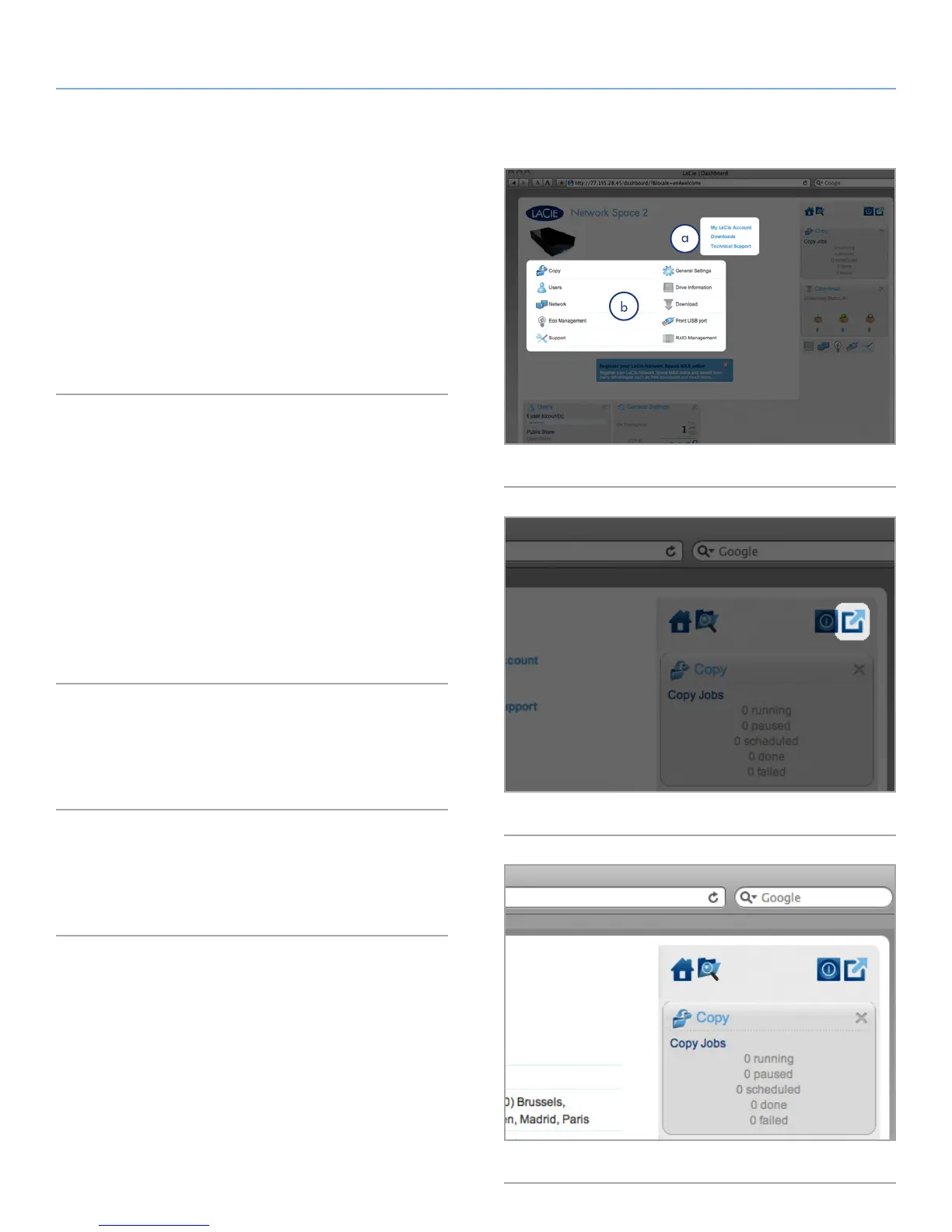
The welcome page contains links to helpful documents from the
LaCie Website (Fig. 50, a) and a table listing the different options
that make up the Dashboard (Fig. 50, b).
If you sign onto the Dashboard as an administrator, you will see
the detailed Welcome page with full management capability (as in
Fig. 50). If you sign in as a user, you will have fewer options (ability
to change username/password, access the file browser, copy, and
download).
4.3. Dashboard: Navigation
The Dashboard is made up of a central area surrounded by widgets,
or small boxes that represent the different pages that make up the
Dashboard. The widget displays a summary of the information con-
tained in the page. For full information, navigate to the page itself.
✦ To navigate to a page, click the widget below its title; or, drag
and drop a widget to the center of the window.
✦ To minimize a widget, click the X next to its title.
✦ To expand a minimized widget, drag its icon over an expand-
ed widget, which replaces it.
✦ To rearrange widgets, drag the minimized widget icon or the
expanded widget’s heading onto the place of another widget.
4.4. Dashboard: Logging Out
To log out of the Dashboard, click the log out button in the upper
right-hand corner of any Dashboard page (Fig. 51).
4.5. Dashboard: Restart/Shutdown
To restart or shut down the drive, click this button, then choose be-
tween Restart and Shutdown (Fig. 52).
Fig. 50
Fig. 51
Fig. 52













 To Next Page