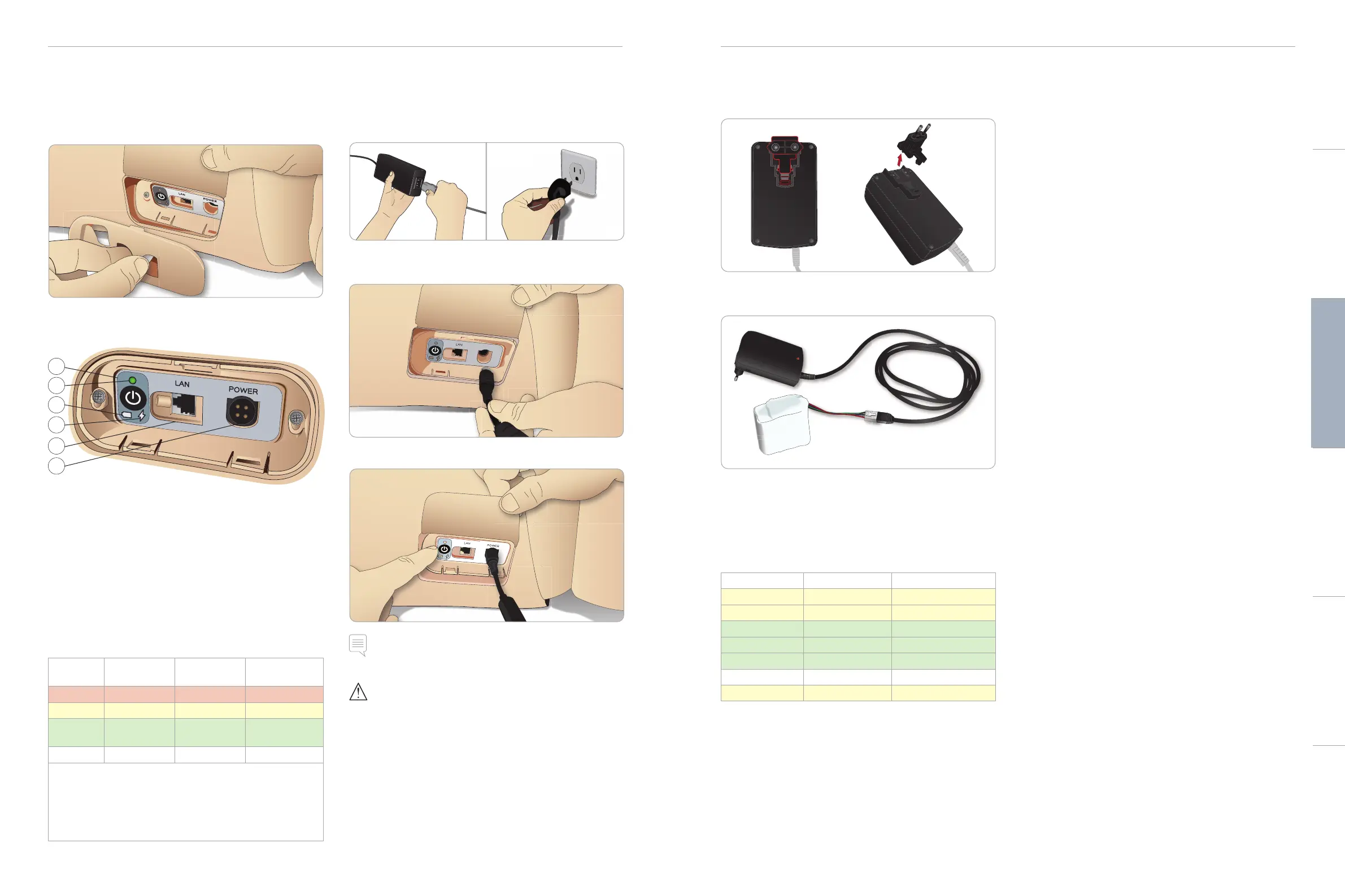
The Power Panel
The power panel is found on the right side of the Patient Simulator,
under a loose skin flap. Lift the skin flap and pull out the protective
cover.
To ensure easy access, use the zippered clothing provided with the
Patient Simulator.
1
2
3
4
5
6
Power panel overview
1 Power ON / OFF button
2 Power status indicator
3 Battery status indicator
4 Charging status indicator
5 LAN network cable connector
6 External power supply connector
Power Status Indicator Description
Indicator
Light Color
Power Status Battery Status Charge Status
Red Power save* 0% - 20% Not charging**
Yellow Start up 20% - 70% Charging
Green Running 70% - 100% Charge almost
complete***
No light Off Off No charge****
* Blinking light
** One or both batteries missing, overheated, damaged or
otherwise not able to charge
*** Not recommended to charge the batteries too long
**** No power input, batteries are charged.
Power Save is activated whenever Patient Simulator is paused.
Charging the Batteries
Inside the Patient Simulator
1 Connect the Patient Simulator to the external power supply
with a power cord and plug that meets local specifications.
2 Plug the power supply into a wall outlet and connect the power
cable to the power inlet on the Patient Simulator’s power panel.
3 Press the ON button to power on the Patient Simulator.
Note: During startup, the Patient Simulator’s eyes will blink and the
power status indicator light will be yellow.
Caution: After Patient Simulator is turned off, wait 20 seconds
before restarting. If not, Patient Simulator may not function properly.
14 15
SETUP
SETUP
External Battery Charging
The battery charger comes with 5 international plugs. Connect the
appropriate plug to the charger:
1 Connect the charger to a power outlet and connect the Patient
Simulator battery to the charger.
2 The indicator light on the battery charger shows charge status.
3 Battery charging time is approximately 3 hours.
The external battery charger should only be used with SimMan 3G
batteries.
Charger light showing battery sign
Light Code Light Color Characteristic
Standby Yellow Steady
Pre-charge Yellow Normal Blink
Rapid charge Green Rapid
Maintain Green Normal Blink
Ready Green Steady
Wait Alternating Alternating
Error Yellow Rapid
Battery Use
− Always use two SimMan3G batteries to power the Patient
Simulator
− Ensure that the batteries are properly connected
− Charge the batteries regularly
− Check LEDs on Patient Simulator’s power panel for battery
status
– Change both batteries before the battery charge drops below
15% or the battery light indicator is red. This can be monitored
in the technical status window on the Instructor PC
– The Patient Simulator will automatically shut down if: Battery
temperature rises above 60°C (140°F) or the remaining charge
falls below 6 % on one of the two batteries
View Battery Status in LLEAP
Check the power indicator in the Simulator Status window in LLEAP
according to the instructions in LLEAP Help.
Changing Batteries during a Simulation Session:
1 Press <Pause Session> on Instructor PC. Access the batteries as
described in Inserting and Connecting the Batteries
2 Replace one battery at a time to avoid loss of simulation data
Storage and Transportation
− Never store fully charged batteries for longer than a month
− Never store the batteries inside the Patient Simulator
− Store batteries in a refrigerator i.e. temperature 0°C - 4°C
(32°F - 40°F)
− The two simulator batteries can be transported in the Patient
Simulator during air freight
− When transporting spare batteries please contact the airline or
freight company for the latest transport regulations
Battery Maintenance
− On approximately every 30th charge cycle, drain the battery
completely before recharging. To drain the batteries, run the
Patient Simulator on both batteries until automatic shutdown
− Expected battery life: 200 charge cycles
− Replace only with Laerdal SimMan3G batteries
Cautions and WarningsFeaturesSetupMaintenanceSpare Parts Troubleshooting











 To Next Page