Lake Shore Model 325 Temperature Controller User’s Manual
Advanced Operation 5-3
Curve Breakpoints (Continued)
Setting resolution is also six digits in sensor units. The curve format parameter defines the range and resolution in sensor
units as shown in Table 5-2. The sensor type determines the practical setting resolution. Table 5-2 lists recommended
sensor units resolutions. For most sensors, additional resolution is ignored.
The breakpoints should be entered with the sensor units value increasing as point number increases. There should not be
any breakpoint locations left blank in the middle of a curve. The search routine in the Model 325 interprets a blank
breakpoint as the end of the curve.
5.2 FRONT PANEL CURVE ENTRY OPERATIONS
There are three operations associated with front panel curve entry: Edit curve, Copy curve, Erase curve; as detailed
below.
Edit allows the user to see any curve and enter or edit a curve at any
user curve location. Standard curves cannot be changed.
Erase allows the user to delete a curve from any user curve location.
Standard curves cannot be erased.
Copy allows the user to copy a curve from any location to any user
curve location. Curves cannot be copied into standard curve locations.
Allows creation of a new temperature curve from a standard curve and
known data points entered by the user.
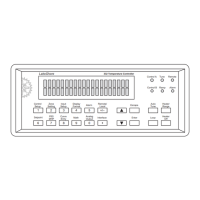
To begin a curve operation, press the Curve Entry key and the above selections appear. Press the Next Setting key until
the desired operation is highlighted and press the Enter key. A curve screen appears with the curve number highlighted.
Change to the desired curve number with the up or down arrow key, then press the Enter key to begin the desired curve
operation.
5.2.1 Edit Curve
The Edit Curve operation is used to enter a new curve or edit an existing user curve. Only user curves (21 to 35) can be
changed. Standard curves can only be viewed with the edit operation. Entering the identification parameters associated
with the curve is as important as entering the breakpoints. Curve header parameters are listed in Table 5-1. Typical
parameters for common sensors are listed in Table 5-2. Read this section completely and gather all necessary data before
beginning the process.
NOTE: If the curve you wish to enter has similar parameters to an existing curve, first copy the similar curve
(as described in Section 5.2.3) to a new location, then edit the curve to the desired parameters.
To enter a new user curve or edit an existing user curve, press the Curve Entry key. Press the s or t key until you see
the following display.
Press the Enter key. Press the Escape key any time during this routine to return to the normal display.
Use the s or t key to cycle through the various curves. Curve numbers 21 through 35 are used to copy or create new
curves. You can also view (but not modify) the standard curve numbers 01 through 20 from here. For this example, we
will enter a new curve in location 21. Press the Enter key.


 To Next Page