3
QUICK MENU
1. Connect air exhaust system.
2. Setup computer and connect with engraving system properly.
3. Turn ON host computer system.
4. Install the MERCURY Driver. (for the first time use only)
5. Use Windows-based program (such as CorelDraw, PhotoShop, PhotoPaint, Illustrator,
CASmate, Signlab, EasySign, AutoCAD, etc.) to operate with the engraver.
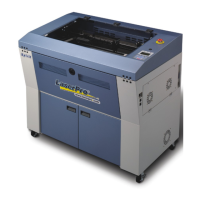
6. Turn ON engraver. The lens carriage moves to the home position (upper left corner)
and the working table moves down 50mm approximately after system initialization. (If a
rotary attachment has been installed, the working table will move down to the bottom.)
7. Auto-focusing: under STOP status, put work-piece on the table, move X-axis (Please
refer to Fig. 3) and carriage by arrow keys to locate the lens carriage above the
engraving material (holding carriage by hands for prompt moving is acceptable under
STOP condition but not recommended). Press AUTO FOCUS the table will move
upward and stop at the focal positionautomatically.
8. The following is an example by using CorelDRAW V.11. Please ready the engraving
graphic in CorelDraw, and follow the instruction below to start work.
1. Layout
2. Page Setup
3. Set from Printer, choose Portrait
4. OK
5. Edit desired file (picture etc.)
5. File
6. Print
7. Properties
8. Options, choose desired Mode (refer to Fig. 11) then set up proper resolution,
power and speed
9. OK
10. Print
11. File name is shown on LCD then press START.
(Please refer to page 16, Start to Operate, for detail operation in different mode
selection)
NOTE:
z If the memory buffer is set up in Single file / No Repeat mode, under START
condition,
the engraver will start to engrave/cut upon receiving a file. While if the memory
buffer is set up in Multiple File mode, receiving at least one complete file then press
START to start a job (refer to page 20, Start to Operate).
z Choices of DPI must be the same for both editing and printing out a file.
z Turn on the air exhausting system before engraving.
z The maximum loading weight
of working table is 20 kg.


 To Next Page