☞
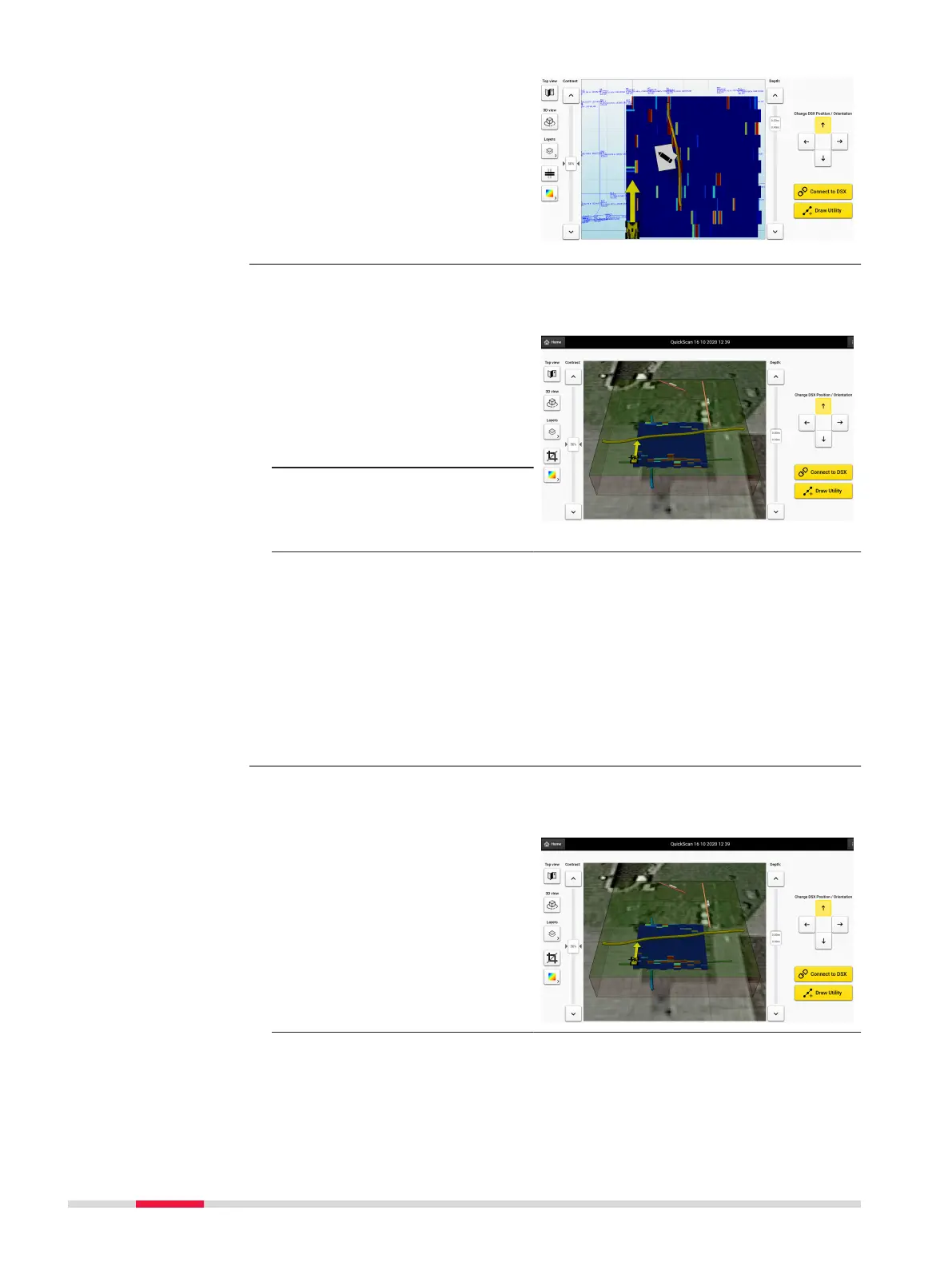
A utility element can be
edited or deleted by
selecting or tapping on
it directly.
The 3D view permits a three-dimensional viewing of utilities while utility
attributes are visualised (i.e. color, diameter).
☞
Add a Google Maps
layer to a Quick Scan
project to obtain an
updated three-dimen-
sional view of the
tomography and utilit-
ies.
1. Press the 3D view but-
ton to activate a 3D
rectangle containing
the working area.
☞
The working area is
dened by all the ele-
ments added on the
screen (tomography
strips, utilities, meas-
ured distances). The
shape will automatically
be adjusted in real time
as the cart moves on
the screen.
In Quick Scan projects, the displayed Google map can be cropped so that only
the part corresponding to the working area remains on screen.
1. Press the crop icon but-
ton, on the left side of
the Quick Scan screen
to enable the cropping
feature.
3D view in Quick Scan
projects with Google
Maps layer
Step-by-step
Crop view in Quick
Scan projects with
Google Maps layer
Step-by-step
48 Procedures for Working with the DSX


 To Next Page