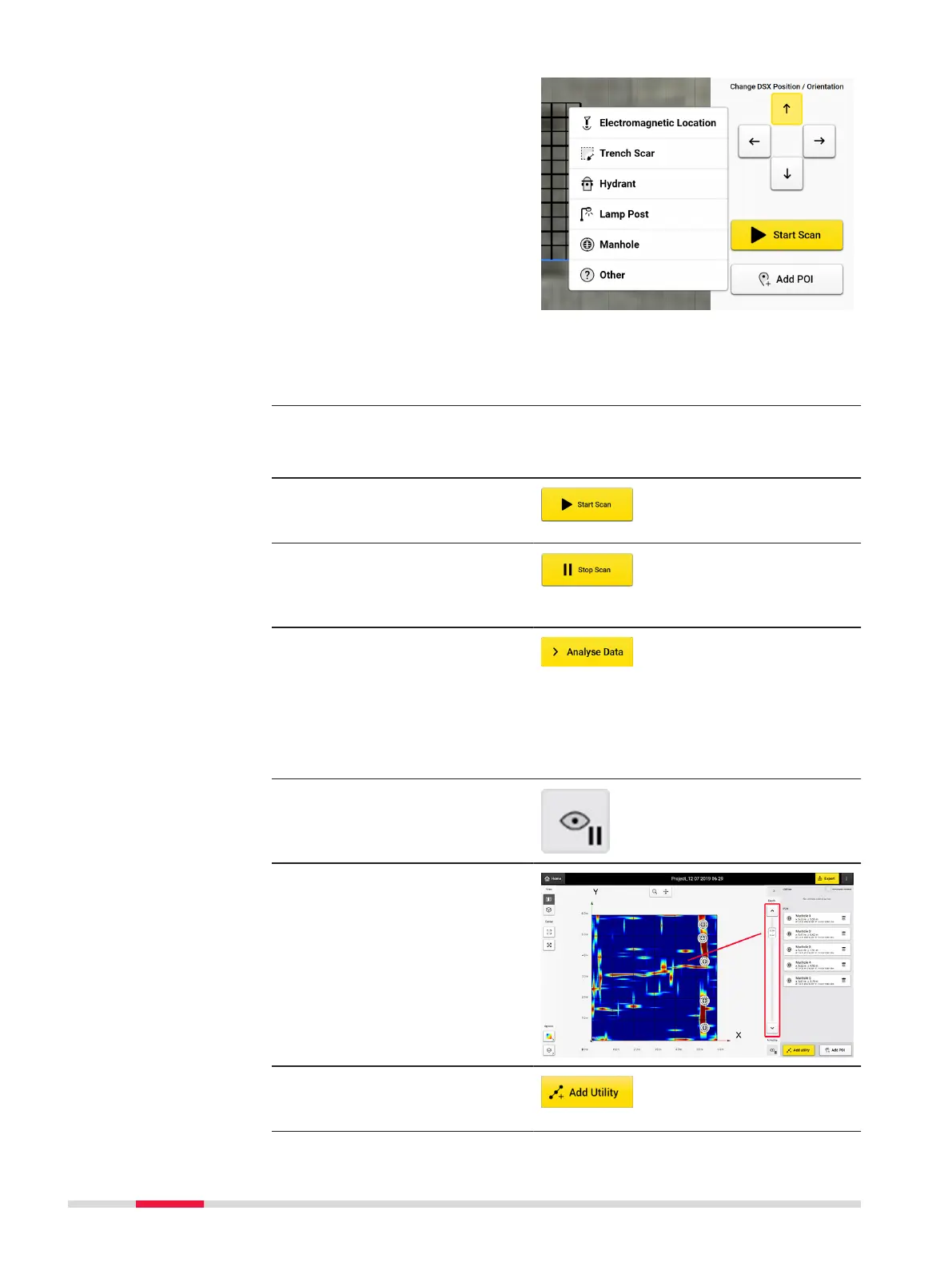
13. Tap Add POI to add
visible points of interest
on site.
Perform scanning
1. Adjust the cart position and direction using the arrows to coincide
the conditions on site.
2. Place the cart centre precisely on top of the starting point.
☞
Use the four red markers in the front, back and sides of
the cart.
3. Tap Start Scan and
start pushing the cart
forward.
4. Precisely on top of the
end point of the line
tap Stop Scan to stop
the cart.
5. Once the full scan is
ended, tap Analyse
Data.
Check and follow-up of scans
☞
After tapping Analyse Data the tomography is generated. The
animation is off by default.
1. Tap Start/Stop Auto-
play button to enable
or disable the tomo-
graphy animation.
☞
It is mandatory to
check on each slice to
nd utilities in that
depth range.
2. Tap Add Utility and
start marking the utility
using your nger.
52 Procedures for Working with the DSX


 To Next Page