98
3-2. Destination search
displayed, respectively. To register a
home or preset destination, select
the corresponding button.
● When the destination is very close to the
current position, “Nearby” will be dis-
played.
● The one-touch buttons for home and
favorites will disappear after the vehicle
has been driven for a while.
● The color of the estimated arrival time
indicator may change depending on the
traffic information received.
● This function is available when “Auto-
matic Destination List Info” is set to on.
(P.113)
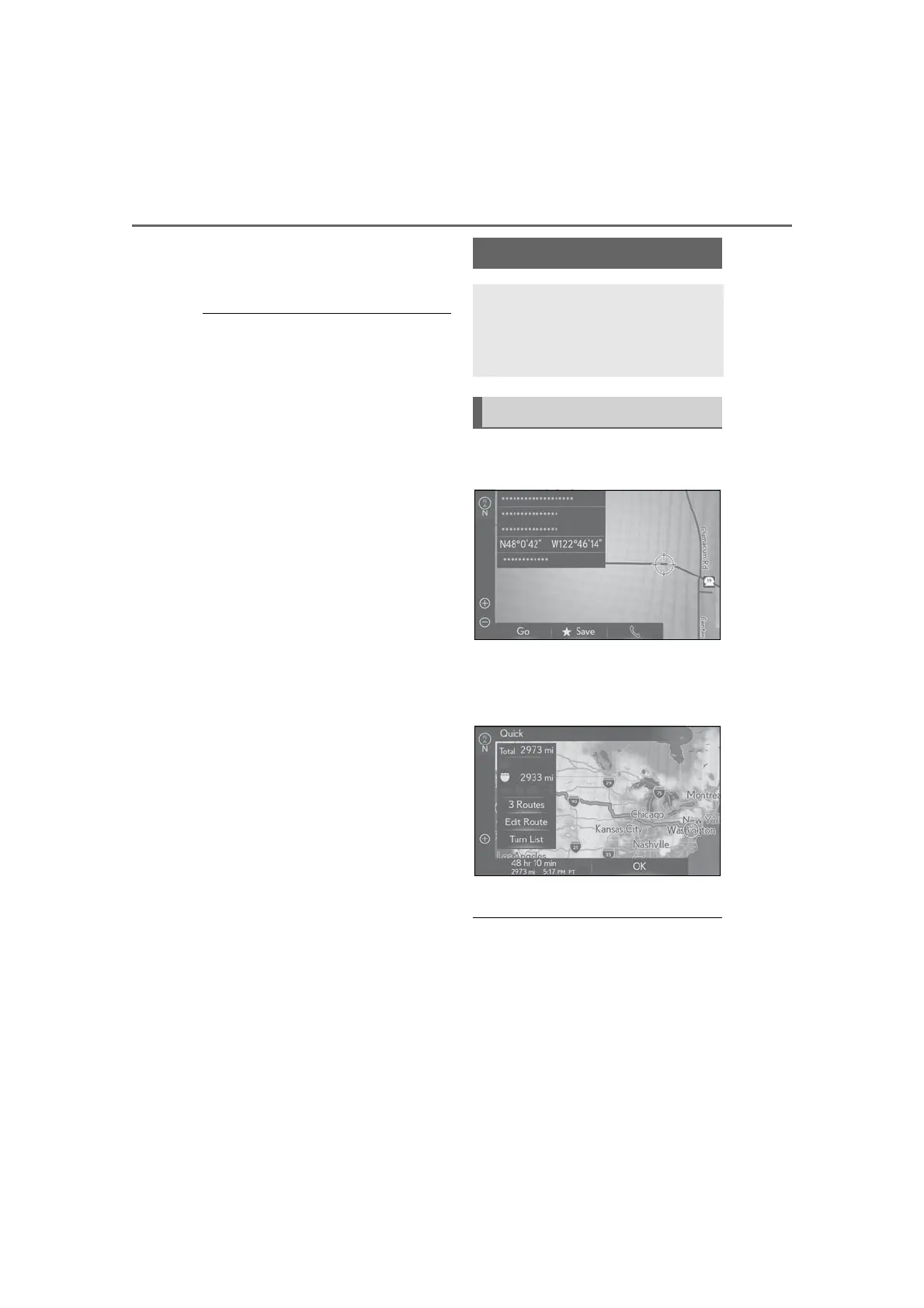
1 Select “Go” on the confirm destina-
tion screen.
For details about this screen: P.99
2 Select “OK” on the route overview
screen.
For details about this screen: P.99
● The route for returning may not be the
same as that for going.
● The route guidance to the destination
may not be the shortest route or a route
without traffic congestion.
● Route guidance may not be available if
there is no road data for the specified
location.
● When setting the destination on a map
Starting route guidance
When the destination is set, the
entire route map from the current
position to the destination is dis-
played.
Starting route guidance



 To Next Page