26
ENG
ENGLISH
ENTERTAINMENT
Tips for using USB storage devices
y Only a USB storage device is recognizable.
y If the USB storage device is connected
through a USB hub, the device is not recog-
nizable.
y A USB storage device using an automatic
recognition program may not be recognized.
y A USB storage device which uses its own
driver will not be recognized.
y The recognition speed of a USB storage
device may depend on each device.
y Please do not turn off the display or unplug
the USB device when the connected USB
storage device is working. When such a
device is suddenly separated or unplugged,
the stored files or the USB storage device
may be damaged.
y Please do not connect the USB storage
device which was artificially maneuvered on
the PC. The device may cause the product to
malfunction. Only use a USB storage device
which has normal music files, image files or
movie files.
y Please use only a USB storage device which
was formatted as a FAT32 file system or
NTFS file system by the Windows operating
system. In case of a storage device format-
ted with a different utility program which is
not supported by Windows, it may not be
recognized.
y Please connect power to a USB storage
device (over 0.5 A) which requires an exter-
nal power supply. If not, the device may not
be recognized.
y Please connect a USB storage device with
the cable included by the device maker.
y Some USB storage devices may not be sup-
ported or operate smoothly.
y File alignment method of USB storage devic-
es is similar to Window XP and the Monitor
can recognize up to 100 English characters.
y Be sure to back up important files since data
stored on a USB memory device may be
damaged. We will not be responsible for any
data loss.
Connecting USB Storage De-
vices
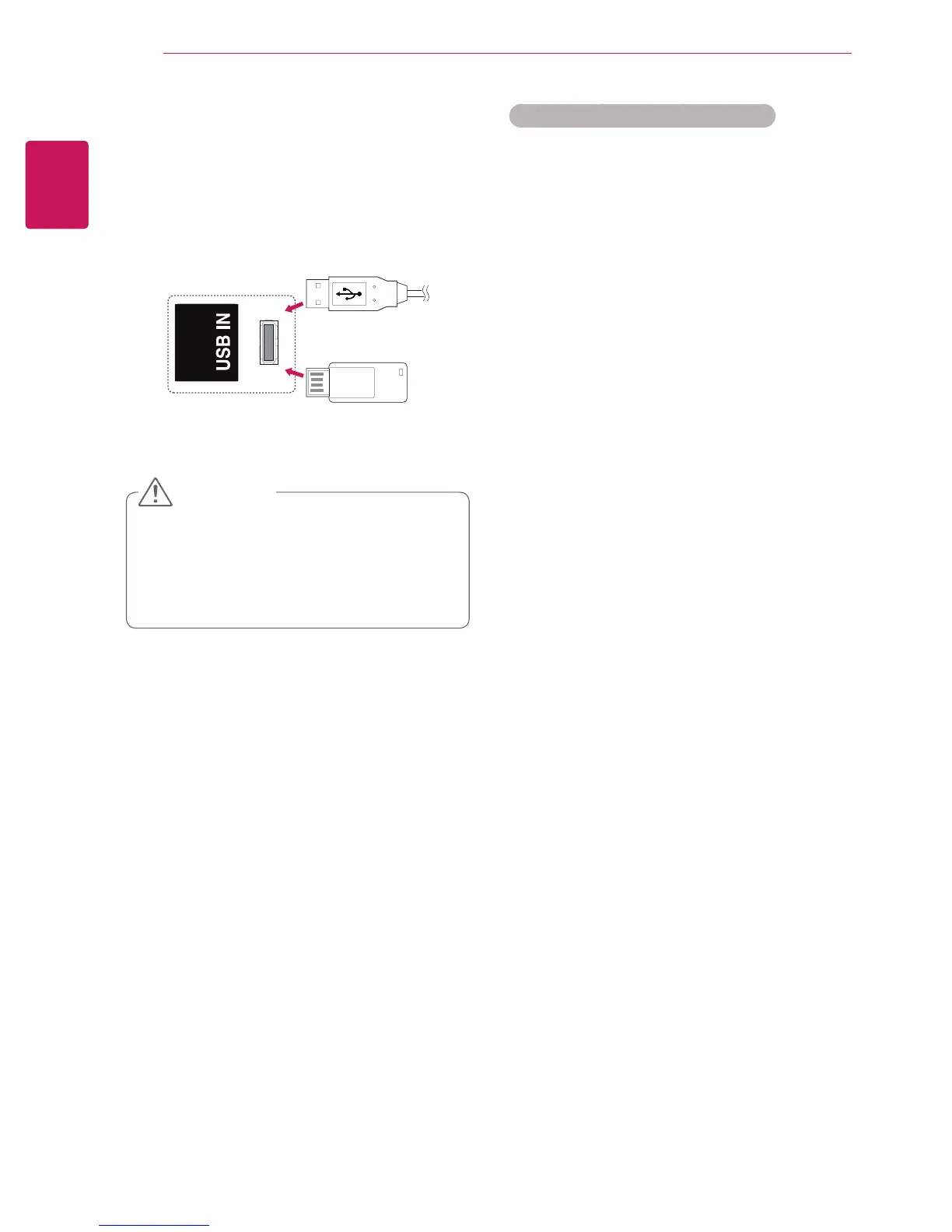
Connect a USB storage device (external HDD,
USB memory) to the USB port of Monitor to enjoy
the content files stored in the USB device on your
Monitor.
y Back up your files saved on a USB storage
device frequently, as you may lose or dam-
age the files and this may be not covered by
the warranty.
CAUTION
or


 To Next Page