44
ENG
ENGLISH
CUSTOMIZING SETTINGS
The available
NETWORK
settings are described in the following:
Setting Description
Network
Connection
Configure the network settings.
Network Status
Display the network status.
Display Sharing The device which is applied Display Sharing technology can be shown on the Monitor.
Enable Display Sharing mode on the device you wish to connect.
Your Monitor will be displayed in the list of available devices in the menu.
Select your Monitor to start connecting.
A message saying “Connecting…” will appear to start the connection.
The message will change to “Connected” once the connection is established, and the Monitor
will display the screen of the connected device.
y When connecting via Display Sharing, it is recommended that you place the device
in close proximity with the monitor.
y Though Display Sharing can be connected without a wireless router, it is
recommended that you connect the wireless router first for optimal performance.
y It is recommended that you connect the device to a 5 GHz router because the
performance may be affected by your wireless environment.
y The response rate may vary depending on the user's environment.
y For more information on the device you want to connect to, refer to its user guide.
y A non-LGE device may not be connected even when it is detected.
y If Display Sharing connection is not working, try to connect again after you remove
a monitor’s name in a device list or reboot a sink device.
y If Display Sharing connection is not working, try to connect again after you go in
‘Display Sharing’ menu and then turn ‘Off’ and ‘On’ at a monitor.
y Supported devices are PC (desktop, notebook and so on) but not the phone. The
PC is based on Windows 8.1 and Only Miracast is supported.
NOTE
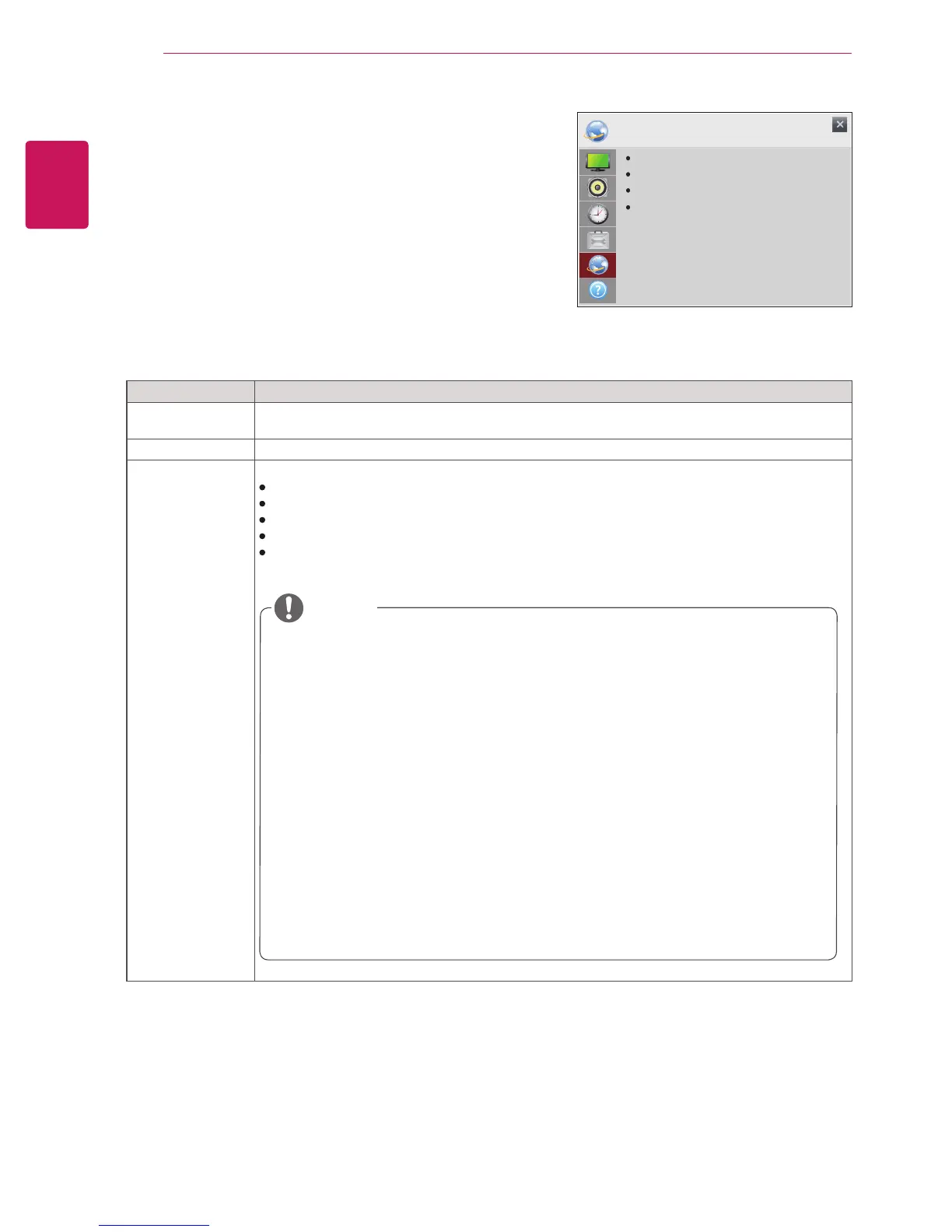
NETWORK
Network Connection
Network Status
Display Sharing
Monitor Name
NETWORK Settings
1
Press the navigation buttons to scroll to
NETWORK
.
2
Press the navigation buttons to scroll to the setting
or option you want and press
OK
.
- To return to the previous level, press
BACK
.
3
When you are finished, press
EXIT
.
When you return to the previous menu, press
BACK
.


 To Next Page