28
USING THE PROJECTOR
Using the Keystone Function
To prevent the screen image from
becoming trapezoidal, Keystone adjusts
the top and bottom width of the image
if the projector is not set up at a right
angle to the screen.
Because the Keystone function may
cause inferior screen image quality, use
this function only when it is not possible
to set up the projector at an optimal
angle.
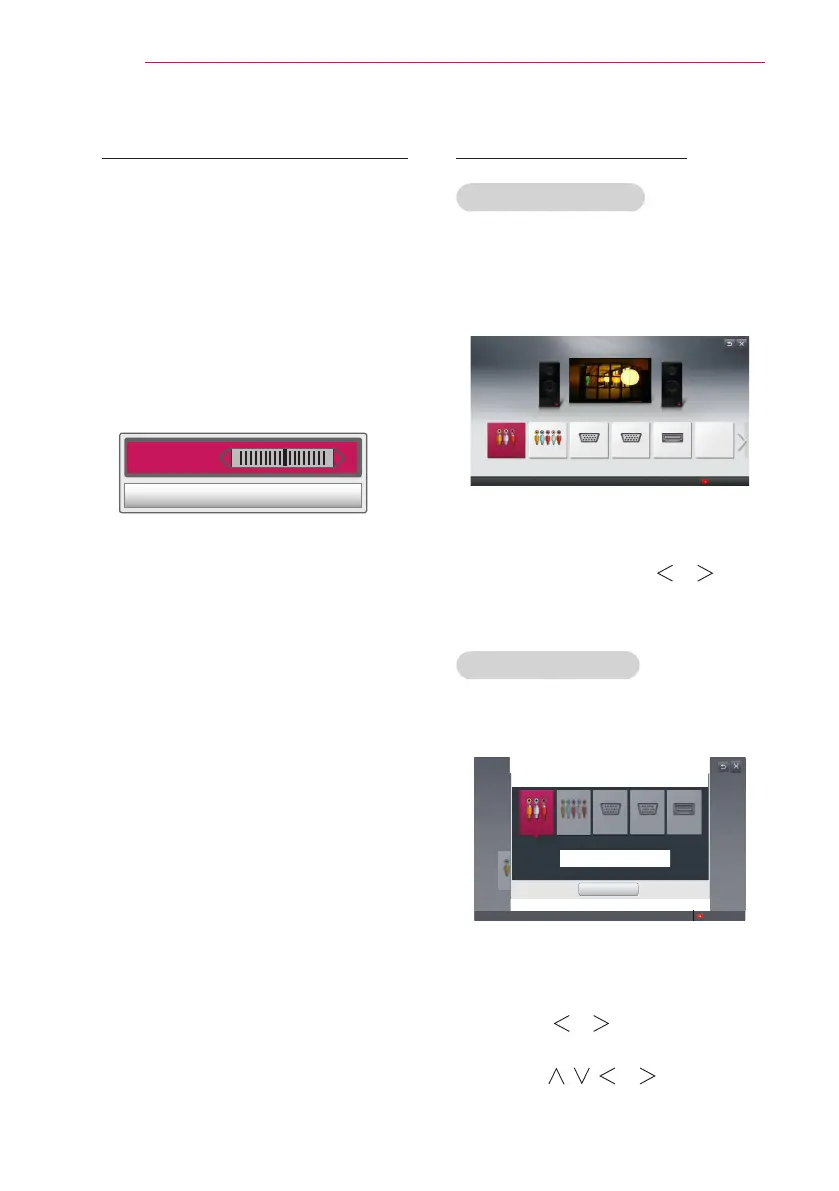
•Keystone 0
- +
CLOSE
1 Press the KEY.S ꔌ or KEY.S ꔍ but-
ton to adjust the picture.
y
Keystone can be adjusted
from -40 to 40.
2 Press the OK button when done.
Using the Input List
Using the Input List
1 Press the INPUT button to display the
input selection screen.
- The connected input mode appears
rst.
Component RGB-PC 2RGB-PC 1 HDMI
Change Device Name
Input List
Select an input device to view.
AV
2 Select an input signal using the
remote control's INPUT button to
connect the projector to the desired
input. You can use the or
button to switch between all the input
modes.
Adding Input Label
Displays which devices are connected to
which input ports.
Input List
Select an input
AV
Component RGB-PC2RGB-PC1 HDMI
Select a device to change name.
Input Label
Close
Change Device Name
1 Press the INPUT button to display the
input selection screen.
2 Press the red button.
3 Press the or button to go to the
desired input and press the OK button.
4 User the , , or button to
select a device name.


 To Next Page