13
Matching stereo/mono setting to an audio panel
The stereo/mono switch setting should match the
signal from your audio panel. Incorrect settings
result in communications being heard in only one
ear. The stereo/mono switch does not affect auxiliary
devices, so you can enjoy auxiliary audio in stereo
regardless of how the stereo/mono switch is set.
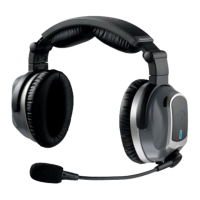
ComPriority
™
ComPriority lowers the volume of music and
other audio from auxiliary devices during radio
communications. Its button is next to the volume
control on the headset. An audible tone will notify the
user that ComPriority has been enabled or disabled.
Wired auxiliary devices
To connect a music player or cell phone to Tango’s
auxiliary input jack, use the cord provided.
IMPORTANT: To use a cell phone via the auxiliary input
jack, the headset must be connected to the intercom.
To adjust the volume on a device connected to
Tango’s auxiliary input jack, use the controls on the
device itself.
Using Your Tango Headset


 To Next Page