www.linearcorp.com 18 eMerge Essential Installation Manual
7.0 Network Connection
e eMerge Essential must be located in a trusted network environment where a protected net-
work security system (rewall, etc.) is installed and maintained. Before you congure the control-
ler please obtain the following information from your network administrator:
♦ IP address (if applicable)
♦ Subnet Mask
♦ Gateway
♦ DNS 1 and 2
Preparing for the Network
To allow for the eMerge Essential to be recognized on the local network, it is necessary to change
the controller’s IP address as follows:
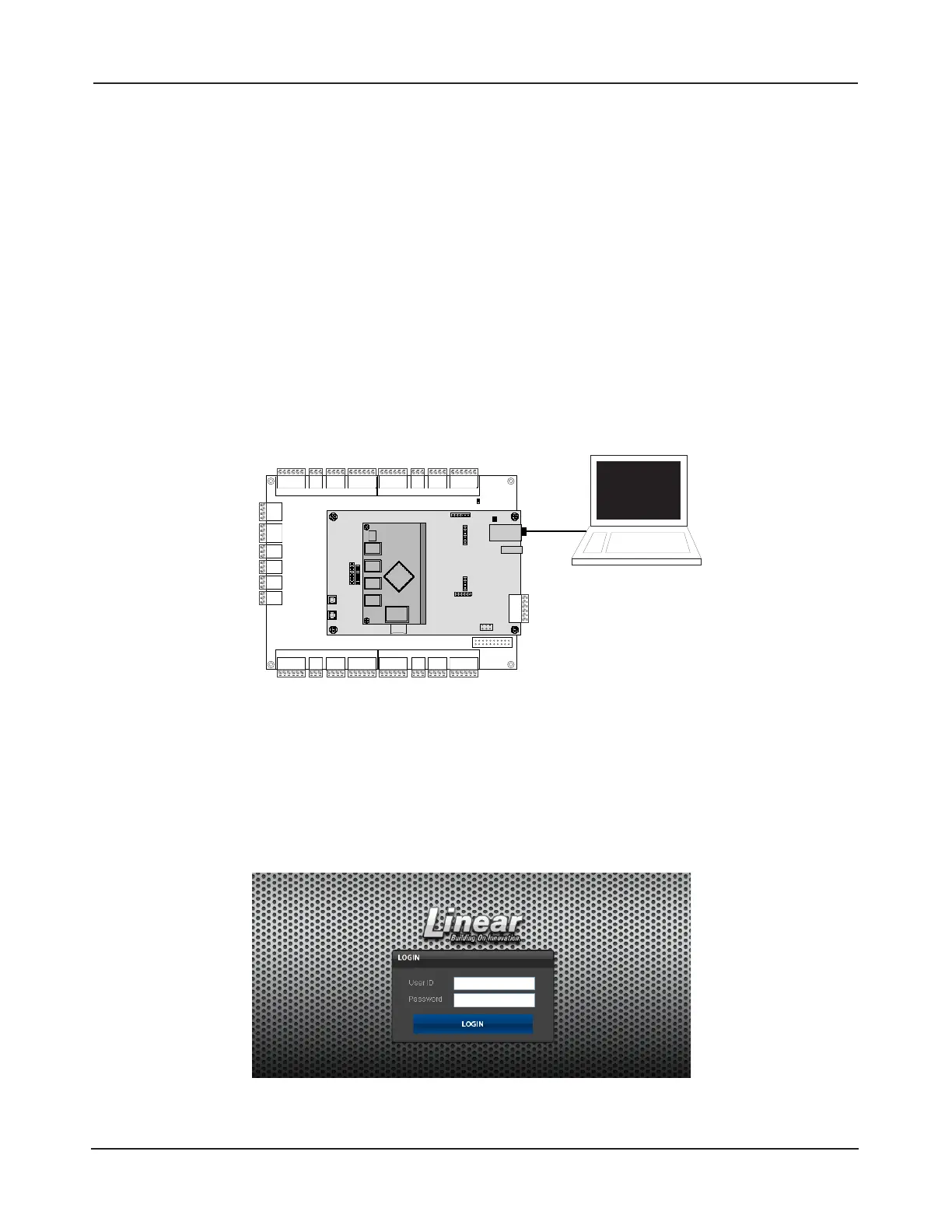
1. Connect your programming computer directly to the Ethernet port of the control panel as shown
in Figure 7.1. (You may also connect the computer and control panel to an Ethernet Switch.)
ETHERNET
LAN LED
Figure 7.1. Connecting to the Control Panel
2. Assign a static IP address of 192.168.0.149 to the computer. (For instructions on how to
change the static IP address of a Windows computer, please visit: http://technet.microsoft.
com/en-us/library/710457).
3. After assigning the static IP address,
open a web browser and
enter the IP address of the
controller (Default = 192.168.0.250).
4. e controller presents the eMerge page as shown in Figure 7.2. To log on, enter the default
user ID and password (admin/admin).
Figure 7.2. Web Server Login Page
Caution: The system is
exposed to potential risks
if installed on a network
without proper security
precautions. Consult the
appropriate on-site IT
administrator.
Note: If a DHCP
server is present, IP
Addresses are dynami
-
cally assigned. A static
IP address is required for
the controller because
a DHCP Server may
assign a new IP Address
resulting in loss of com-
munication.


 To Next Page