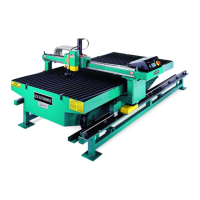
7. HOW TO OPERATE A VULCAN WITHOUT A TOUCH SCREEN
3 Items Needed
Computer: The best computer to use is your office computer, but any computer will work as long
as it has Windows XP and Vulcan and shop data loaded.
Vulcan CD: The CD is needed to load the VSControl and .Net Framework.
9 Pin Serial: This cable will be used to connect the temporary computer to the Vulcan cutting table.
Cable (6 - 10')
Operation / Procedures... Page 16
Instructions
1. Move computer to within 6 feet of control box.
2. Connect the 9 pin cable between the serial port -1 on the back of the computer to the 9 pin female
connector inside the Vulcan control box.
3. Turn the computer on.
4. Load VSControl.
a. Place the Vulcan CD in the CD Drive. The Vulcan install menu will pop-up automatically.
b. Click on VSControl Program - select Next from the welcome screen- select Full Install and
Next - select Table Model - select Next to start installation - select Finish to complete the
installation.
5. Load .Net Framework. After loading VSControl, the computer will return automatically to
the Vulcan main screen. Click on Install .Net Frame work.
a. Select Yes to install. Net Framework.
b. After loading is complete, click on Exit and remove CD from drive.
6. Reboot computer.
7. The VSControl should appear automatically. If it doesn't, just double click on the VSControl icon.
a. Click on Initialize.
b. Press the green enable button.
c. Click Drives on.
d. Click Home 0, 0
H. WEISS MACHINERY & SUPPLY
H. WEISS MACHINERY & SUPPLY
PHONE: (718) 605-0395 - www.hweiss.com


 To Next Page