Connecting
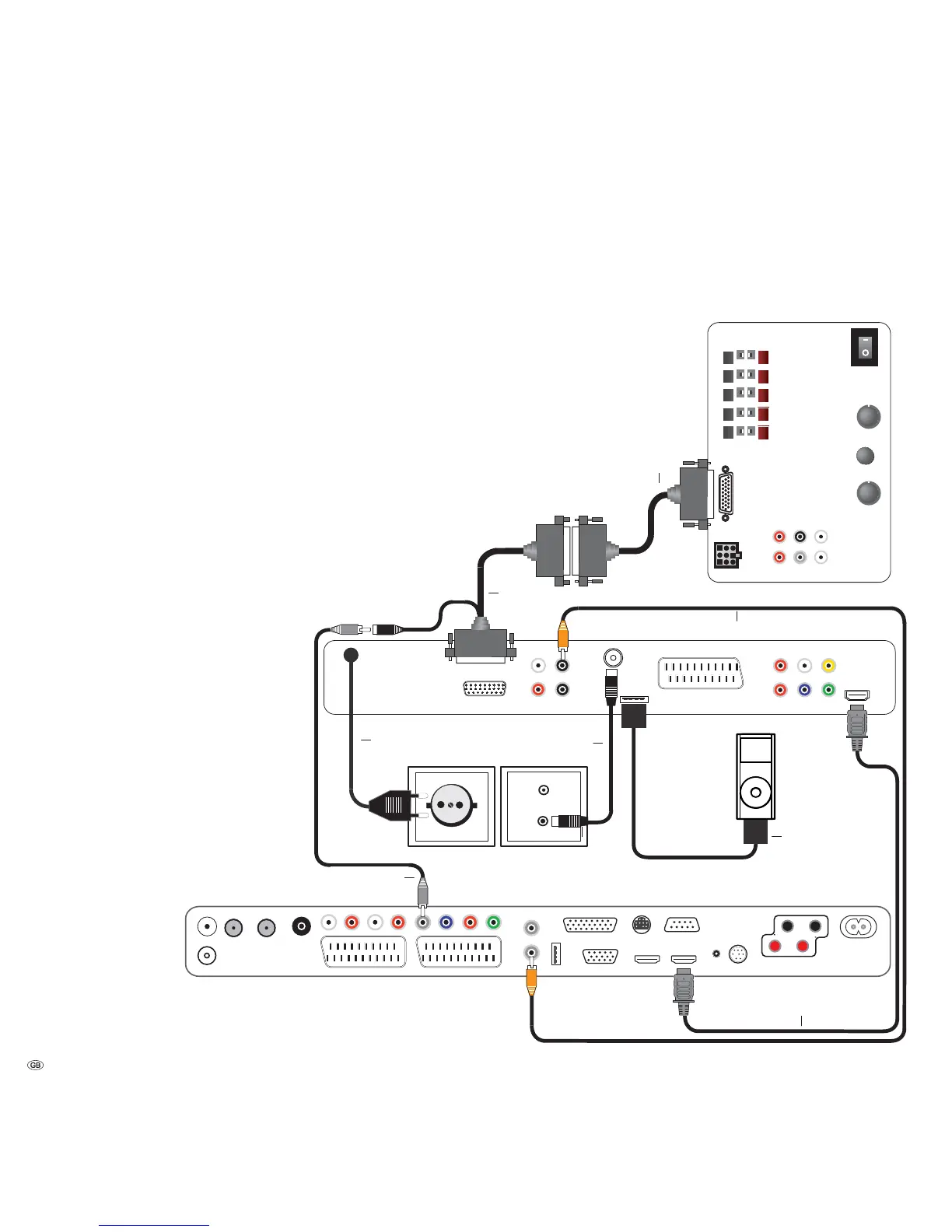
Cabling AudioVision (other TV sets)
With this configuration, the audio signals are processed via AudioVision.
Connect the socket HDMI OUT of AudioVision with one of the sockets HDMI IN
on your TV set using the provided HDMI cable.
If your TV set has no HDMI IN socket, connect the three sockets OUTPUT COM-
PONENT of AudioVision using three video suitable cinch cables plugged into the
sockets COMPONENT IN on your TV.
You can also make the connection to a TV set using a SCART cable plugged into
the socket EURO AV.
Use the antenna cable to connect the socket ANTENNA FM to an antenna socket.
Connect the iPod cable to the socket iPod (24pin).
Connect the socket AUDIO-LINK of your AudioVision with the socket of the
SubWoofer using the Audio Link cable. Should you not wish to channel centre
channel through your TV set, you can also use the optional adapter cable (order nr.
009-70784.001, available at your local specialized dealer). It must be connected
to Audio Vision`s socket and the AUDIO LINK cable to the subwoofer and the
TV set’s center in socket.
To reproduce the sound of the TV set, e.g. DVB
radio, via your AudioVision/SubWoofer Sys-
tem establish a connection between the TV set
and AudioVision. For that, you should prefer-
ably use an optional, digitally suitable audio
cinch cable and connect it with the socket AU-
DIO DIGITAL OUT of the TV set and the socket
COAXIAL IN of your AudioVision. Alternatively,
you can connect the analogue Stereo sound
signal of your TV set with the sockets INPUT
AUX R/L on your AudioVision via the stereo
cinch connection.
Plug the mains cable into a 220-240V 50/60
Hz wall socket.
Line IN
Front
Right
Surr.
Front
Subw.
Left
Right
Center
Left
R
R
L
C
L
Bass Intensity
Phase
Min. Max.
0 180
Crossover Frequency
Audio Link
System connector
50 250.
TV set
Loewe SubWoofer
Adapter cable
AudioVision
Mains cable
HDMI cable
Digital Audio Cinch Cable
FM Antenna
Centre Channel
AUDIO LINK cable
iPod cable
- 12



 To Next Page