Playback of DVD and CD
System Conditions
If you have carried out the relevant steps as described in Chapters ”Setup”, ” Con-
nect” and ”Start-up” switch your AudioVision and devices connected to it on.
Depending on which device configuration you are using (see page 11 to page 13),
set the device buttons and sound functions on the Assist remote control as de-
scribed on page 14. If you use the integrated network configuration as described
on page 11, the Loewe TV set will process the sound and sound functions of the
Assist remote control do not have to be changed. With a configuration as described
on page 12 and page 13, it is necessary to change the sound functions on the
Assist remote control as described on page 14.
Playable Discs
Only use discs that conform with conventional standards. This can be ascertained
from the logos applied.
Disc Type
Recording
Format
Contents Disc Size
DVD
Video
Regional Code
2 / ALL
Video
Mode
Audio + Video
(Movie)
12 cm
(5”)
DVD±RW/DVD±R *
Video
Mode
Audio + Video
(Movie)
12 cm
(5”)
Audio CD *
Audio CD
(CD-DA)
Audio
12 cm
(5”)
CD-RW/CD-R *
Audio CD
(CD-DA)
Audio
* only nalised discs
Regional Code
This Player can only play back DVDs for Region ”2” or ”All”.
The regional code on the labels of many DVDs shows which type of DVD player
can play back these discs. On some DVD discs, the label with the regional code is
missing, even though the disc can not be played back in all regions.
Symbols in these operating instructions
DVD ALL All DVD discs
DVD-V DVD Video Disc
CD Audio CD
DivX DivX/Xvid files
MP3 MP3 files
WMA WMA files
JPEG JPEG files
Radio Radio operation
Handling Discs
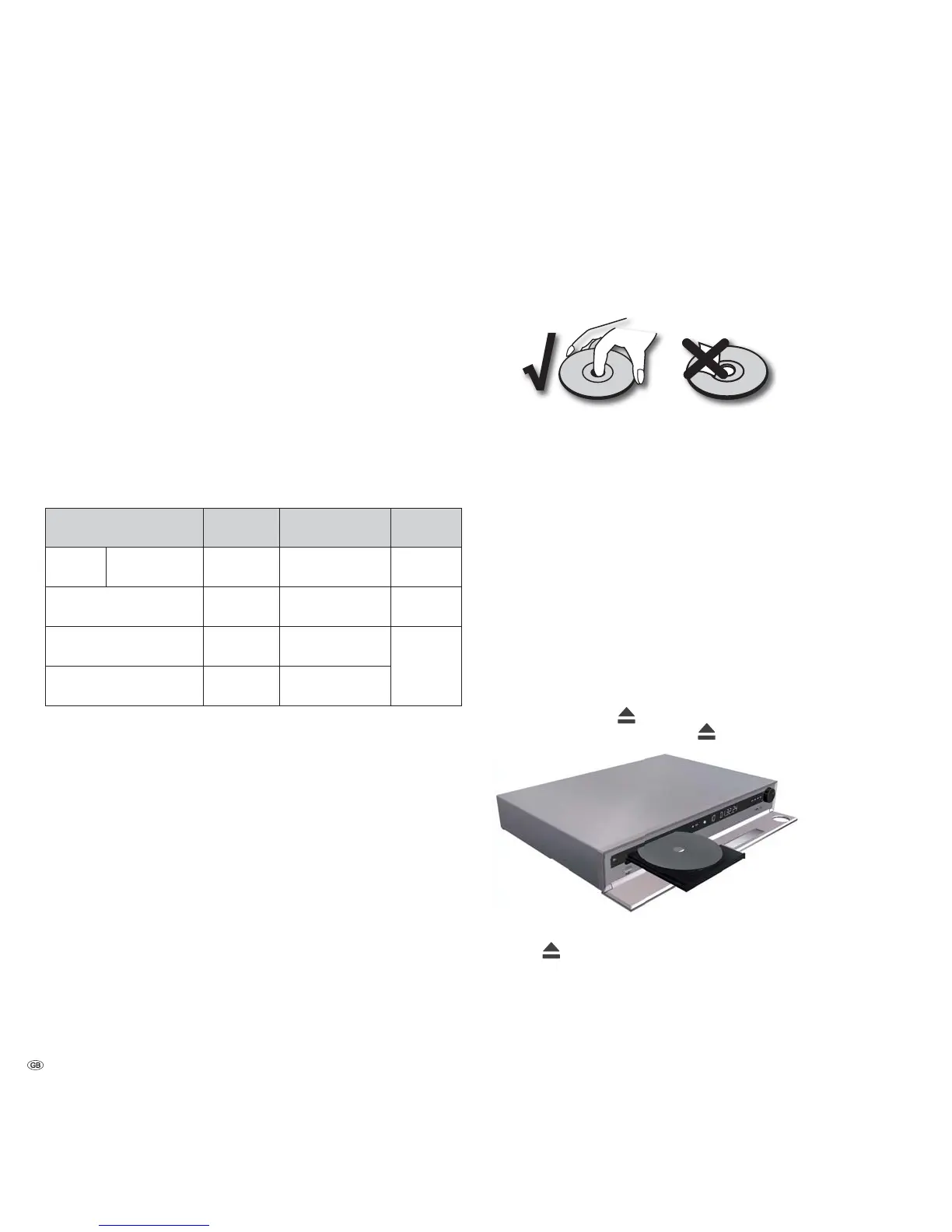
Do not touch the recorded side of the disc. Hold the disc by the edges to avoid
touching the surface with your fingers. Do not apply any paper or sticky tape to
either side of the disc.
➠ DVD-R/RW, DVD+R/RW- and CD-R/RW discs written with a PC or a DVD or
CD Recorder can not be played back if the disc is damages or dirty or the
lens of the player is covered with condensation.
➠ If you write a disc with a PC, it may not be possible to play back the disc,
even though its format is compatible, possibly because of the settings in the
application software used to burn it. (You can get further information on this
from the software provider).
➠ Depending on the recording device or the CD-R/RW- (or DVD±R/±RW-) disc
itself, some CD-R/RW- (or DVD±R/±RW) discs can not be played back with
this device.
➠ Do not use any unusually shaped CDs (e.g. heart-shaped or octagonal).
Otherwise malfunction or damage can not be ruled out.
➠ Fingerprints and scratches on the disc can impair playback. Take care of the
discs.
Inserting Discs
The disc drawer of your AudioVision is behind the front flap. To open the disc
drawer, press the button
on the device. Insert the disc in this drawer. The printed
side of the disc faces upwards. Press the button again to close the disc drawer.
Ejecting the Disc
Press the
button again to remove the disc.
- 20



 To Next Page