109
Section 6: Searching
Whether you are in Aviation Mode or Land Mode, AirMap's search func-
tions all begin with the
FIND key, and the search menus work the same in
each mode. However, the Aviation Mode searches appear only in Aviation
Mode (while the general searches appear in both Aviation and Land mode).
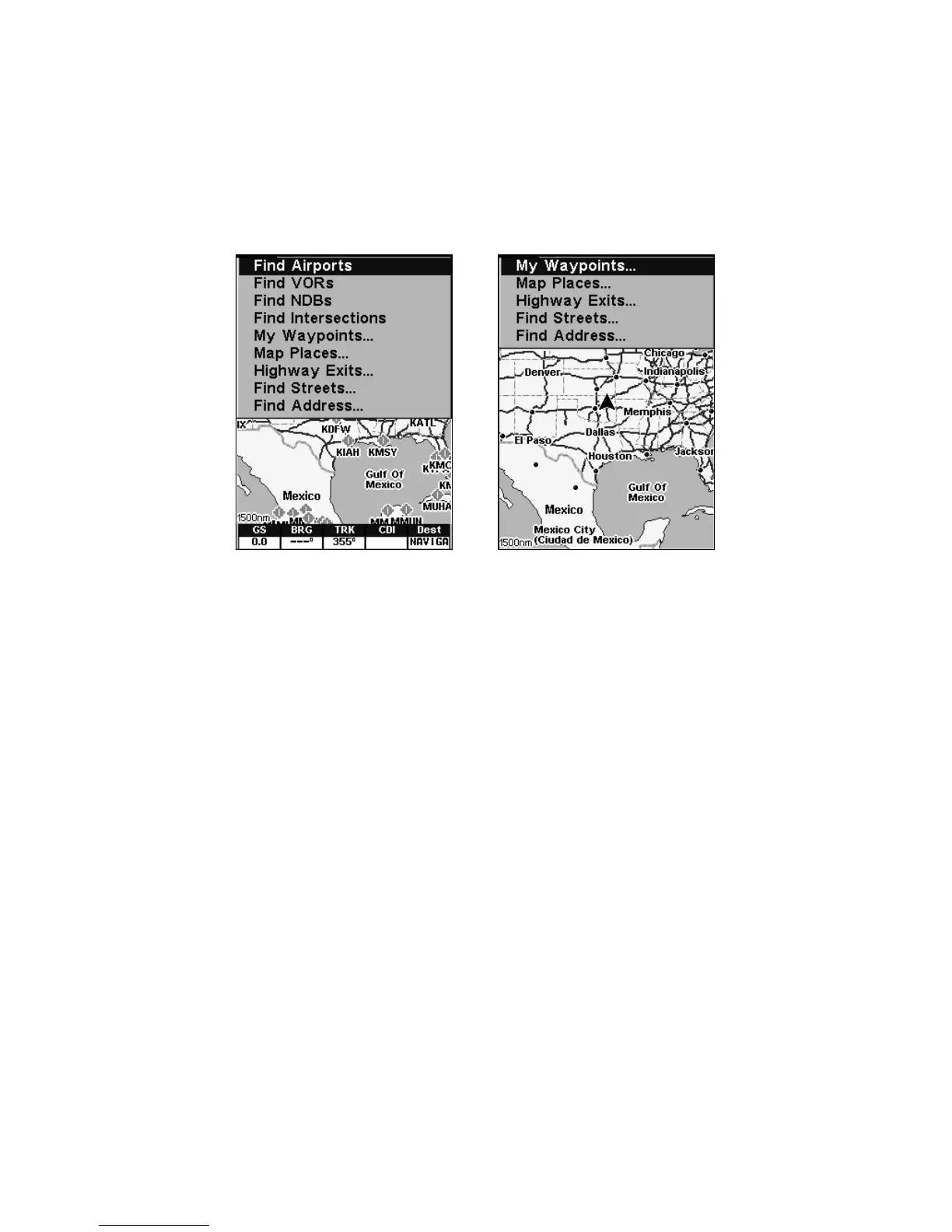
Aviation Mode Find menu, left; Land Mode Find menu, right.
NOTE:
You can search for items even if AirMap hasn't acquired a position
yet, or start from a position other than your own. When you do a
search, distance and bearing to the selected item will be calculated
from AirMap's current position. If AirMap hasn't acquired a posi-
tion, it will use the last known position. If the cursor is active, Air-
Map will always begin the search at the cursor. You can look up
items by name, or search for the item nearest to you.
Aviation Mode Searches
Find An Airspace (Using Cursor)
On the Map Page, you can select airspaces with the cursor by scrolling
over the airspace border. When the airspace is selected, the line defin-
ing its border will expand. Press
FIND|ENT and an Information Page
will appear showing you details about the selected airspace. To return
to the previous page, press
EXIT.
NOTE:
The position, distance, and bearing information shown on the way-
point information screen are based on the cursor position within the
airspace, not on the airspace itself. This means you can scroll the



 To Next Page