72
4. To accept the default name "Data" for the GPS Data File, press ↓ to
SAVE|ENT. (If you wish to rename the file, press ENT to activate the se-
lection box. Press ↑ or ↓ to change the first character, then press → to
the next character and repeat until the name is correct. Then, press
ENT|↓ to SAVE|ENT.)
The unit will display first a progress then a completion message when
the data transfer is finished. To return to the Page view, press
EXIT|EXIT|EXIT.
Searching
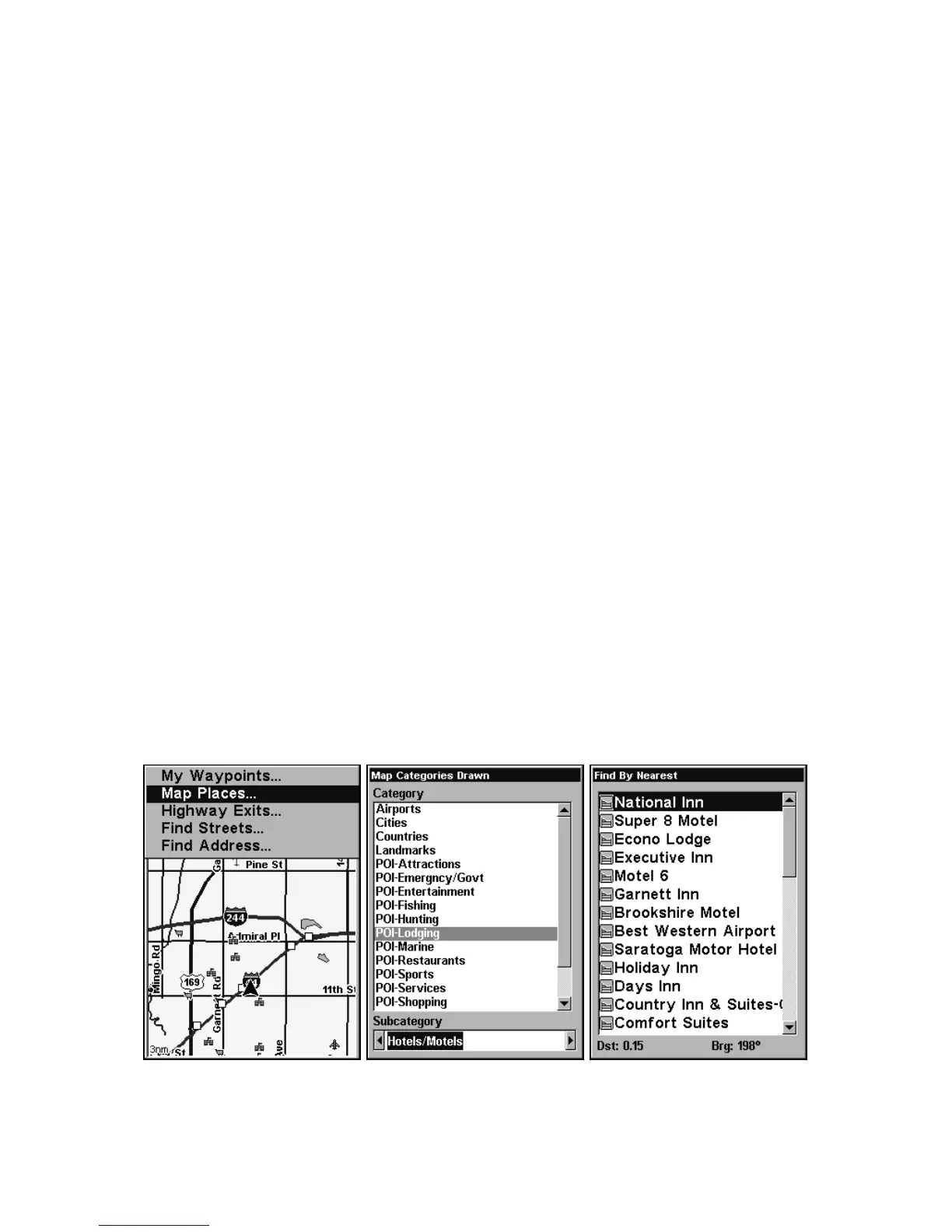
In this example, we'll look for the nearest hotel or motel. For more in-
formation on different types of searches, refer to Sec. 6, Searching.
NOTE:
This example requires the Point of Interest (POI) database included
with MapCreate 6. Always use a custom map if you want to be able
to search for Points of Interest.
After AirMap has acquired a position:
1. Press
FIND|↓ to MAP PLACES|ENT|↓ to POI-LODGING.
2. You could search the entire lodging category, but in this example we
will narrow our search. Subcategory is listed below the main selection
list. Press → to
HOTELS/MOTELS|ENT|ENT.
3. AirMap says it is calculating, then a list of hotels and motels ap-
pears, with the closest at the top of the list, and the farthest at the bot-
tom of the list. The nearest is highlighted.
Find Map Places Menu, left; Category Selection menu, center;
and list of the nearest motels, right.



 To Next Page