31
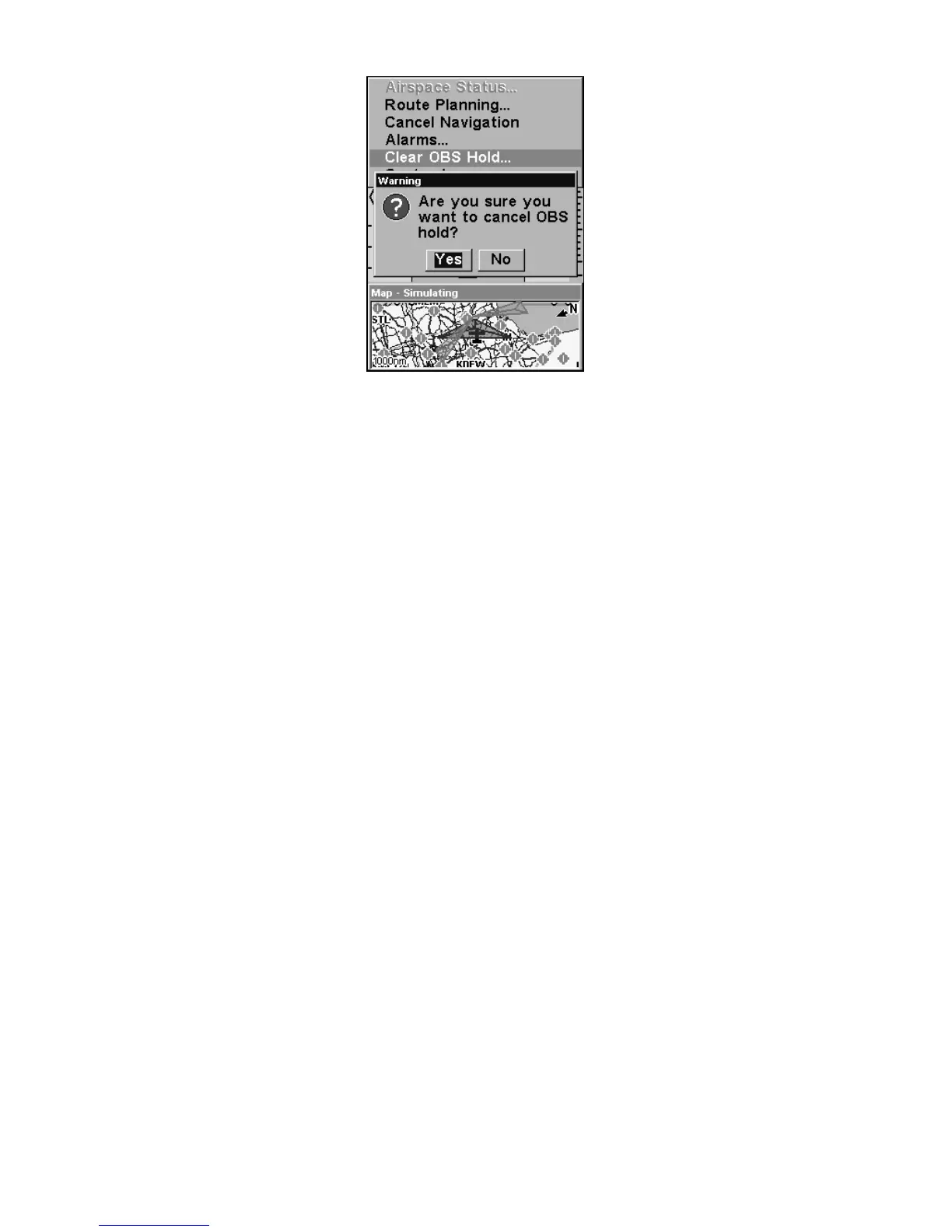
Use the Clear OBS Hold command to resume navigation. The HSI dis-
play will point to your original destination again.
You can turn off OBS Hold at any time using the Navigation Page menu.
1. Press
MENU|↓ to CLEAR OBS HOLD|ENT.
2. A window will pop up asking you if you want to cancel OBS Hold.
Press ←|
ENT. Press EXIT to clear the menu.
The navigation data will once again direct you to your destination, or the
next waypoint in the route you're navigating. Beginning navigation to a
new destination will automatically clear OBS Hold, as well.
Map Page
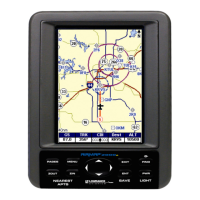
The map screens show your course and track from a "bird's-eye" view.
These are moving map displays, that is, the map automatically scrolls
beneath you as you fly. The Map Page offers five display options, which
we will describe in a moment.
By default, this unit almost always shows aviation maps in Track Up
orientation. (This can be changed using options described in the topic
Map Orientation, in Sec. 5.) If you're navigating to a waypoint, the map
also shows your starting location, present position, course line and des-
tination.
NOTE:
When our text says "navigating to a waypoint," we really mean navi-
gation to any selected item, whether it is a waypoint you made, a
map feature or an item (like a VOR) from the Jeppesen database.
To get to the Map Page: Map Page's Full Map option is the default screen
when AirMap is turned on. To switch from another page to the Map
Page, press
PAGES then use → or ← to select a page, then press ↑ or ↓ to
select a page display option. (Clear the Pages Menu by pressing
EXIT.)



 To Next Page