53
To transfer data from AirMap to the MMC: press
ENT (for SAVE.)
To transfer data from the MMC to AirMap: press → to
LOAD|ENT.
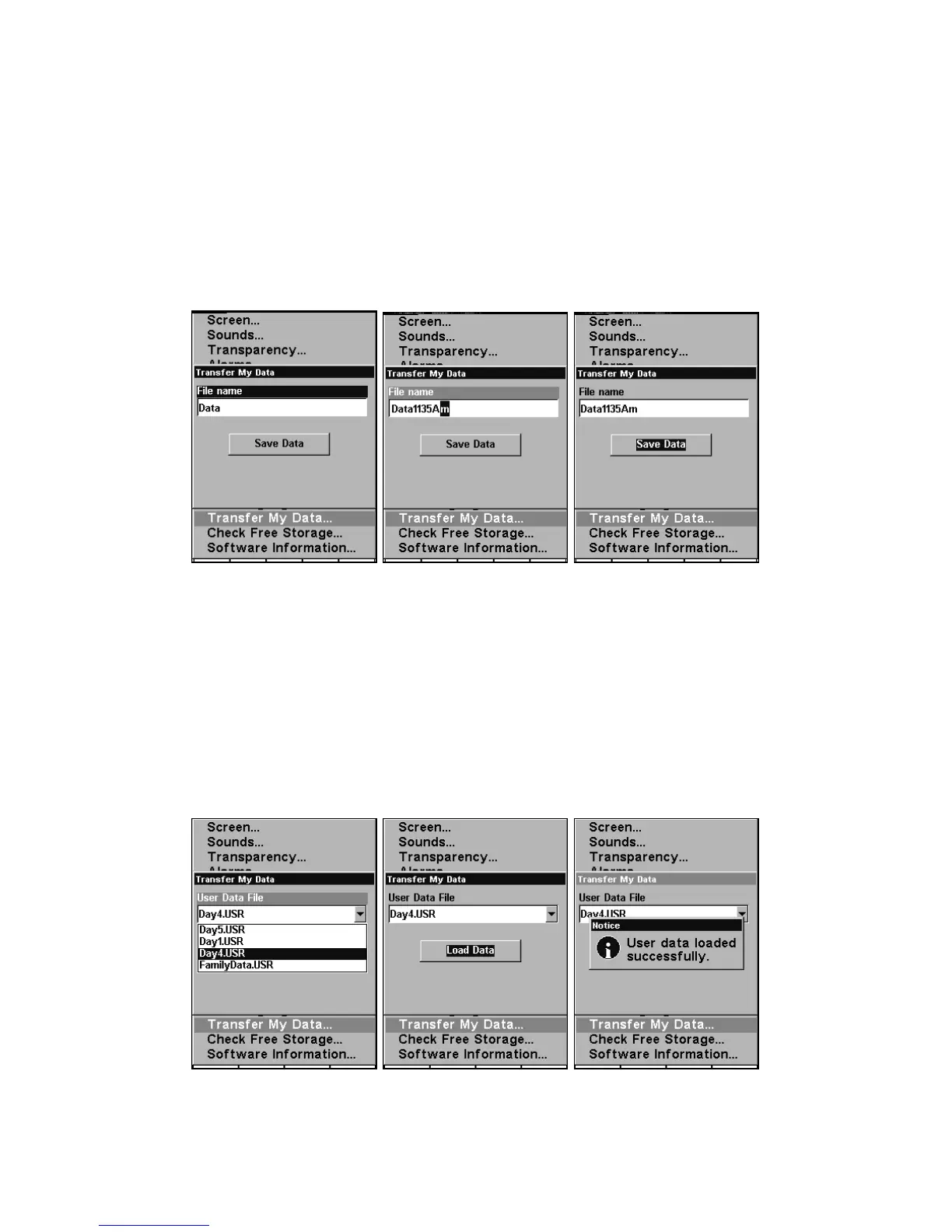
3. Saving: A file name box appears. To accept the default name "Data"
for the GPS Data File, press ↓ to
SAVE DATA|ENT. If you wish to rename
the file (as in the following example), press
ENT to activate the selection
box. Press ↑ or ↓ to change the first character, then press → to the next
character and repeat until the name is correct. Then, press
ENT|↓ to
SAVE|ENT.
From left to right, these figures show the menu sequence for naming
and saving a GPS Data File from AirMap's memory onto an MMC.
The unit will display first a progress then a completion message when the
data transfer is finished. To return to the Page view, press
EXIT|EXIT.
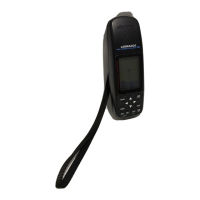
4. Loading: There may be more than one GPS Data File (*.USR) on the
card. To select a file, press
ENT to activate the selection box, use ↓ or ↑
to highlight the file, then press
ENT to accept the selection. Next, press
↓ to
LOAD|ENT. The unit will display a completion message when the
data transfer is finished. To return to the Page view, press
EXIT|EXIT.
From left to right, these figures show the menu sequence for loading a
GPS Data File from an MMC into AirMap's memory.



 To Next Page