Luowice Wireless Security Camera User Manual
Luowice Wireless Security Camera User Manual
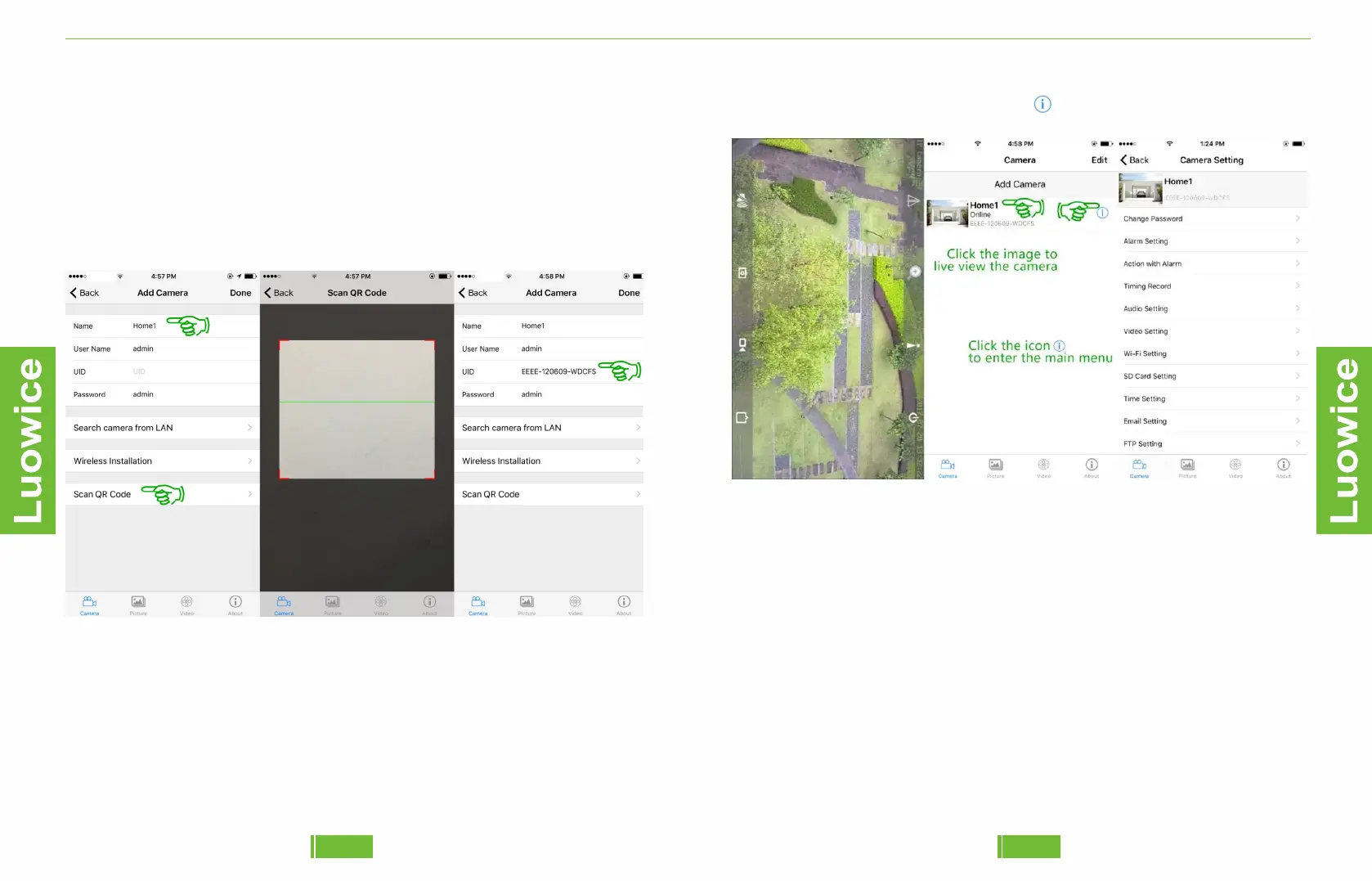
Step 3: The default name of the camera on the APP is 'Camera'. Please
kindly change the name of the camera first. And then please kindly click
'Scan QR Code', and take your phone near to the camera and scan the QR
Code label on the camera to get the UID. You can also insert the UID
directly if you can not get the UID after scanning the QR Code. After you
get the UID, please kindly click 'Done' on the top right side. Wait for
around one minute and the camera shall indicate 'Online'.
5049
Step 4: When the camera indicates 'Online', you can click on the image to
live view the camera, or click the icon to enter the main menu.
Step 4: Remote View Setup
The camera has to be connected to your local Wi-Fi network for remote
view.
To have remote view, please kindly enter the main menu, and click 'Wi-Fi
Setting' - Choose your local Wi-Fi network - Insert the password of your
local Wi-Fi network - Click 'Save'. Wait for around one minute, and
remote view shall be applicable.


 To Next Page