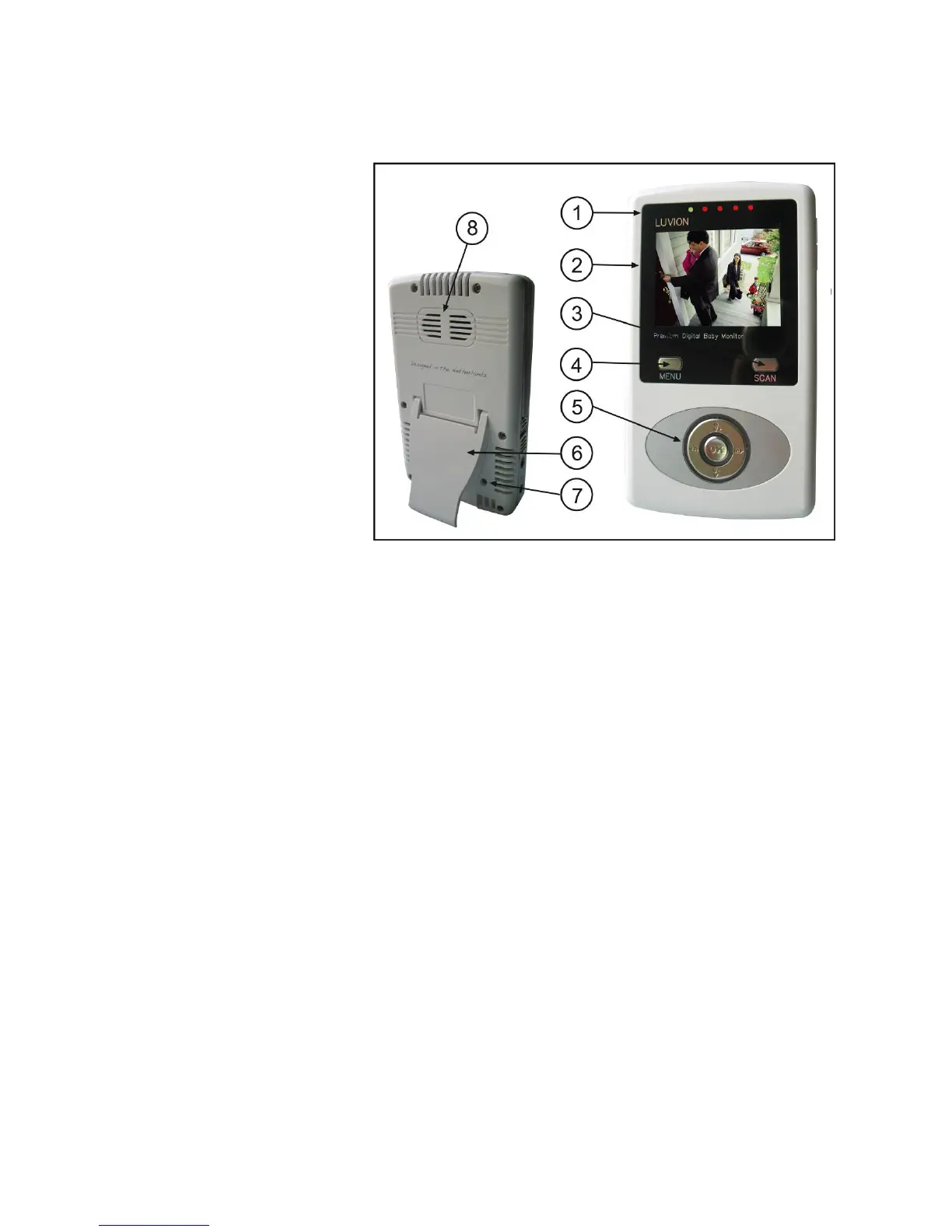
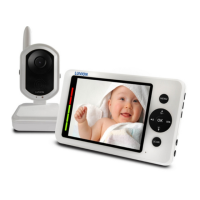
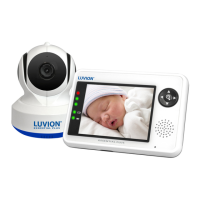
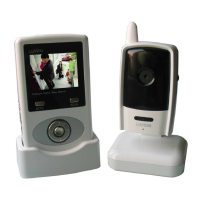
Wireless Receiver
Front/Back Controls
1. Power/Audio Level LEDs –
The green LED indicates the
receiver power is ON or OFF.
2
ystem
dark.
tton
The red LEDs indicate the audio
levels (low to high).
2. LCD Screen – Displays video
from the camera.
3. SCAN Button – When the
SCAN button is pressed, the LCD
screen is turned off and the s
continuously scans all available
cameras while the monitor is
The scan feature can be used for
the following two reasons: (1) to
prevent the user from being
disturbed (i.e. when sleeping) by
the bright LCD screen, or (2) to conserve battery power. If audio is detected above the preset audio
trigger level on the camera(s)*, the receiver will beep and display the triggered camera. The receiver will
return to scan mode about 5 seconds after the Alarm has completed. Press any button except OK bu
on the front panel of monitor will exit scan mode.
4. MENU Button – Press to access the receiver menu. Press the button again to exit.
5. Navigation Controls/OK Button – Use the controls in Viewing Mode and Menu Mode.
Viewing Mode: The following controls are used while watching live video from the camera:
• Press the UP/DOWN ▲▼ arrows to increase or decrease the volume.
• Press the LEFT ◄ arrow to view cameras* in automatic switching mode.
• Press the RIGHT ► arrow to manually switch between cameras*.
Menu Mode: Use the UP/DOWN/LEFT/RIGHT ▲▼◄► arrows to navigate in Menu Mode. Press the
OK button to confirm the menu selection.
6. Stand – Flip the stand out to place the receiver on a flat surface (such as a table or countertop).
Alternatively, place the receiver in the receiver cradle.
7. Pair Button – Press the Pair button when pairing the receiver with a camera (see Page 9).
8. Speaker – Produces the sound transmitted from the cameras*.
* You must have more than one camera configured on the system when using the functions that requires
more than one camera.







 To Next Page