- 13 -
Load a Disc
You can play video, audio or images stored on the following discs:
• DVDVideo,DVD-R,DVD-RW
• VCD
• AudioCD,CD-R,CD-RW
Note:Ensure that the disc contains playable content.
Eject a Disc
Press the [ ] key on the front panel to eject the disc. When the disc is ejected, the unit switches to
the previous source.
Touch Screen Controls
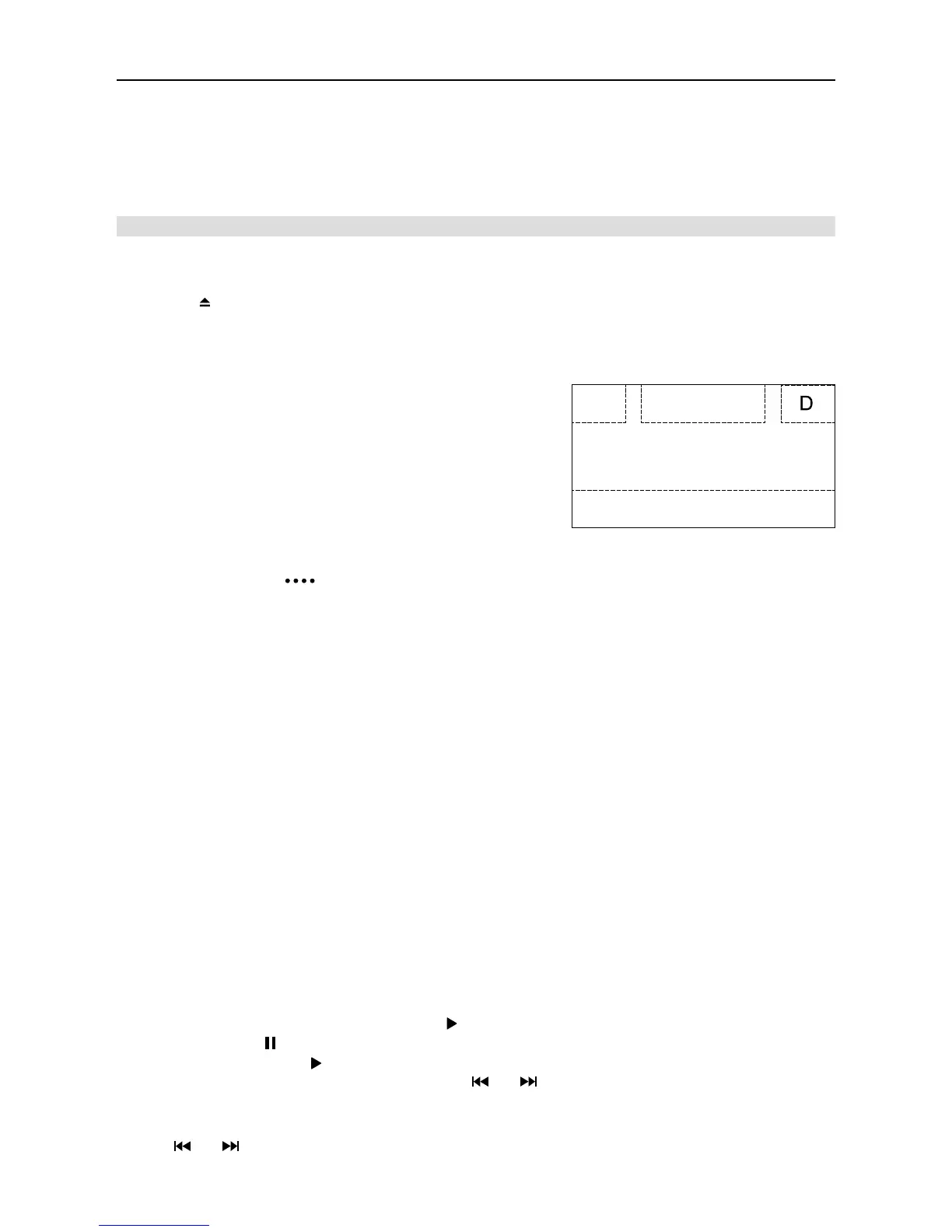
The touch key areas for DVD playback are outlined below:
A: Return to the main menu
B: Play the video and display playback information
C: Display onscreen control menu
D: Time display
Controlling Playback
To access the on-screen controls, touch the screen except upper left corner, and touch again to
cancel display. Touch [
] to view all function icons.
Connect a USB Device
1. Open the USB door.
2. Insert the small end of the USB cable to mini USB socket, then connect the other end of the
cable to your USB device.
Remove a USB Device
1. Select other source on the main menu.
2. Remove the USB device.
Insert a SD/MMC Card
1. Open SD/MMC card cover.
2. Insert the SD/MMC card into the SD/MMC card slot.
Play starts automatically.
Remove a SD/MMC Card
1. Select other source on the main menu.
2. Press the SD card to remove it.
Play/Pause
1. Once a disc, USB or SD/MMC card is inserted, play starts automatically.
For DVD movie, if a menu appears, press [ ] to start play.
2. To pause, touch [ ].
To resume play, touch [ ].
3. Skip to previous / next track / chapter, press [
] / [ ] key.
Previous/Next
Touch [ ] / [ ] key on the screen to skip to previous / next track / chapter.
Playback Mode
B
C
A

 To Next Page
 Loading...