Operation Manual easyTone
5.6.3.4 Adding a New Subject to Screening List
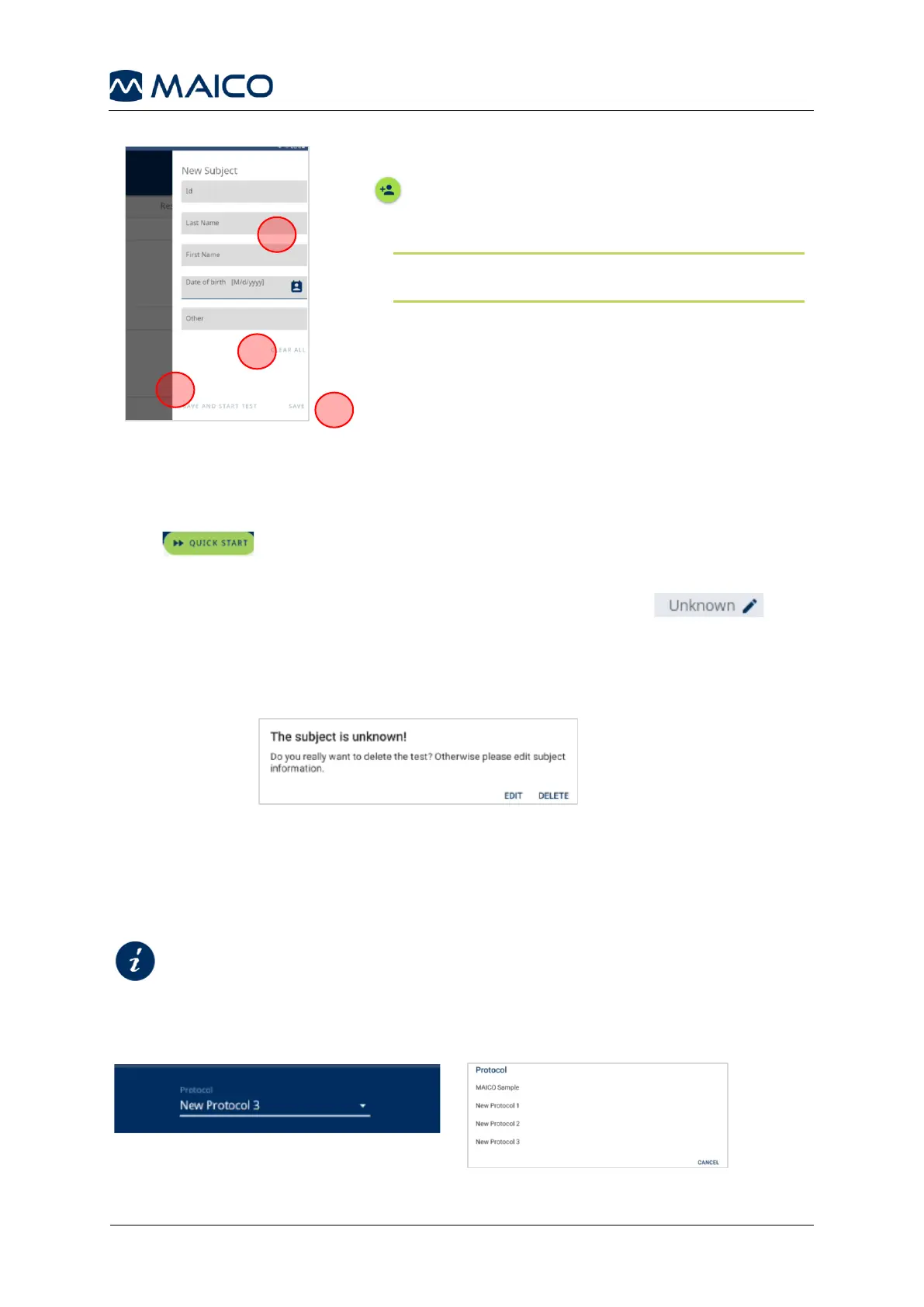
To enter a new subject to the Screening List, press
and proceed as follows (Figure 21):
1. Fill in the entry fields.
NOTE: You can save the subject as soon as you
have filled in at least one of the entry fields.
2. Clear the entries if needed.
3. Press SAVE AND START TEST to directly start
testing the subject you have just entered.
4. Press SAVE to save the new subject and return
to the Screening List screen.
5.6.3.5 Quick Start
You can start a test even if the subject information has not yet been entered. You can
do this both in Screening List mode and in Single Screening mode.
Press to start the test and proceed as normal.
Single Screening:
On the Result screen you can add the Subject information. Press
(above Screening Result) to go to the New Subject screen and add the information.
Screening List mode:
After the test is completed, you will be asked to enter the subject information (Figure 22).
Press EDIT to enter the EDIT SUBJECT screen and fill in the data. The new subject
will be added to the Screening List.
Or press DELETE to delete the test data.
5.6.4 Selecting a Protocol
Select a protocol either in the start screen or in the test screen (Figure 23 and Figure 24).
When selecting from the test screen, this must be completed before a screening response
is stored as the Protocol selection becomes inactive.


 To Next Page