5.9.4 Connecting the Tablet to the easyTone Companion Software
Connect the easyTone Companion Software via
• WiFi (Mac and Windows
®
PCs) or
• USB (Windows
®
PCs/laptops only).
Connection via WiFi
1. Connect the tablet and the PC to the same WiFi network.
2. Start the easyTone App on the tablet and make sure the tablet does not enter
standby mode.
3. Start the easyTone Companion Software on the PC.
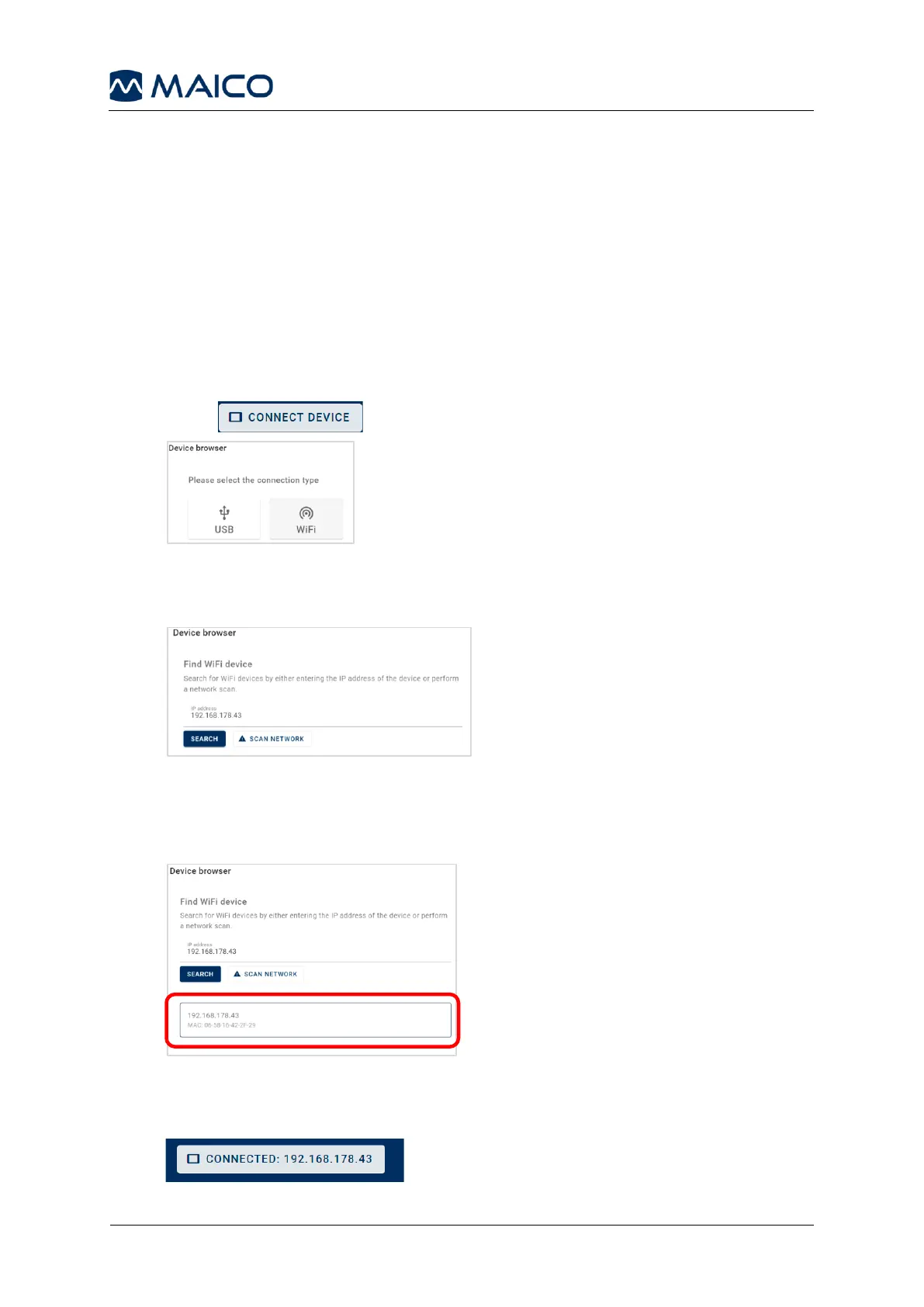
4. Press and select WiFi (Figure 34).
Figure 34
5. Enter the IP address and press SEARCH or search the tablet by pressing SCAN
NETWORK (Figure 35).
Figure 35
6. Select the tablet’s IP address (Figure 36). The IP address can be found in the
tablet settings. Use the tablet’s search function to find. The successful
connection is indicated by a green check mark.
Figure 36
7. Press Close. The IP address of the connected tablet is displayed in the
easyTone Companion Software (Figure 37).
Figure 37


 To Next Page