4. On the Thing page for the Owl statue,
you will see a button that says Download
This Thing! Click this button.
5. In the Downloads window, select the
button Download All Files. Thingiverse
will download the file OwlReDo1_fixed_sc.stl
to your local computer.
6. Start MakerWare. Choose the File menu.
Choose Open. Navigate to the directory
where you stored the file OwlReDo1_fixed_
sc.stl. The owl should appear in MakerWare.
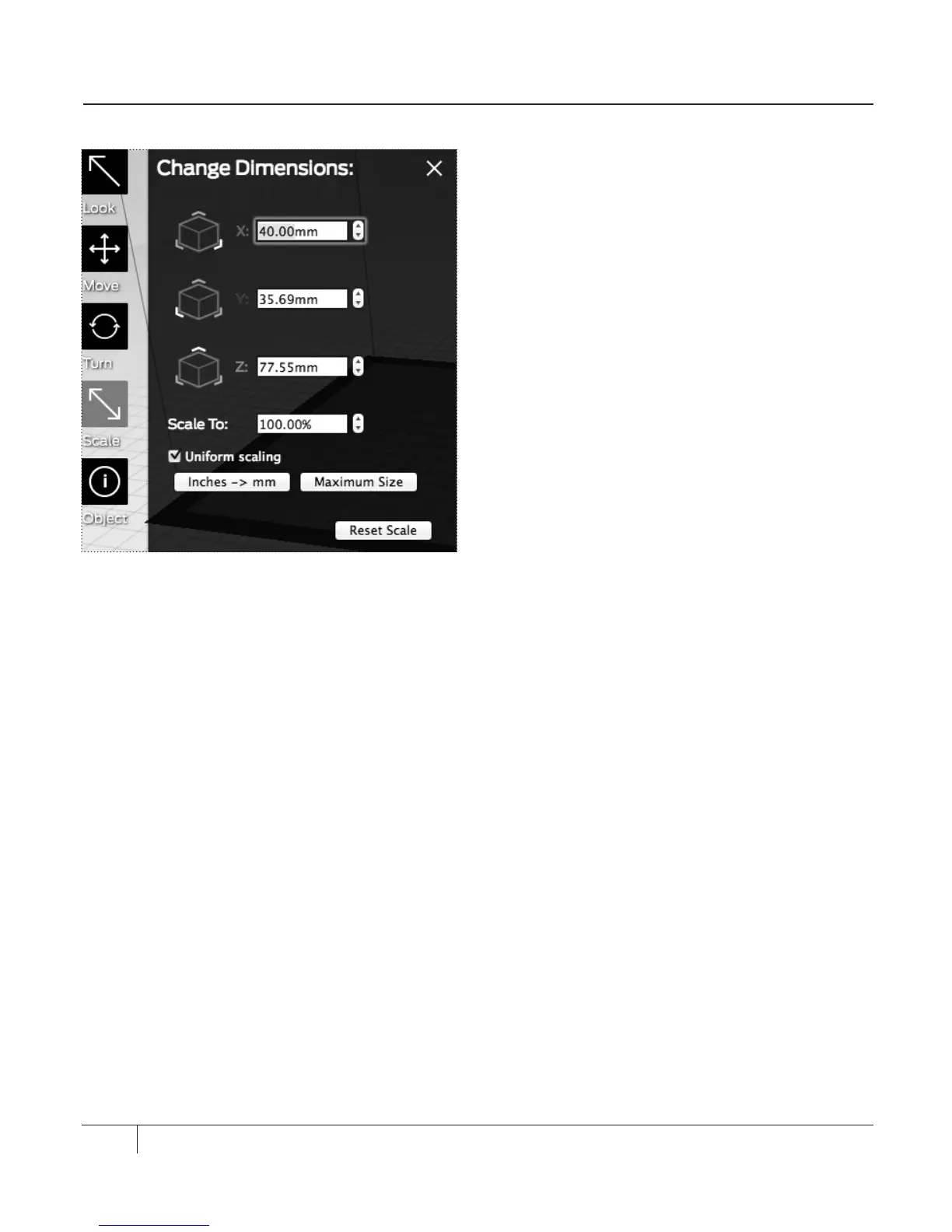
7. Click the Scale button twice. In the
Change Dimensions dialog, edit the
following settings:
Uniform scaling: Ensure that this checkbox
is selected.
X: Set this field to 40.00mm. [Fig. 9.2]
8. To save your changes, go to the File
menu and choose Save.
9. Choose the File menu and choose Make
or click the Make button.
10. In the Make dialog box, select the Export
to a File radio button.
11. In the Make dialog box, click the Export!
button. Save your STL file to an SD card.
PRINTING A DUAL EXTRUSION OBJECT
Dual extrusion models are composed of two
STL files sliced to a single X3G file where
one of the STL files will be printed by the
le extruder, and the other STL file will be
printed by the right extruder.
PRINTING EXAMPLES CONTINUED
64
Fig. 9.2




 To Next Page